
Overview
Where to find it in ISOPlanner: https://portal.isoplanner.app/schedule/overview
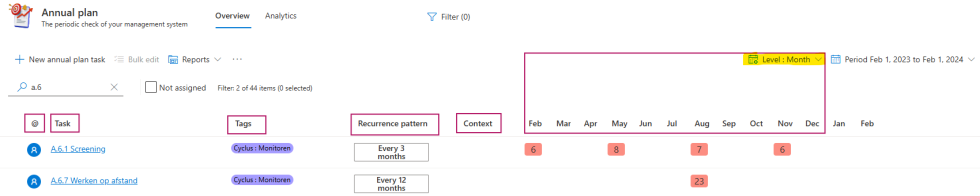
The annual plan is the place for all recurring tasks. The list shows the following properties:
Assignment: A small icon with the initials of the person who was assigned the task. Hoover over the icon to get a tool-tip with the full name of the person.
Task: name of the task
Tags: optional but advisable to add in order to have a better overview, easier to filter and create reports
Recurrence pattern: showing how often a particular task occurs within an audit year
Context: shows to how many elements this task template is linked i.e. related to.
Calendar: this part can be adjusted through the button View and provides the option to see the task per year, quarter or month
Click here to make the planning for this audit year
The annual plan works with audit years. Audit year can be set in the menu Administration-Settings, Tab: General, section “Audit cycle”. Make sure to save the set changes (button: Save at the top of the page)
In the annual plan, on the top right side, you can switch between audit years with a button that shows the period of the currently chosen audit year.
Tasks for each template within the Annual plan menu are being all created at once. When no tasks are created at all, you will see a list of annual plan templates (if there are any), but the timeline on the right will be empty. Above those columns a link called “Click here to make the planning for this audit year” is shown.
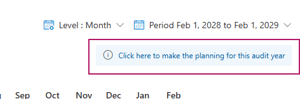
Click that link to start the process of creating single tasks, based on the templates, for the currently chosen audit year. In a popup that appears, you can select two additional actions before you proceed:
- Assign: Check this box and select a person to assign all annual plan tasks to that specific person and with whom the tasks should be shared. If you have already done that for each task template, you can leave this unchecked
- Schedule in calendars: Check this box to create appointments in Outlook calendar for all tasks that will be created on specific dates for the annual plan tasks.
Click the ‘Execute’ button to proceed.
Once the tasks are created for all tasks, the button “Click here to make the planning for this audit year” is no longer visible for that year but is still available in the “… ” menu.
Any changes you make to annual plan tasks are effective immediately, but only for task instances on specific dates that were not completed yet.
For example, there is an annual plan task called “Access rights check” that occurs every 3 months on the third Monday. There are tasks for these four specific dates:
- Jan 16, with a green checkmark that indicates that it is done,
- Apr 16, with a green checkmark that indicates that it is done,
- Jul 17,
- Oct 16.
Now the annual plan task recurring pattern is changed to have the start date on January 17, occurring every 3 months the third Tuesday. After saving the annual plan task, there are tasks for these four specific dates:
- Jan 16, with a green checkmark that indicates that it is done,
- Apr 16, with a green checkmark that indicates that it is done,
- Jul 18,
- Oct 17.
… button
The button with three dots gives access to these options:
- Inactive tasks : this shows a popup with a list of inactive tasks, if there are any. Choose one to switch its status to ‘Active’ again.
- Create schedule: This shows the same popup as the one that comes with the “Click here to make the planning for this audit year” link, as described [here]. Click “Execute” to (re)create the schedule.
- Remove schedule: This shows a popup with the option to remove all tasks on specific dates for all annual plan tasks. The annual plan tasks themselves will not be removed – you can access them by clicking their name after executing this action.
The popup features a link called “Show details of current planning” which, when clicked, gives a summary of the number of tasks per person, including how many are scheduled in Outlook calendar.
Click “Execute” to go ahead with removing the schedule.
Note that these actions always apply to all annual plan tasks and that any selection of annual plan tasks that was made will be ignored.
Selection
When one or more annual plan tasks are selected, the ‘Bulk edit’ button becomes active. This button gives access to four actions:
- Update schedule: This will recreate the tasks in the annual plan task series. Completed tasks are not updated. Optionally assign the annual plan tasks to a specific person and schedule the created tasks in Outlook calendar.
- Remove from calendar: This will remove all tasks on specific dates for all selected annual plan tasks from the Outlook calendars of the people those tasks are assigned to.
- Make inactive: This will make the selected annual plan tasks inactive. Completed tasks will not be deleted, but open tasks will be. The annual plan tasks will no longer be visible in the annual plan. You can make the inactive annual plan task active again through the “… ” button.
- Delete history: Delete the schedule and history for the selected tasks from all audit years. The annual plan tasks themselves will also be deleted. This action cannot be reversed.
Analytics
This will show a graph with the number of tasks per person in the annual plan, and another graph with the number of tasks per task status.
Task
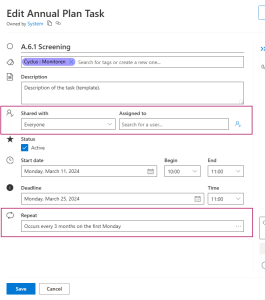
Click on the name of the task to change the properties of the task template. Note that you will be editing the properties of the template as it will reoccur and not changing a single task based on the template. Single tasks made based on the template are visible on the right side, in the timeline and are shown as a number; date on which the single tasks starts.
For example, if you open one annual task (template) and in the ‘Library’ tab of the recurring task link a document, that document will be linked in each of the single tasks, created based on the template but within each single task created from a template, that document can be removed or additional documents added.
Shared with / Assigned to
Task can be assigned to a single user (Assigned to). Standard users can see only the tasks assigned to them but they can also reassign a task to someone else. If a task needs to be visible to a group of people, it can be “Shared with” a group and in that case, the task is visible to everyone from the group.
Recurring pattern
This shows how often the task will occur per. This can be changed by clicking the task name and altering the recurring pattern.
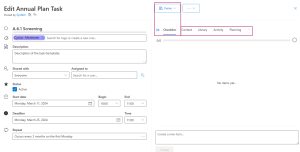
Checklist
Task can consist of a checklist, if there are multiple steps needed in order to complete the task and they might not all be completed at the same time or even by the same person. For more information on the options of checklist, see also How to work with KPIs and Forms
Context
Related Objectives, Risks, Controls and other element can be linked to a task in this section. Linking a task to a particular element will make this task visible within that element, in the tab: Task & Events.
Library
One or more related documents can be added to a task in this section.
Planning
In this section, single tasks, created based on this task template are listed, with the column providing the status of each task and if the task is completed, date of the completion is stated.