
Concept
For various controls in your compliance frameworks, you need to collect evidence. This can be a review of a policy, a risk assessment of checking if all required users have their MFA enabled. Those tasks are scheduled in your Annual Plan in ISOPlanner. Some of those tasks, like checking if all required users have their MFA enabled, can be automated. This means that you can reduce your manual tasks (or remove a checklist item from such a task) and let ISOPlanner handle the collection of the evidence for the audit. The evidence is automatically related to important controls in your frameworks.
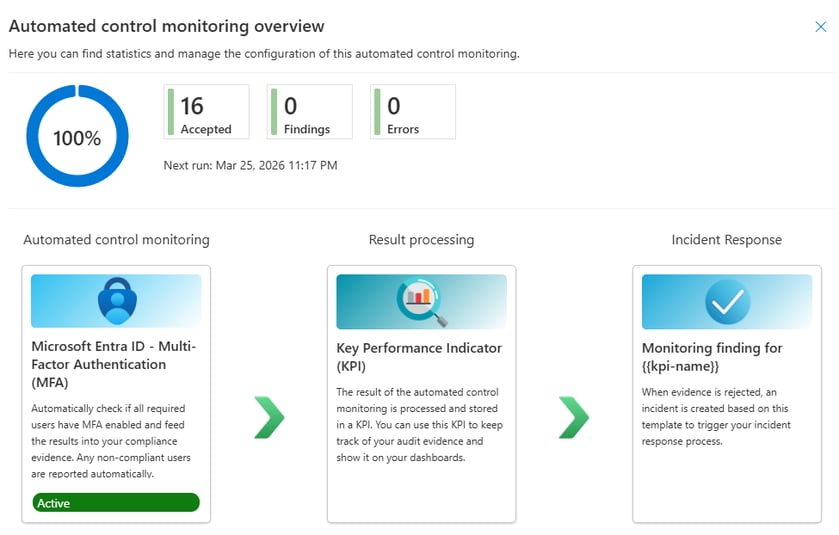
This works in 3 automated steps:
- Automated control monitoring (Evidence is collected)
- Result processing (Evidence is evaluated)
- Incident response (A task is created and assigned)
Automated control monitoring
The evidence is collected through an ‘automatic task’ that runs in the background on a schedule you want (daily, weekly, monthly). These automatic tasks are shown in the annual plan so you have control over the results. The good thing is that these tasks cannot be overdue: ISOPlanner runs them automatically for you.
Result processing
The collected evidence is stored in a KPI in ISOPlanner. As you already might know, a KPI is a ‘custom field’ in which you can store data. And you can add widgets on your dashboards to visualize this data. To interpret the data, some configuration might be required, depending on the type of control monitoring. There are 2 types:
- Results that evaluate to Accepted or Rejected evidence. Think ‘Ok’ versus ‘Not Ok’.
- Results that evaluate to a numeric value. Think of it like a ‘Score‘ for which you can define whether this score is ‘Ok’ or ‘Not Ok’.
For the first type that evaluates to Accepted or Rejected evidence, you must configure the last Incident Response step. For a ‘Score’ like value, you can do this optionally by defining a KPI Alert rule (Premium subscriptions).
Incident response
When the evidence is collected, evaluated and stored in the KPI, the decision is made to start the incident response process or not. If this is not needed, nothing happens and the new evidence is just added to the collection of evidence for your audit. If this is needed, a task is created based on a template that you configure. This way, you have full flexibility to configure and standardize this.
The result is that when some users have their MFA disabled, the correct team in your organization is notified so action can be taken immediately.
Add and configure
All automated control monitoring features are available in our Store.
- Go directly to our Store through menu Administration / Store and filter on Category : Automated Control Monitoring
- Go to the dedicated section in Administration / Settings / Automation, select tab Control Monitoring and click Add from Store.
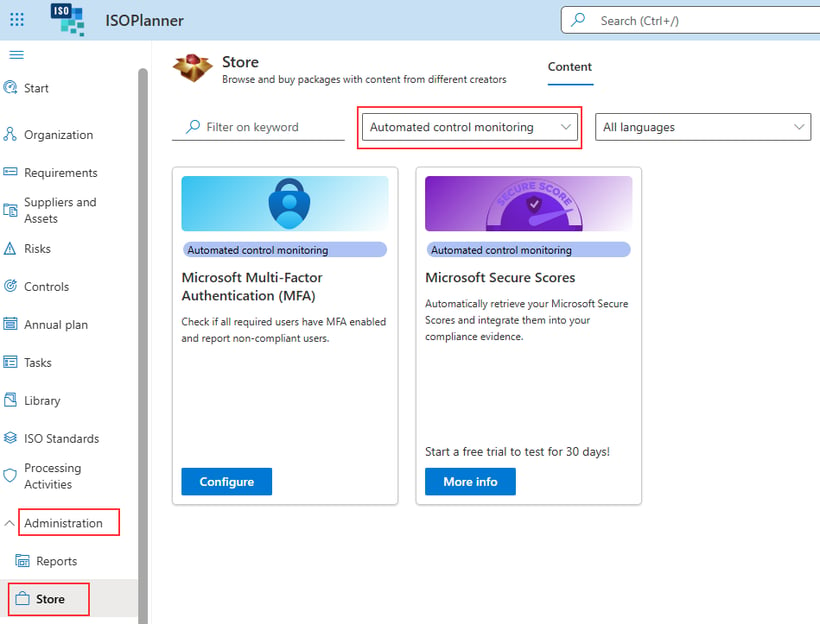
You can activate them by clicking More info on the automation you want and click Start free trial. For each automation, you get a 30 day free trial. This way, you can determine whether this will help you reduce manual tasks and improve your evidence collection for audits.
One item in the Store can actually contain more than one sub-items. An example is the Microsoft Secure Scores automation. It contains 4 sub-items that retrieve evidence about different types of secure scores. We have currently the following items in our Store.
We are constantly adding more, feel free to ask what you need!
- Microsoft Entra ID – MFA
- Microsoft Secure Scores
Click on the link of one of the items above to read more about the specific item.
After starting the trial, click the Configure button to navigate to the Administration section where you’ll see all items you’ve added. Click on an item to open the configuration panel.
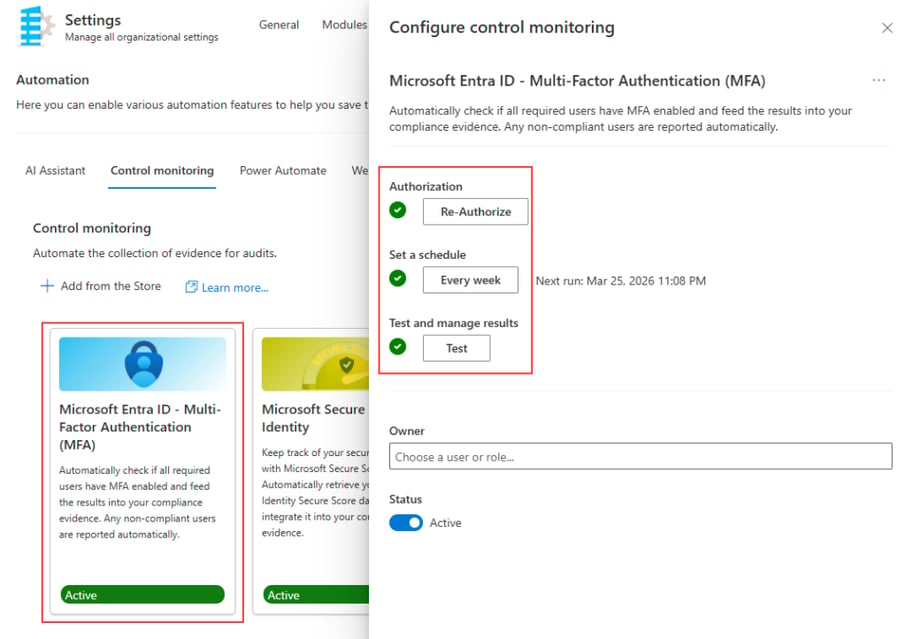
For each configuration, the following steps are required:
- Authorize
- Schedule
- Test
Before you’ve completed these steps, you cannot activate it (Status field is disabled).
Optionally, you can assign an owner (user or role). This can be useful for administrative purposes like who needs to manage the technical details of this automation.
Authorization
Because ISOPlanner must be able to read evidence from other systems, giving authorization is required. When possible, we integrate with Microsoft Entra ID so you only have to consent to the applicable permissions in a familiar Microsoft environment. After successful authorization, the checkmark before this steps turns green. You can ‘Re-authorize’ but this is normally not needed.
Schedule
Click the button to set a schedule. Default is once a week on Saturday. But you can change it. When you change the schedule, the ‘next run’ is calculated and shown when the status becomes Active.
Based on your environment, your organization is assigned a time slot in which all control monitoring automations run.
Test
This step will run the automation with default configuration and shows the result. This allows you to make changes to the configuration based in the result of a test run. No data is stored in the KPI yet. Testing is required for evidence that evaluates to Accepted or Rejected (see Concept). For other types, the checkmark before this step becomes green after you set a schedule.
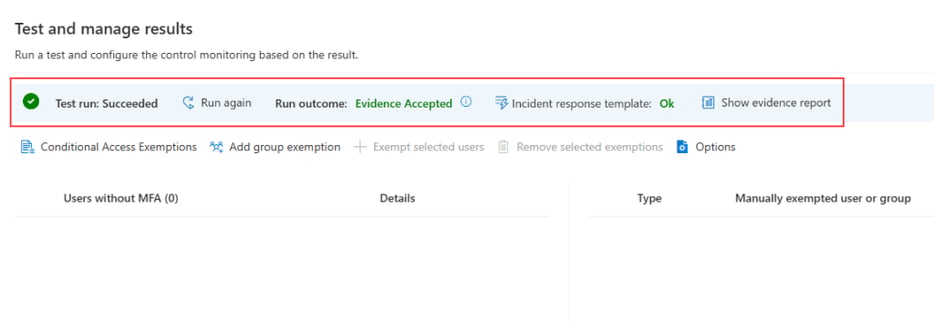
The section below the ‘blue toolbar’ (in the red square above) are available for all control monitoring automations that evaluate to Accepted or Rejected. Other content below is specific configuration. To learn more about it, click on the specific control monitoring at the bottom of this page.
- Test run: Normally, each test runs succeeds. In case of a technical error, our Service Desk is notified automatically, except for authorization issues.
- Run again: After you changed the configuration, click ‘Run again’ to save the configuration and run it to see the updated results.
- Run outcome: The run outcome indicated whether the evidence is Accepted, Rejected or Ok (for evidence that is evaluated to a numeric value).
- Incident response template: Select the task template for when evidence is Rejected. This is required.
- Show evidence report: When available, this shows a small report of the evidence as it will be stored in the KPI. When not available, this show the raw JSON evidence (still valid for audits).
Activate
After all 3 steps are completed and ‘green’, you can switch the toggle to activate it. After activating, the control monitoring is run immediately for the first time. The next run date is calculated and shown next to the schedule. At this point, configuration is done and you can see the results come in. Check the annual plan or the dashboard of the related controls.
It can take seconds to minutes before the task is completed and the results are visible in the annual plan
Reporting
Reporting over the collected evidence can be done at 3 levels:
- Operational. Check the annual plan for the status of the automated control monitoring.
- Dashboards. Put widgets on your dashboards to get real-time insights.
- Audits. Use the control dashboards to see the monitoring status and collected evidence.
Operational
The automated control monitoring is shown in the Annual plan with a light yellow background. These rows are – unlike manual tasks – not assigned to humans. The first column is therefore shown as a lightning icon instead of the assignee. And instead of showing the tasks on the right at a certain date, the percentage of Accepted evidence is shown.
Note: the control monitoring is only shown if there are any runs in the selected period.
Tip: sort on the assignee to see the control monitoring on top
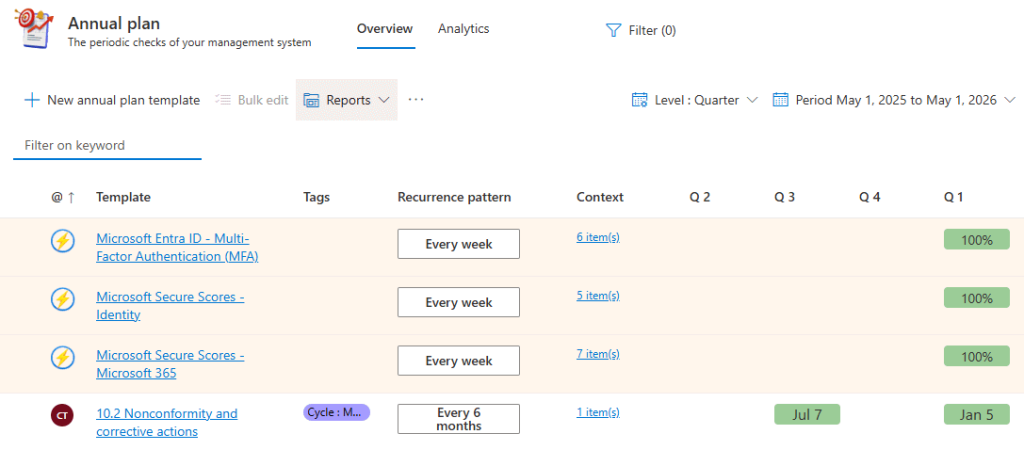
When you hover with your mouse over the percentage, details are shown.
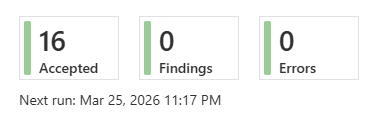
This means that in Q1 of 2026, the control monitoring has run 16 times and all evidence was Accepted.
When there are any findings or errors, the percentage in the Annual plan is shown in red. When you hover over it with your mouse, you’ll see the same totals but also the details below it.
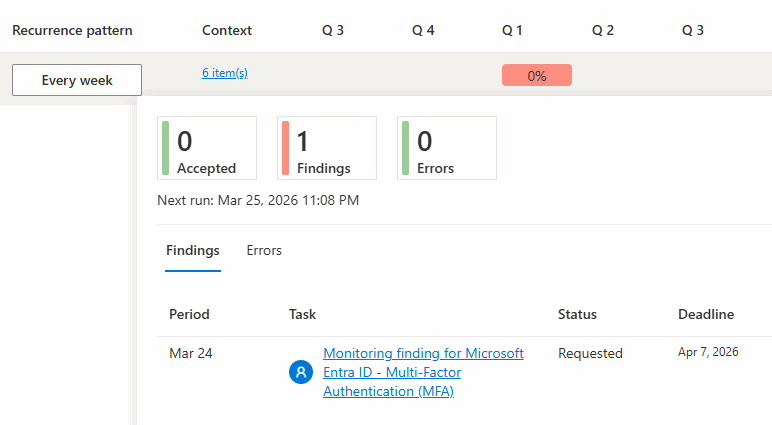
This means that in Q1, the control monitoring has run 1 time and the evidence was Rejected which resulted in 1 finding for which a task was created. The task is not yet completed.
Important: make sure that the template used to create the task has an assignee. This can also be a sharing permission. When the template is not assigned, the task is assigned to the owner of the integration or the owner of the template. For templates of type Event, these rules apply to the first sub-task defined in the template.
Note: when the task has been completed, the percentage in the Annual plan turns green, indicating that work has been done. It will stil be 0% in the above example.
In case of technical errors, 2 things can happen:
- When it is an authentication failure, network error or other ‘transient’ error, a task is created. You are responsible for resolving the issue.
- When it is another type of error, our Service desk is automatically notified. In this case, we are responsible for resolving the issue.
Dashboards
All evidence is stored in a KPI. When the control automation is added from our Store, the KPI is created and automatically related to relevant controls in your compliance frameworks.
This is important to understand because all evidence and all tasks created from an incident response are automatically related to this context.
It does not mean that the monitoring of these controls are now fully covered. E.g. for ISO 27001 – A.5.17 – Authentication information, you also need to create awareness how to use MFA.
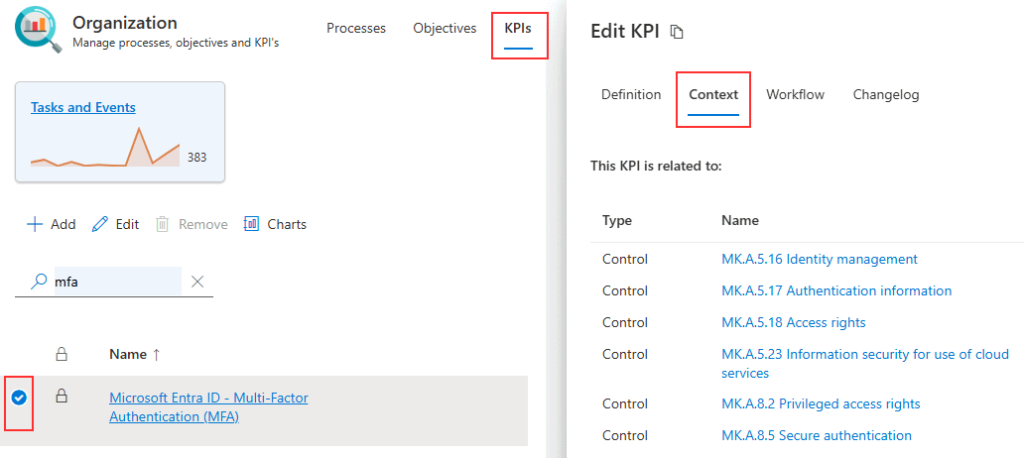
You can of course remove or add more context to the KPI if needed. Next, when you open the charts of this KPI by clicking the Charts button, you can look at the raw evidence.
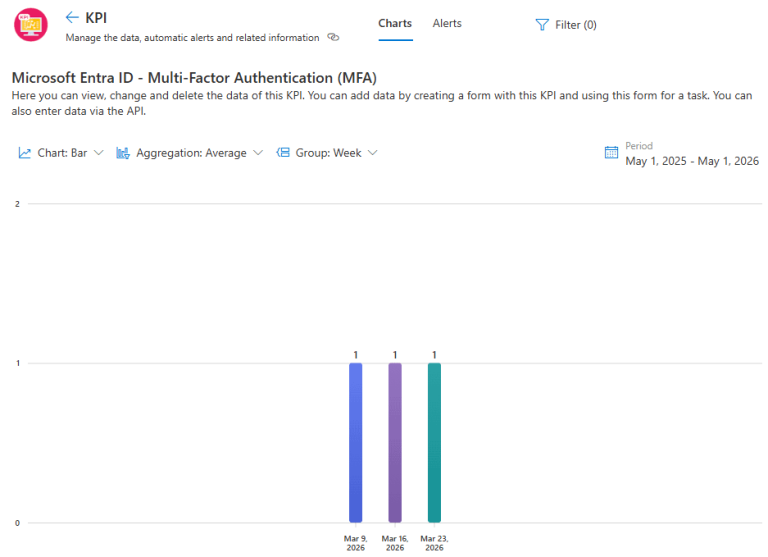
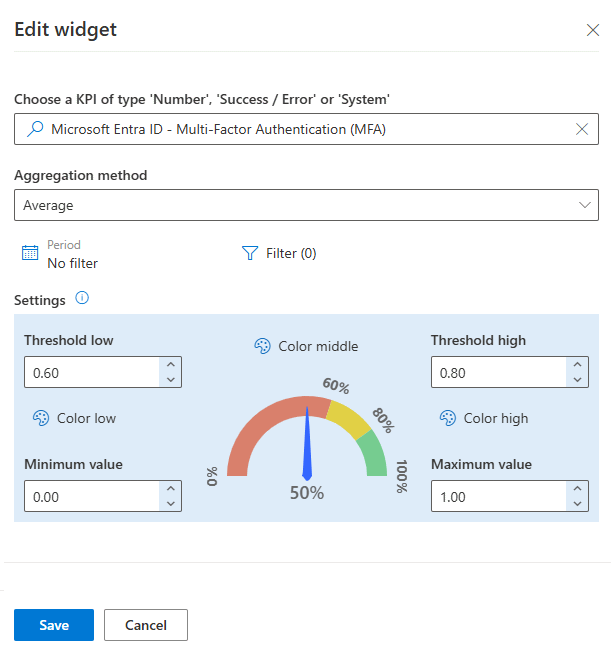
In the example above, a Bar chart is chosen with Average aggregation and grouping per Week. The value of 1 (raw data) means 100%. The logic behind this is that is type of control monitoring is evaluated as Accepted (1) or Rejected (0). In a widget on the dashboard, you create a nice view for it. But first dive even deeper into the raw JSON evidence report and auditor might want to see.
Select the chart List (instead of Bar) and now all details of each data point becomes visible, including the column Evidence.
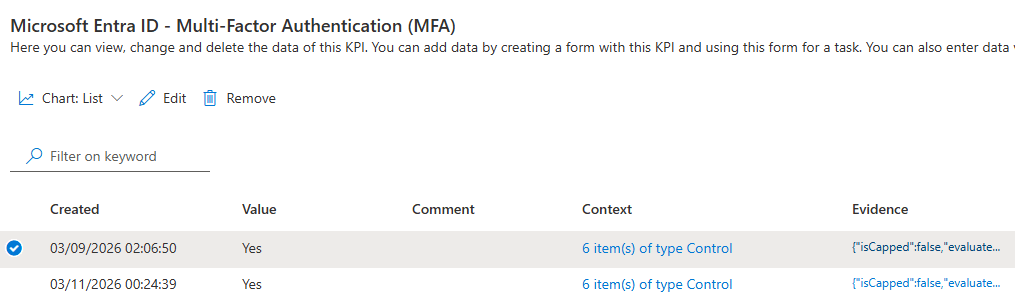
When you click in the Evidence column for a selected row, the report is shown which you can also view in JSON for all details, including which of your Microsoft Entra ID policies exempted the user, if applicable.
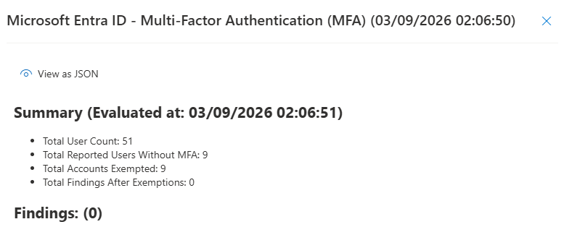
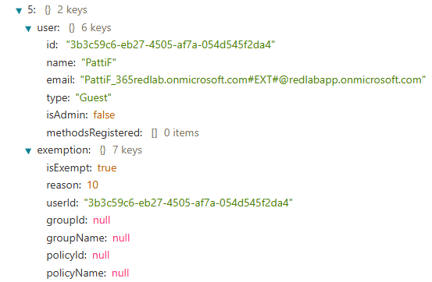
An auditor might want confirmation that logging is done fully and correctly for a relevant sample. In that case, show these views.
Now you understand the structure of the data, you can easily show it on your dashboard by adding a widget:
- KPI Alert – Show a gauge
- KPI Data – Show a bar chart
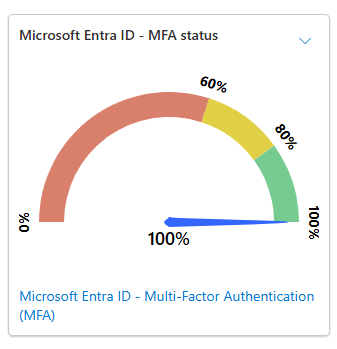
An example of the widget configuration is shown below. Note that the thresholds are from zero to one, as explained ealier.
Audit
When you navigate to one of the controls that relate to the KPI (and therefore the control monitoring), select tab Dashboard.
- When you click on 100% completed under Monitoring reliability, you navigate to the tasks and events tab where you can show the auditor that all tasks are done according to schedule.
- When you click on Findings, you’ll see the tasks that the incident response process of the control monitoring has created.
- You can also create the widget on this dashboard which also has a link at the bottom to drill down into the chart data for evidence details.
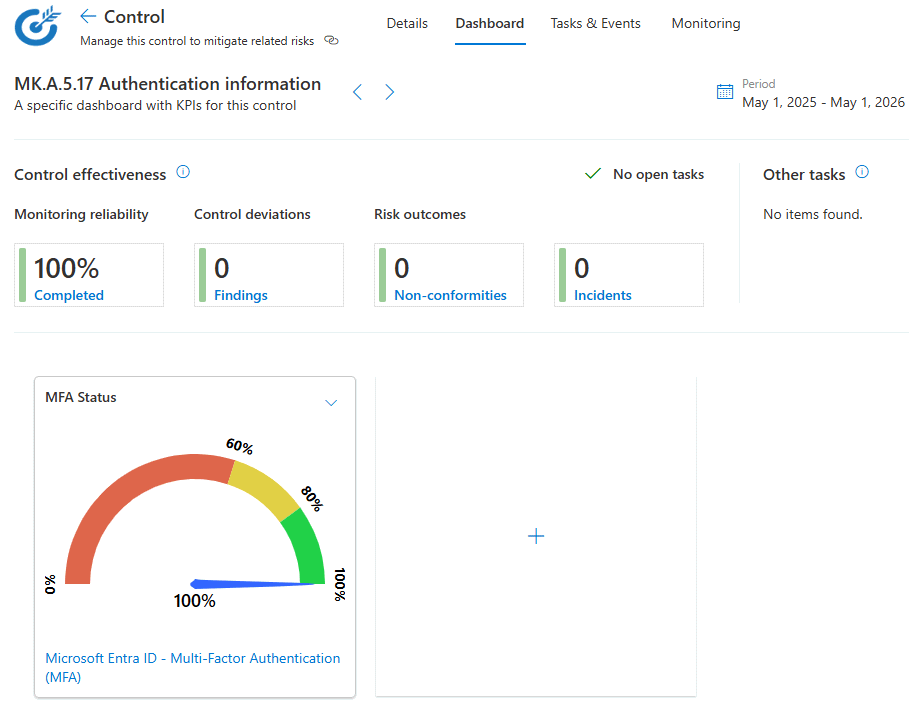
Note that when this control has related risks, the risk dashboard contains the cumulative result and possibility to drill down to this dashboard.
Configurations
- Microsoft Entra ID – MFA
- Microsoft Secure Scores
Resources