
Introduction
This menu currently contains the tab “Task Templates” and is the first step in the process of improvements towards the better overview and centralized place within ISOPlanner for organization of content overviews.
Task Templates
Use the “Task templates” to be able to quickly create new tasks of a certain type, where some properties (like tags, checklist, linked documents etc) are always the same.
Where to find it in ISOPlanner: https://portal.isoplanner.app/admin/content/templates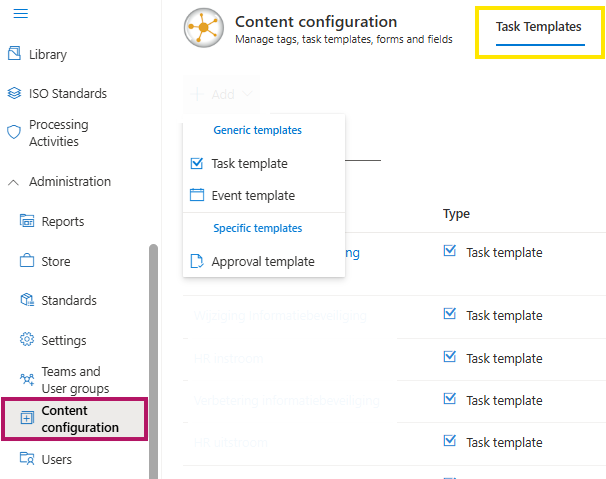
The following templates types can be created:
- Task template
- Event template
- Approval template
For all template types, you can pre-define:
- Name
- Description
- Tags
- Shared with
For Task and Even template additional fields are available
- Items from the library
- Checklist or Form
- Context
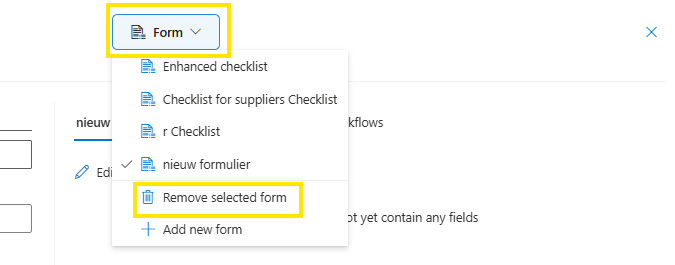
To each template of the type “Task” and “Event”, (manually created) checklist or a form (based on KPIs) can be added. Manually created checklist is easy to setup but limits to the options of “Success” or “Failed” state per item. A manually created checklist does not have to be filled in for a task to be closed/completed. A form can be made up of fields of several data types, each field has to be filled in for the task to be completed and the results can be shown on dashboards. If you wish to remove a form from a template, you can do that by clicking on the button “Form” at the top of the task and here you can either replace the current form with a different one or remove the form completely from the task.
Task types
Task Template
The task template can be used to quickly create tasks with pre-defined properties. New templates can be created in the menu Content configuration, tab: Task Templates. Click the Add button and choose a type of task template. Give the template a name and fill in any property you want. It is recommended to add at least 1 tag to be able to quickly filter for these tasks later on. Also add context so that the tasks created from this template show up in the ‘Dossier’, e.g. a control or requirement.
Event template
Same as the task templates, the event templates can be used to create templates with pre-defined properties, in this case for events. Click the Add button and choose ‘Event template’. Give the template a name and fill in any properties you want. Use event templates for example for ‘incidents’ or ‘threats’.
Event templates can be used to start workflows for events. When an event is created from the template, the workflow is started. This way, you can, for example, start an incident handling process when an incident is reported. Or you can create an event for each threat found by another system through a workflow. There are many use cases and the event in ISOPlanner acts like the Dossier where all relevant information can be stored about work done and collected evidence. With this Dossier, the auditor can quickly see if the correct process is followed and whether the evidence matches your policies.
Add at least 1 tag to be able to quickly filter for these events later on and add the context so that the events created from this template show up in the ‘Dossier’, e.g. a control or requirement.
Pre-defined subtasks can be added to the event template. When an event is created from the template, the subtasks are created and assigned. You can enable or disable the creation and removal of subtasks by users. Default this is set to enabled. When disabled, users cannot create or remove subtasks in the events created from this template. This is especially useful when you also use a workflow: you maybe want the workflow to create the subtasks and not let users interfere.
Approval templates
Approval templates are a special kind of templates used only for the approvals. In this template, you can select pre-defined approvers and indicate whether the user who uses this template is able to modify these pre-defined approvers (max. 5 users) and the documents can also be sent to the owner of the document. After saving, the template becomes available in the approvals module in the form where the approvers are selected.
In the example below, there are 2 approval templates created, one for the sales team and one for the management team.