
Tags
Where to find it in ISOPlanner: https://portal.isoplanner.app/admin/content/tags
In the menu Administration / Content configuration, under the tab Tags all the tags created within your ISOPlanner can be found. This is the only place within ISOPlanner where existing tags can be deleted or adjusted.
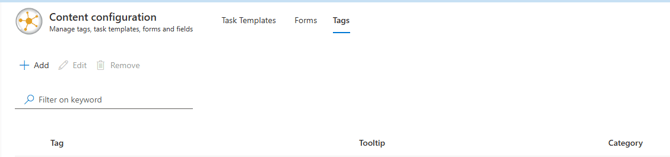
Each tag consist of “Group” and “Value”. Multiple tags can be for one group, whereas each tag has a different value and the group is shared. For example, for a “Group: Classification”, tags with values “Change”, “Data breach”, “Implementation” etc. can be created. Tags can be assigned to items like processes, requirements, risks, controls, tasks etc. and can later on be used as a parameter to filter the data.
Multiple tags can be assigned to one item and new tags can be created in other elements of ISOPlanner (tasks, risks, controls…) as well, not only in this menu.
With the help of the button Add a new tag can be added. If an existing group is added, the color will automatically be pre-defined as other tags from the same group but it can be changed if needed.
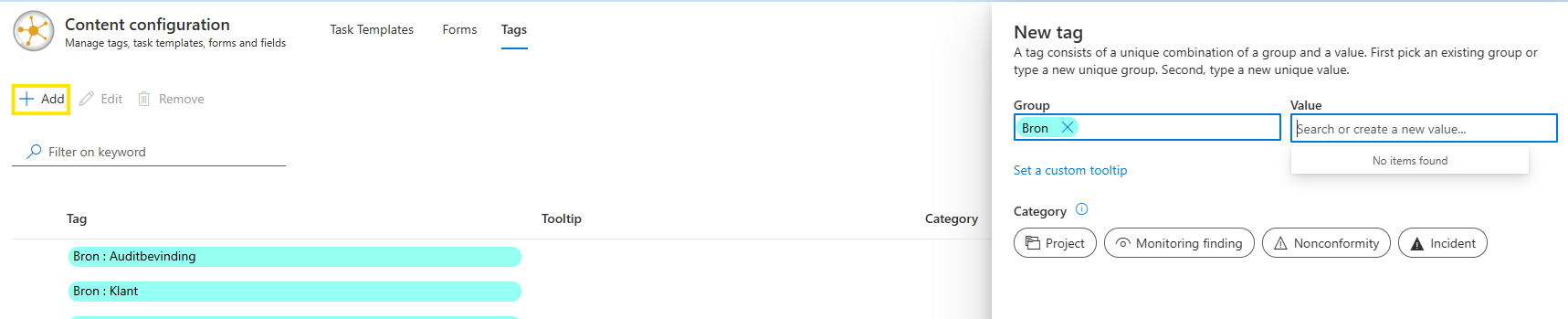
For each tag, a Category can be added. Note that categories Incident, Non-conformity and Monitoring finding can be assigned to only one label. Any task with that label will be shown in the risks or controls to which that task is linked (for example, within the risk in the tab Dashboard).
When an existing tag is marked, buttons Edit and Remove become active and that tag can be either changed or deleted.
In the list of tags, Tooltips of each tag is visible and also Usage of each tag. By clicking on a usage-number of one tag, a list opens, showing to which items that particular tag is linked.
For each group of tags but also for each tag individually, a color can be chosen and a Tooltip can be added. Text entered in Tooltip is shown when hoovering the mouse over the tag in any of the items where it is assigned.
