
Introduction
ISOPlanner can help you manage your compliance related documents throughout the full life cycle.

ISOPlanner uses your trusted Microsoft SharePoint for this. Microsoft delivers robust solutions to manage this process that other vendors do not. All documents in ISOPlanner adhere to this process, making managing it part of your organization-wide policies.
If you are new to SharePoint or want to learn more about the high level capabilities, we can recommend the following video.
Creation
ISOPlanner supports 2 types of ‘documents’ which can also be used together for different scenario’s.
- Office documents like Word, Excel, PDF and other types like emails and images.
- Web pages (like this help document) which can contain links to other documents.
Many compliance related documents are Office documents. Examples:
- A PDF report that your auditor sends you.
- Evidence collected from various sources, maybe a JSON file (.TXT) or screenshot (.PNG)
You cannot choose the type you want: these types are fixed and should be stored in a Document Library in SharePoint.
Next to these examples you may want to manage documents like policies and procedures. When you already have these as an Office document or Web page, you can import them in the LIbrary in ISOPlanner with a few clicks. If you don’t, you can choose which format is best for your organization.
Office documents
Documents created with Word are great for real-time collaboration and easy editing. They are less great for publication on the intranet because people have to open the document (PDF) and scroll and search.
Web pages
Web pages are great for publication and navigation because they can contain interactive content and links to other web pages. This can be especially handy for policies or procedures that relate to each other. They are less great for editing because the editors are a bit less advanced than Word.
Note that our template package with policies and procedures ‘Instant 27001‘ contains web pages.
You can of course create certain types of documents in Word and other as Web page. Within ISOPlanner, you navigate to the Library and choose tab Categories. When adding a new category you can choose the type that you want. After choosing the type, select the location on SharePoint and give it a name. When saved, you can add content to it by selecting the Content tab and select the Add button. You can choose the existing content that is present in the location you chose for the category. This means that you should create or upload the content in this location first.
In ISOPlanner, you cannot create the content. Instead, you select the content that is already on SharePoint. This way, SharePoint is the single point of truth and you can rely on the correct auhtorization and versioning.
Versioning
To collaborate, approve and publish the correct documents, correct and automatic versioning is essential.
To enable versioning in ISOPlanner, enable the setting Enable retrieval of version information for each relevant category. A category is relevant when documents must be maintained like company policies. An example where versioning is not needed is evidence because these documents are stored as records (should not be changed).
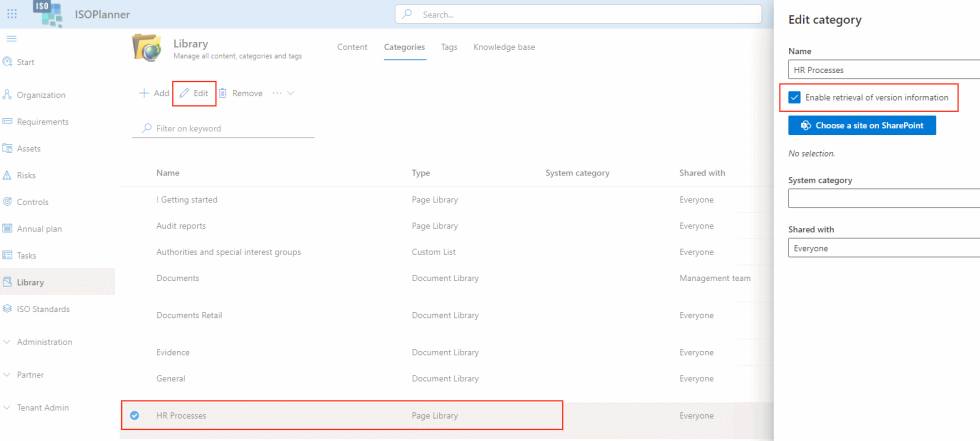
Note that ISOPlanner retrieves real-time version information from SharePoint which can take a while to load. To boost performance, disable this feature for categories where versioning is not relevant.
By default, SharePoint is configured only to store major (published) versions of documents. We recommend to adjust these settings:
- That minor versions are created for each change.
- And that minor versions cannot be seen by people who have read-only access.
Effectively, with these settings, people with read-only access only see published versions while you can collaborate on documents until a new major version is ready for publishing.
To adjust these settings, navigate to the document library or page library and follow these steps:
- Choose Settings
- Choose Library settings
- Choose more library settings
- Choose versioning settings
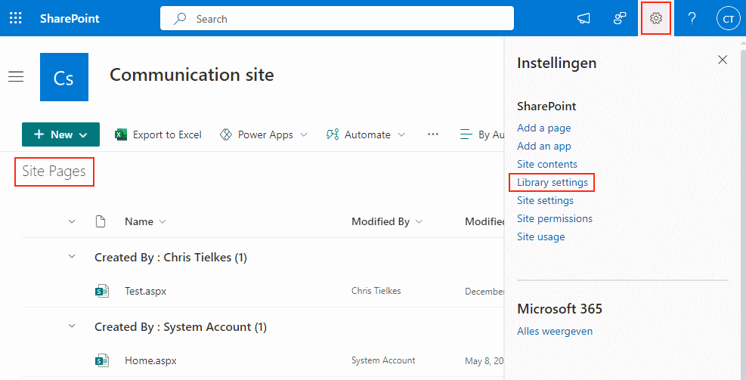
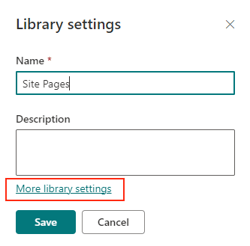
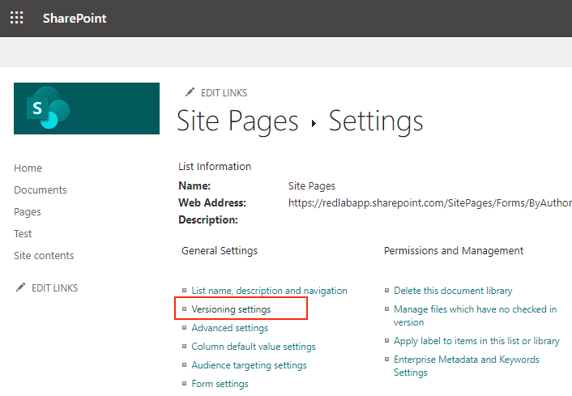
Enable these 2 settings and click OK at the bottom of the page.
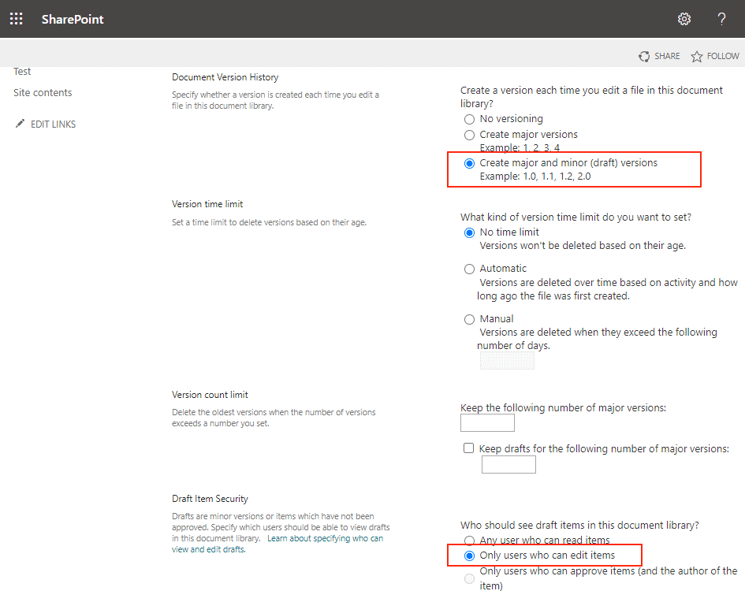
Do this for every document or page library where you store documents that needs versioning.
Note that for categories that are intended to store evidence or other content that you don’t collaborate on, this might not be needed for you.
Collaboration
Microsoft 365 comes with enhanced features to collaborate in real-time out of the box. ISOPlanner makes use of these enhanced features by integrating with SharePoint so you collaborate the same way for compliance as for other documents in your organization.
- You can edit Word documents with multiple people for example. To learn more, please refer to the Microsoft documentation about collaboration.
- You can co-author web pages. Please refer to the Microsoft documentation here.
To collaborate on documents, correct authorization is needed on SharePoint and ISOPlanner. By default, all content in categories are shared with Everyone. You can change this if needed. Please refer to the authorization section to implement this. Authorization in SharePoint can best be implemented using Microsoft Entra ID groups to be flexible in case of role changes in your organization. Please refer to the Microsoft documentation about SharePoint authorization for more information.
Review & Approval
To review Word documents, Microsoft has built-in features that makes this easy. You can add a comment in a Word document and mention (@) someone else to ask for a review for example. Web pages can be shared with other people for a review. During review, the document is still in Draft status and there are many ways to do reviews. Another way is to share the document in a Teams call for example. Choose what fits best for your organization and harness the power of collaboration in Microsoft 365!
When it is time for approval, ISOPlanner comes with an comprehensive Approval module (available for Business and Premium subscriptions). If you have a Basic subscription, you can create a new version from within ISOPlanner (see next chapter). The date and time and user who created the major version is registered in the version history in SharePoint. If you state in your policies that only approvers are allowed to publish, you create a record of the approval.
If you need more flexible or complex scenario’s, please upgrade to a Business subscription
With the approval module, you can easily make a selection of documents that need approval, select the approvers and send them. Each approver is assigned a task to approve. The approval status is visible in the library. For multi-step approvals or any other more complex scenario, ISOPlanner supports implementing an approval flow using Power Automate workflows.
There is also a template for approval in the Microsoft Power Automate. Just search for ISOPlanner.
Please refer to the documentation of the Approval module for more information.
Publication & Searching
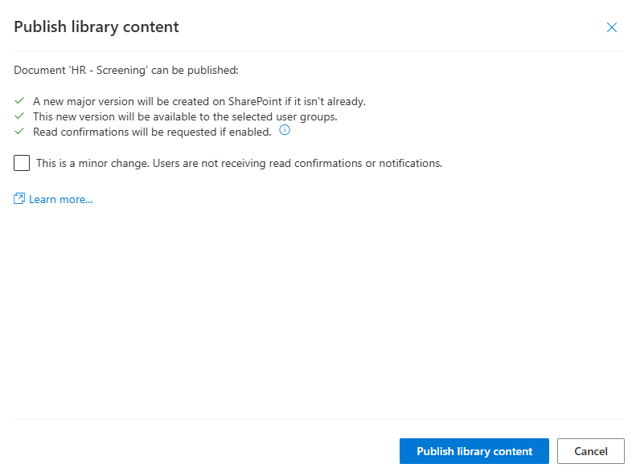
After approval, the document is automatically published. When a document is published:
- A new major version is created on SharePoint (if not already)
- The new version becomes available for all users in the user groups where the document is assigned to.
- Read confirmations are send if enabled
You can also manually publish multiple documents. In this case you can also specify whether you want to notify users of the change or not. For example, when you corrected a typo, you might want to switch notifications and read confirmations off. To manually publish, select 1 or more document in the ISOPlanner library content tab and click the Publish button.
For Basic subscriptions, the publication feature is not available. You can, however, easily create a new major version on SharePoint. In the library content, select the document, click Edit and select the checkbox ‘Create major version on SharePoint’ and click Save.
Creating a new major version
The first step in the publication process is that ISOPlanner creates a new major version on SharePoint. To be able to do this:
- Major versions must be enabled for the SharePoint library (documents or pages). See chapter Versioning above how to enable this. When this is not enabled, ISOPlanner will try to publish and informs that a new version is published as a minor version (e.g. 0.8).
- ISOPlanner must have permissions to publish on SharePoint. Please enable the SharePoint Reports and Publishing integration. If this is not enabled, ISOPlanner will inform you that this step will be skipped.
Making content available and read confirmations
The next step in the publishing process is that the new version is made available to the users in the selected user groups. This configuration can be managed in the ISOPlanner library on tab Publication. Here you can also manage read confirmations which is the last step in the process.
Click here to read more how to configure the publication process.
Searching
All documents are made searchable (full-text) in SharePoint by default. ISOPlanner integrates with SharePoint search and adds smart context to your compliance data. When you search in ISOPlanner, results can be enhanced with these SharePoint results, if enabled. Please refer to the documentation about the global search feature for more information.
Retention & Disposition
This last phase of the life cycle can be implemented using “Data life cycle management” labels. You can manage these using the Microsoft Purview Admin center. Labels can be created, published and applied to SharePoint sites, libraries, folders and files. We recommend to apply them at the highest level as possible.
With Microsoft E5 licenses, you can implement more advanced rules using workflows and deep learning to apply labels.
At this moment, the labels that are applied are not visible in ISOPlanner. We might consider adding this in the future.
Resources
- Working with the library
- Microsoft 365 collaboration
- SharePoint file collaboration
- SharePoint web page collaboration
- ISOPlanner authorization
- How to work with approvals
- Global search
- Configuring the publication process