
Introduction
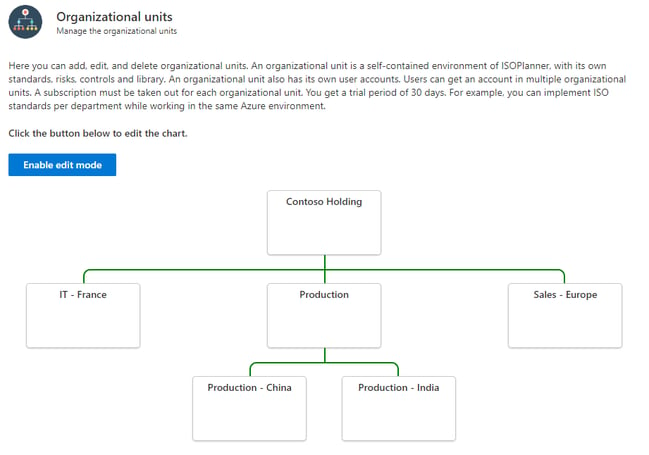
Organizational units are seperate ISOPlanner environments that can be organized in a hierarchy. These units share the same Microsoft Azure Tenant but data like processes, objectives, KPIs, risks and tasks are seperate. Sharing the same Microsoft Azure Tenant means that all documentation can be shared. Also, the implementation of compliance frameworks – requirements and controls – can be shared across units to have clear responsibilities. For example, you may have a centralized HR department which governs the processes related to on boarding of employees. Other departments can re-use these as part of their own compliance framework requirements.
Use-cases
You can use organizational units to:
1. Implement an ISO compliance frameworks with a specific scope. Implement ISO 27001 for IT – France and ISO 9001 for Sales – Europe while sharing the HR controls (mandatory in both ISO standards) on the Contoso holding level.
2. Quickly integrate an existing ISO implementation after a merger / take-over into your Management System. Because the units can act separately, you can quickly integrate en consolidate later.
3. Create a ‘Project environment’. For some projects, risks need to be identified and specific compliance needs met. You can create a separate environment for these projects which can be archived after the project is complete.
4. Create templates. You can create a ‘Template unit’ and import this data to a new unit to start implementing a compliance framework or a project.
5. Create test environments. The number of environments is unlimited. Simply create and delete units to test new features or implementation changes.
Editing the chart
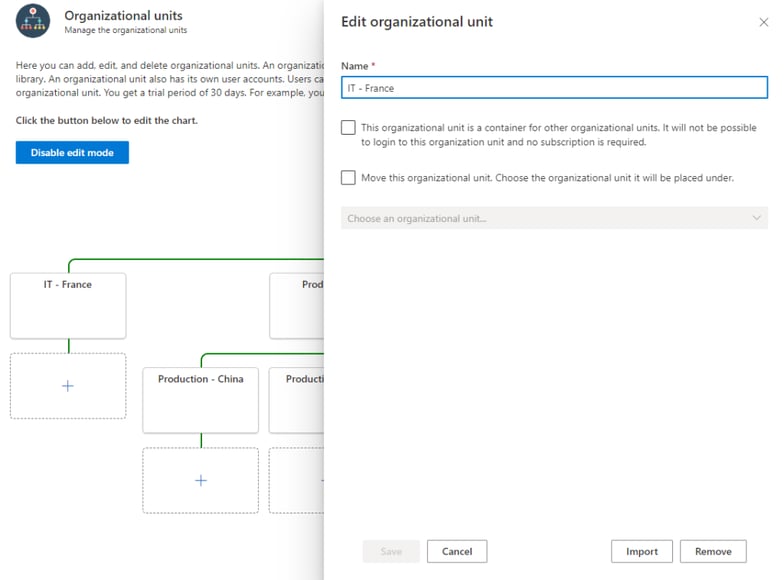
Start by enabling the edit mode by clicking on the ‘Enable edit mode’ button.
- Edit name. When you click on an existing unit, you can edit the name of the unit. For the top level unit, you can only edit the name.
- Move. When you click on an existing unit, you can move the unit ‘below’ another unit in the chart. This has no impact on functionality. Enable the checkbox ‘Move this organizational unit and choose the unit where it will be placed under.
- Set as Container. You can mark a unit as Container. This type of unit is only for administrative purposes in the chart. It allows you to create a logical hierarchy. In the example screenshot ‘Production’ is a container. Users can not log into a container and no user licenses are required.
- Import. You can import all data from another unit into the one you’re editing by clicking the Import button at the bottom of the panel.
- Remove. When you click on an existing unit, you can remove it by clicking the Remove button at the bottom of the panel.
Importing data
You can create multiple organizational units with different content as a starting point for new or existing implementations. For example, you can create an organizational unit that holds default forms for your organization. When a new organizational unit is on boarded, you can import the default forms from this ‘template organizational unit’ to quickly set up the forms they need.
Another use case would be to create a an exact copy of an organizational unit. This can be useful to create a test environment for example or even roll out a complete ‘starter kit’ to implement an ISO standard for another organizational unit.
Data in an organizational unit can be copied by users who have the Admin role in both the source and the target units.
It is only possible to import all data from an organizational unit and not a selection. Managing the complexity of data dependencies is harder than creating different organizational units for each set of data with relational integrity. For example, you can create an organizational unit with the ISO 27001 standard activated and create risks that have the controls of this standard already linked. The relationship of the risks to the standard are preserved when importing. If you also need a set of Assets that are possibly unrelated to the risks, create another organizational unit with these assets so you create a ‘menu’ to choose from when setting up a new organizational unit.
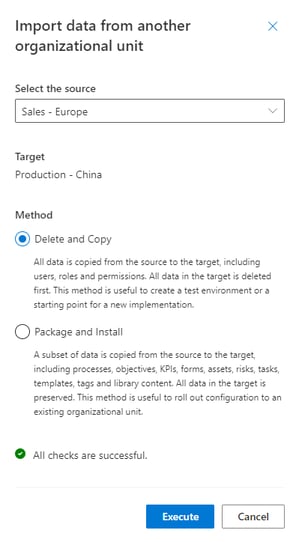
There are 2 methods of importing all data:
- Delete and Copy
- Package and Install
Delete and Copy
This method first deletes all data from the target organizational unit and creates an exact copy of the source in the target. This method also includes users, roles and authorization and preserves all Code fields like codes of risks. Because users are also created, you need to have enough licenses available in the target.
Warning! All data in the target unit will be deleted before all data is imported. This cannot be undone!
Package and Install
This method adds data from the source to the target. When data already exists, it is skipped. This is done based on the properties of the entity being copied.
- Processes are compared on name and get a new Code field.
- Objectives are compared on name and get a new Code field.
- KPIs are compared on name.
- Forms are compared on name.
- Assets are compared on name and get a new Code field.
- Risks are compared on name and get a new Code field.
- Tasks are always copied.
- Standards are activated when not already.
- Library categories are compared on name.
- Tags are compared on group and value.
- Library content is compared on name within the category.
- Roles are compared on name.
- Classifications are compared on value.
- Dashboards are compared on name and type (user, team, organization).
Sharing data between organizational units
Documentation
Because the top level unit is always represented by the Microsoft Azure Tenant, all units below that share the same Microsoft Azure Tenant. This means that users can log into units with the same Microsoft account and access the same data on SharePoint, Teams, Outlook and more. For example, a global organization policy document ‘Code of conduct’ can be created once, uploaded to SharePoint and used in the ISOPlanner Library of all organizational units.
When a new version of this document is created in the top level unit, all owners in all organizational units that relate to this document are notified.
Requirements and controls
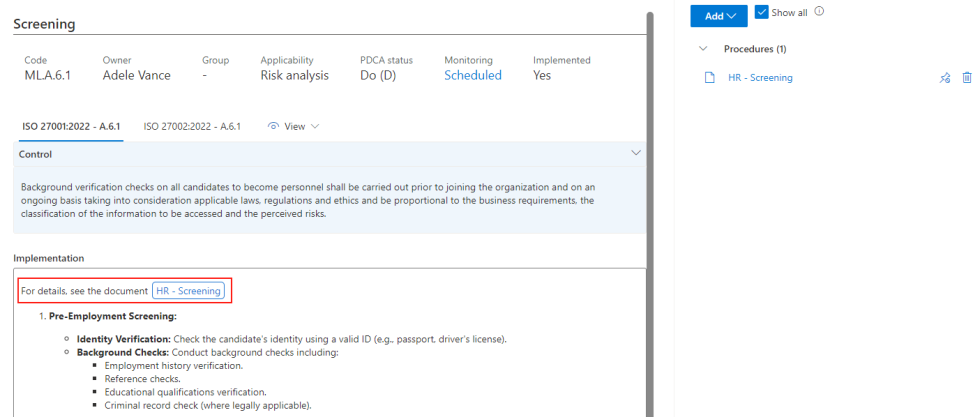
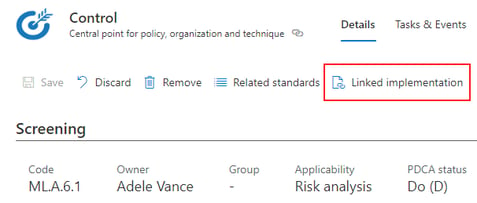
Requirements and controls can be linked across organizational units. This can be useful when, for example, your central HR department has set the Screening Policy and your other departments – that have their own compliance program – need to comply to this policy as well. Let’s look at the example below where the central HR department has implemented the A.6.1 control of ISO 27001:2022. They entered the implementation and a document ‘HR – Screening’ which is uploaded to SharePoint and, for convenience, linked with a badge in the implementation text.
When the IT department want to re-use this control, they can click on the button Linked implementation on the toolbar of the same control.
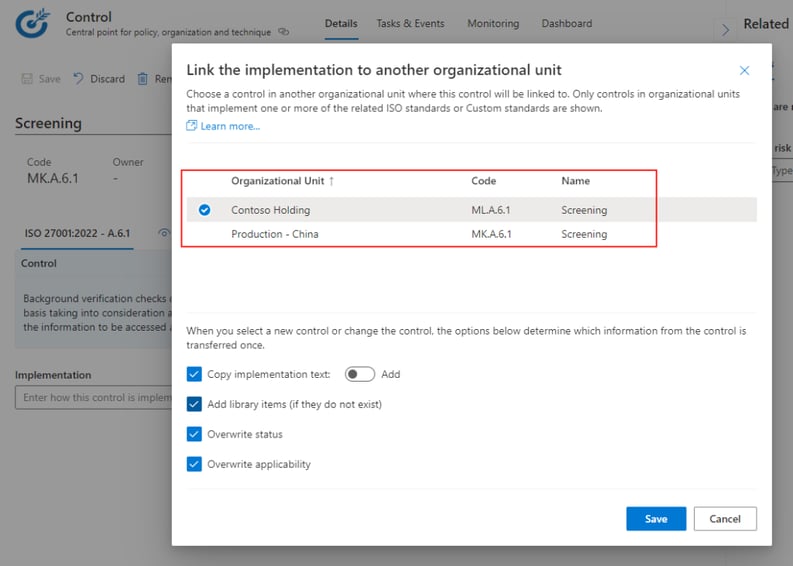
In the window that opens, they can select the Contoso Holding (where the HR department is) as the source. Note that only organizational units are shown which have the same ISO standard and same ISO control. Below, some options can be set to add/overwrite the implementation text, add library items and overwrite status and applicability (controls only). Note that this copying these properties only happens once. After this, the control remains linked but the IT department is free to change them. They may have a different timeline in implementing this control for their department or want to add something specific.
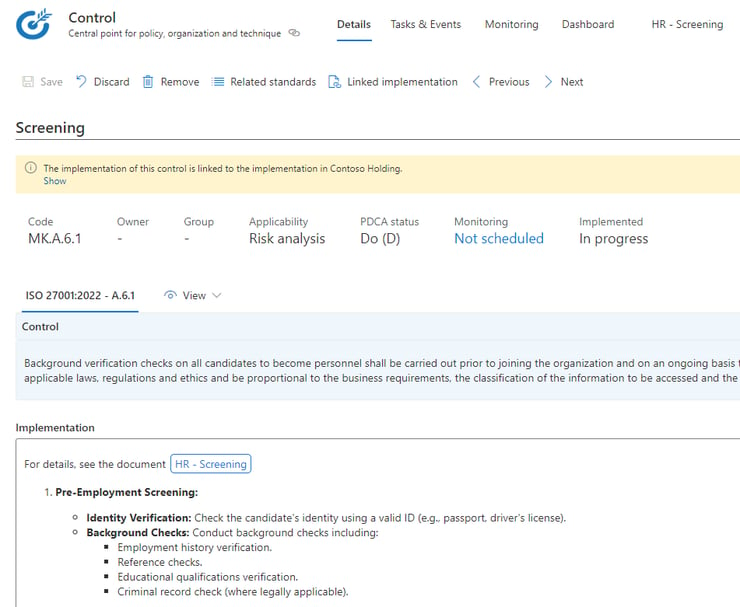
Click Save to link the control. After linking, a message is shown that this control has been linked. This includes a direct link to the control of the HR department. Click Show to open that link in a new Browser window. Note that the user must have an account in the organizational unit of the HR department to be able to view this information. This can be a normal user account.
Notifications
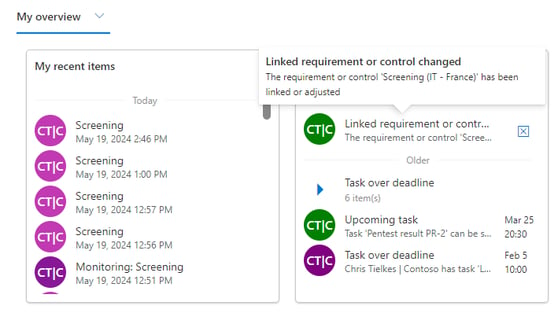
After linking a control, a notification is sent to the owner of the control when the implementation text changes.
We advice to set an owner on both sides. On the IT department and the HR department so that notifications are sent both ways. This helps being in control and effectively communicate about changes made.
On the dashboard of the owner of the control, in the widget Action required, a notification is shown when the implementation text of a linked control is updated. The owner can simply click on the notification to open the control in the organizational unit and check whether the change made (see the Change Log) has further impact.
Overview
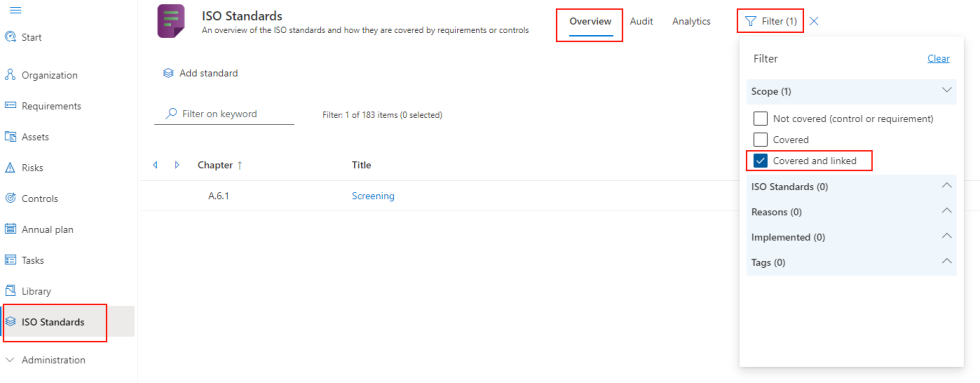
Linked controls and requirements can be viewed both ways. For the unit that links to controls or requirements in other units, they can use the filter Covered and linked in the ISO Standards menu to quickly see which items it concerns.
For the unit that has controls that other units link to, an overview can be found in the same ISO Standards menu but on the Analytics tab.
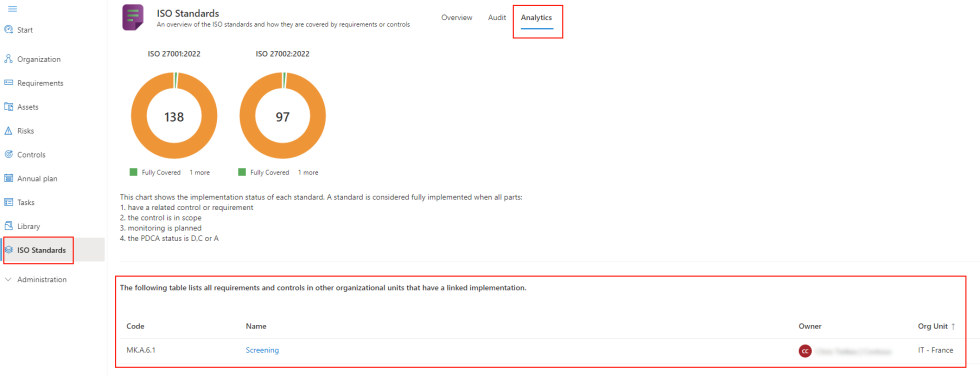
By clicking on the name of the control, the control is opened in the organizational unit (IT – France). Note that the user must have an account in that organizational unit.