
Concept
The common use case of all workflows in ISOPlanner is that information is gathered for (internal) auditing. In ISOPlanner, this information is stored in Events. Compliance frameworks contain elements like requirements and controls which include a dossier of such events over time. This way, an auditor can easily check which actions have been done, the results of those actions and evidence to support it.
Events can contain tasks and forms. Forms contain KPIs which can have various data formats. In addition, tasks can contain comments, checklists and references to documents. This allows that all sorts of information needed to prove compliance can be stored. With workflows, human data entry can be replaced by integration with internal or 3rd party systems, saving time, reducing total cost of ownership (TCO) and internal risk.
This common goal of workflows can be broken down into the following high level use cases.
- Automate compliance processes with embedded controls. Employees follow pre-defined steps in which compliance is guaranteed. Audit trails and action results are stored in ISOPlanner for auditing.
- Automate evidence collection. Checking numerous controls (sampling) on a regular basis is time consuming, error prone and results are less reliable. Automatically collect evidence can greatly reduce cost. Results are stored in KPIs for auditing and analysis. When evidence does not match the pre-defined baseline, an incident response workflow can in turn be started.
- Automate collection of compliance related data. Compliance related data can be stored in various systems, ranging from an ERP system to manufacturing systems. To be able to effectively perform audits, this data should be available in ISOPlanner and related to the compliance frameworks. When an incident is registered in a ticket system for example, a workflow could make a registration in ISOPlanner of this event. This way, incidents from various systems can be aggregated and analyzed for risk assessment purposes and auditing.
These 3 high level use cases can be implemented with the following functionality.
- Start a workflow when an Event is created in ISOPlanner.
- Start a workflow when a task in the Annual Plan is started according to schedule.
- Use an external trigger for a workflow and perform actions in ISOPlanner.
- Use an Approval template to implement the approval process.
- Collect and check evidence for controls.
Please refer to the various tutorials using Power Automate.
Set up
You can create workflows with the following solutions:
- Microsoft Power Automate Click here or more information/pricing
- Zapier (coming soon!) Click here or more information/pricing
You will need a license for the workflow solution(s) and a management license for the same user in ISOPlanner. To activate the workflow capabilities of ISOPlanner, log into ISOPlanner with the user that has the workflow solution license and navigate to the ‘Automation’ tab at menu Administration / Settings.
Where to find it in ISOPlanner: https://portal.isoplanner.app/admin/settings/automationEnable the integrations under the section Power Automate. You need an admin account to grant the permissions (Read access on sites and files for SharePoint) for the ISOPlanner Service (SVC). This service implements our API which is called from the connectors from the workflow solutions. The permissions are needed to enable the service and work with SharePoint items and files, for example for adding evidence to the library. After the permissions are granted, you can create a new workflow.
Create a new workflow
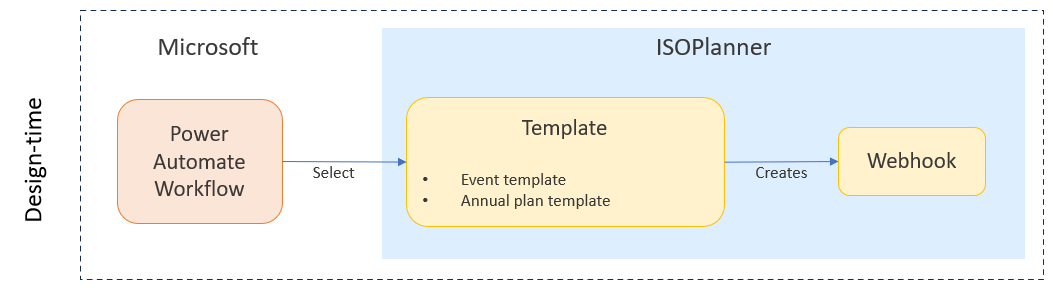
In the examples below, we use Power Automate as the workflow solution. In general, the workflow solution must create a Webhook in ISOPlanner. For Power Automate, we created the ISOPlanner connector that is published in the Microsoft Store that handles these technical details so you can focus on the business process.
Log into Power Automate and choose menu Create and choose Automated Cloud Flow. In the pop up, type an optional workflow name and search for triggers for the connector ‘ISOPlanner’. You will find 2 triggers:
- When an event is created
- When an annual plan task is started
When an event is created
This trigger is fired when an event is created based on the template you select in the configuration of this trigger. For example, you create an event template is ISOPlanner called ‘Incident’. When you create a new task in ISOPlanner called ‘Device stolen’ and select the template ‘Incident’, the workflow is triggered for the task ‘Device stolen’. The task data is sent to the workflow as ‘payload’. The workflow can take steps, for automatically block the account of the owner and notify the department to order a new device. The steps taken can be registered in ISOPlanner so that the auditor can check whether the steps taken match the policy.
When an annual plan task is started
This trigger is fired when a task in the annual plan should be started based on the start date. If you create an annual plan task with start date 2024-01-01 with a recurring pattern ‘every 3 months’, the workflow will be run in 2024 on January 1st, April 1st, July 1st and October 1st. It is not guaranteed that the workflow will run on the exact time specified as the start time of the task. It will be run within 4 hours after the start time. In the annual plan, all task templates (on the left with the name as a link) can be linked to a workflow. To enable a workflow for an annual plan task, you must select a Form first. If you don’t have a Form yet, please create one first. After selecting a form, a new tab ‘Workflows’ will become visible.
After selecting a trigger, the workflow designer is opened with the trigger configuration.
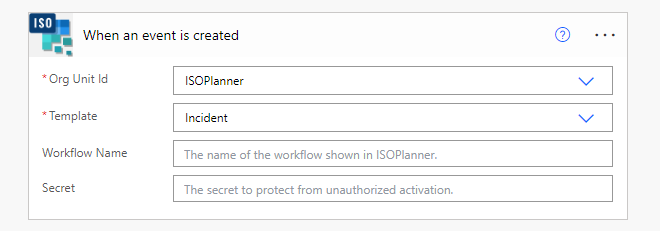
All trigger and action configurations start with the “Org Unit Id” parameter. Select your Organizational Unit. If you have no organizational units defined, there is only 1 option available with the name of your organization.
For both triggers, after selecting the organizational unit, select the template, either the event template or the annual plan task template. Type the workflow name that will be shown in ISOPlanner. This is usually the same name as the workflow name you’ve chosen in the workflow designer.
Optionally, specify a secret. This secret is stored in ISOPlanner along with the created webhook. When the trigger is fired, the secret is send to Power Automate along with the payload. If you use this feature, the first step in the workflow must check whether the secret matches. You can implement this with a simple condition that terminates the flow when the secret does not match.
After configuring the trigger, implement the workflow. A workflow typically ends with updating the status of the event or task that triggered the workflow. Please note that events and tasks are different entities and there are seperate actions for each of them.
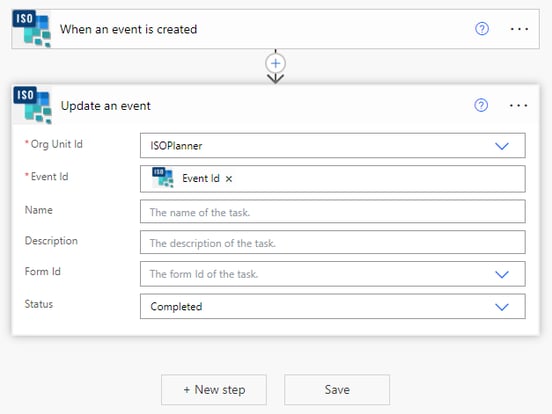
In the example above, the status of the event is updated. The organizational unit is selected, the Event Id is picked from the available data fields from the trigger and the status is set to Completed. Note that fields that are not set here are not updated in ISOPlanner (Name, Description and Form Id in the screenshot).
Testing the workflow
When you have saved the workflow, the workflow is listed on the Workflow tab of the event template or annual task template. You can click the Test button to fire the workflow trigger.
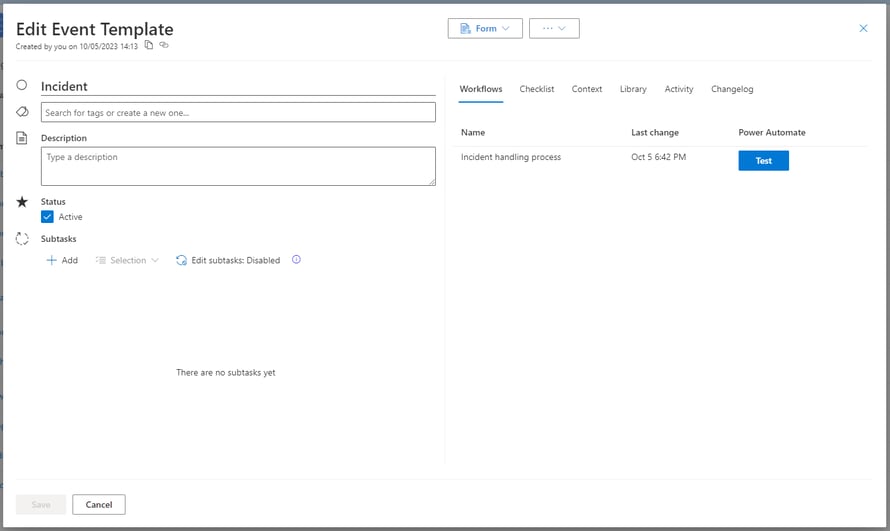
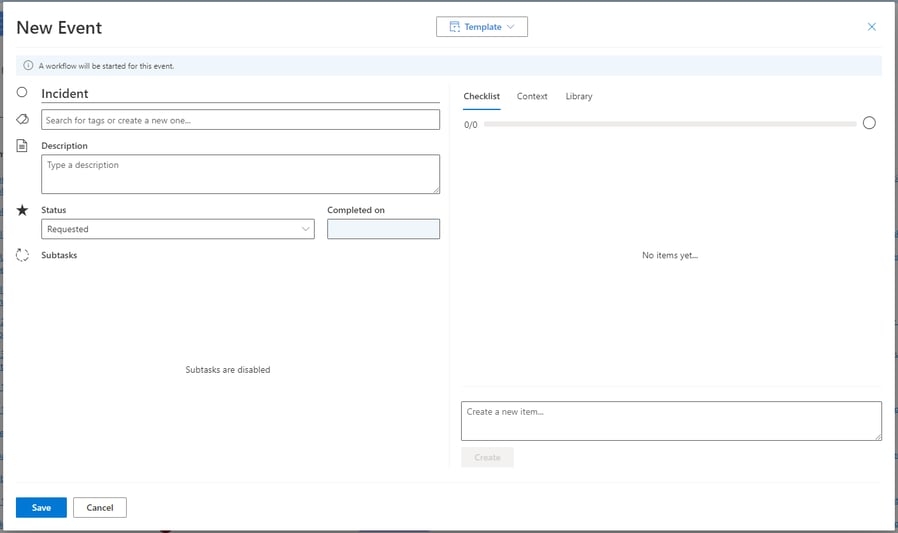
The payload will be the event template. This is not a real live scenario but it let’s you verify whether the workflow is started but will probably fail. To test the workflow with an actual payload, create a new task and select your template. Note that a message bar will be displayed stating a workflow will be started for this event.
Implementing the workflow
You can use every available other connector in the Microsoft Store to implement your workflow. For example creating a document on SharePoint and linking it to the event as evidence. Or trigger an event from Microsoft Dynamics 365 when a new suppplier is added and implement a supplier assesment process. The sky is the limit but in general you should aim to create a complete dossier that is linked to the relevant controls of your ISO standard for the audit.
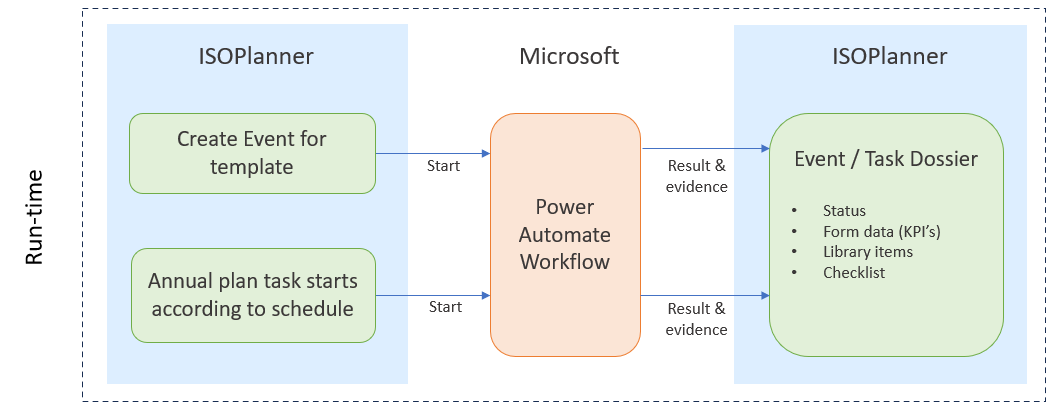
When you start a workflow (left part of picture) within ISOPlanner using an event template or using an annual plan task, you typically implement the process in Power Automate and execute various actions against ISOPlanner to update the dossier. The event or task becomes the dossier. If you link the template in ISOPlanner to the relevant controls, the dossiers (events or tasks) will be visible during the audit of those controls on the tab ‘Tasks & Events’.
For example, you can create a workflow linked to an annual plan task that checks the backup retention policies in Microsoft Azure (if you have your databases there). When the annual plan task is scheduled for execution each week and linked to the control (ISO 27001:2022 – A.8.13), the workflow makes sure that the evidence is uploaded each week and that the dossier is build up during the year for the audit so that you save time doing these otherwise manual steps.
To implement a workflow, some technical knowledge is needed. Your own team(s) should have no problem implementing workflows using our developer documentation. When your organization doesn’t have these capabilities, please contact our Servicedesk. We can bring you into contact with our partners that specialize in Power Automate and have extensive knowledge about ISOPlanner.
In addition, please check our tutorials. This will explain the basics and inspire you and help you set up workflows quickly by using templates published in the Microsoft Store by us and our partners.