Major Features
- Automated evidence collection for Microsoft 365
- AI Assistant for the Annual Plan
- Microsoft Secure Score integration
Improvements
- Improved risk and control dashboards
- Scheduling improvements in the Annual Plan
- Updated KPI widgets and aggregation options
- Mark controls as ‘no active monitoring needed’
Quality of Life
- New task filters and tag categories
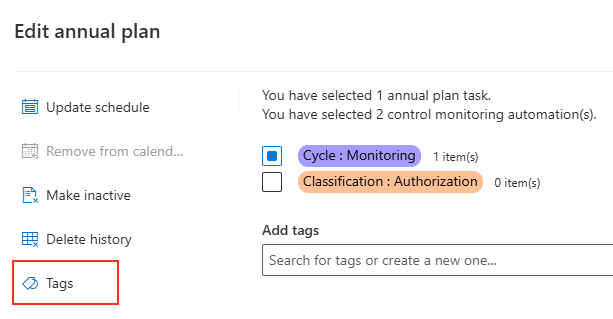
- Assign tags in bulk from the Annual Plan
- Move tasks from Rejected to Archived
- Excel export shows deadlines with color
- Asset location in grid and filter
Automated evidence collection for Microsoft 365
This feature marks the start for ISOPlanner to integrate more with your IT landscape. For Business and Premium subscriptions, our Store now contains ‘automated control monitoring’ items that, when activated, run in the background to collect important evidence for your compliance frameworks. Currently, we’ve added ‘Multi-factor Authentication (MFA) for Microsoft Entra ID’ and ‘Microsoft Secure Scores’. We will be adding more in the coming period.
These automated tasks will save you and your colleagues time and contribute to the monitoring of controls in your frameworks. Your controls are automatically related and can be adjusted if needed. All results are stored in a KPI, and findings are automatically reported by creating tasks.
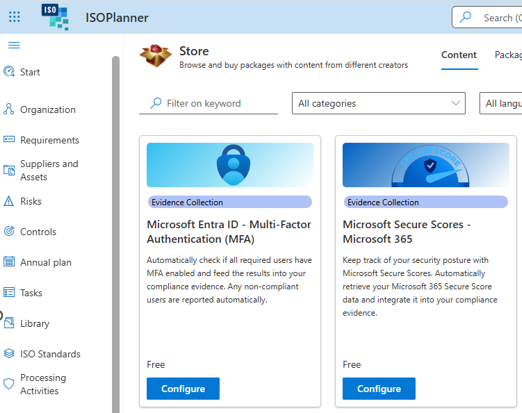
Click on an item in the Store to start a 30-day free trial period. After the trial period, a subscription is needed to keep the automatic evidence collection running. In the administration section in the Automation tab, you can manage the automated control monitoring.
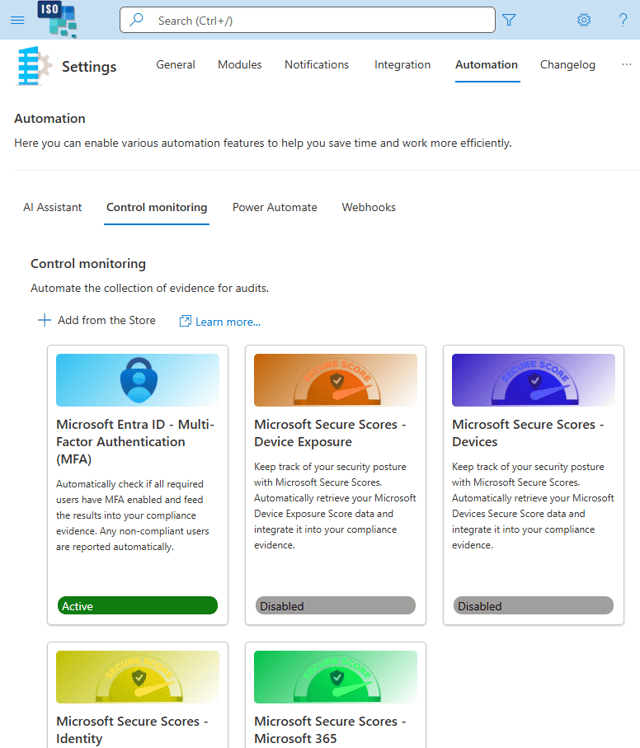
When you click on an item, you’re asked to 1) authorize, 2) set a schedule, and 3) perform a test. After that, the control monitoring is available in the annual plan.
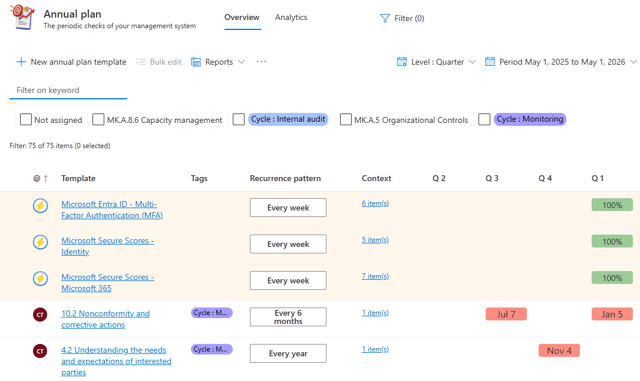
This way, you have full visibility over manual and automatic control monitoring. When you click on the ‘Template’, you can see a summary and configure the details.
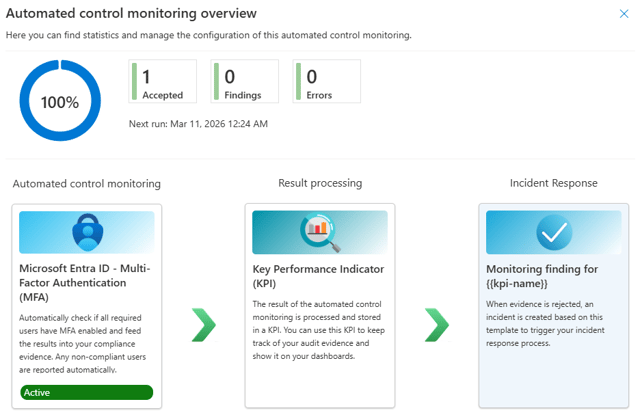
A few other features in this release build upon the new control monitoring, like the new risk and control dashboards and improved Tag and KPI features. Please keep reading 😊.
AI Assistant for the Annual Plan
Maybe you already noticed the new ‘AI’ button on the top navigation bar when you have the AI Assistant enabled. This button is currently active in the annual plan. We will extend this to many places in ISOPlanner where our AI Assistant can help you perform many tasks. In the annual plan, the AI Assistant helps you to create new tasks to monitor requirements and controls.
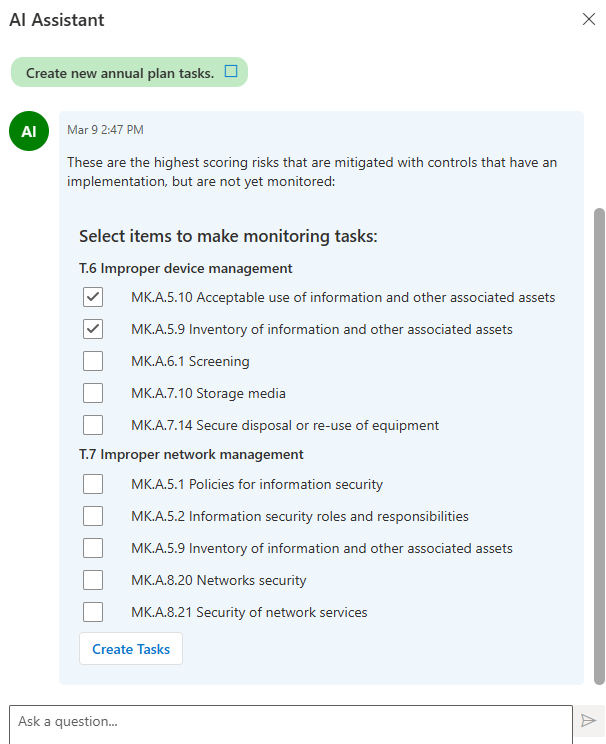
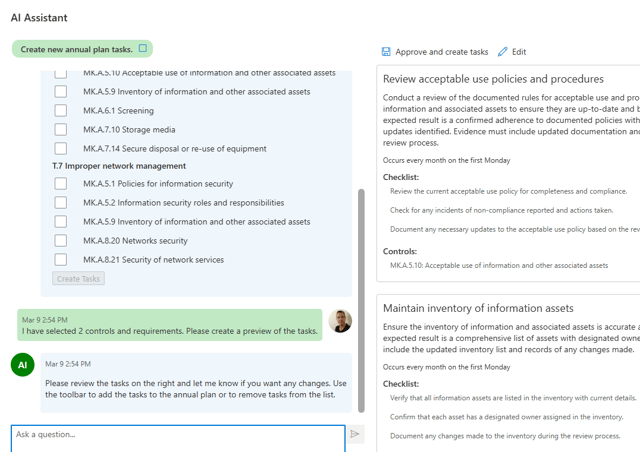
The AI Assistant selects controls based on your highest risks, status and implementation. You can select them and create a task preview. You can ask the AI Assistant to make changes like selecting chapters, bundling tasks into one or changing properties. Note that AI can make mistakes, so you have the option to check and finally add them to your annual plan.
Microsoft Secure Score integration
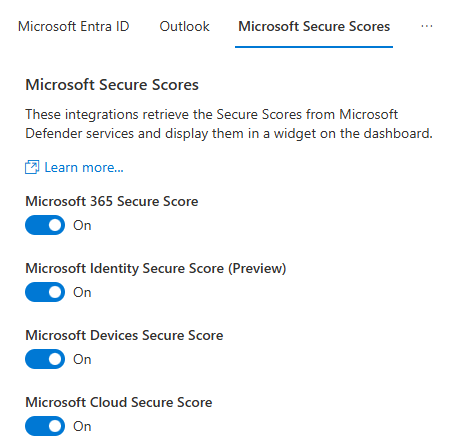
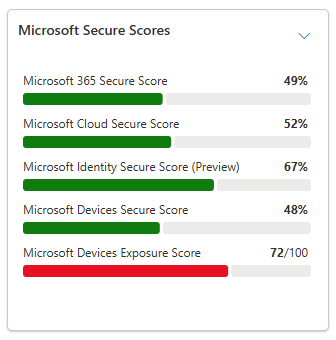
In the administration section, in the integration tab, you can now authorize to retrieve Microsoft Secure Scores to view in the improved widget. These scores are the same secure scores as in the new control monitoring, but only ‘delegated user’ permissions are needed. If you already added the ‘Azure Defender’ widget to your dashboards, you’ll find that this widget is renamed to ‘Microsoft Secure Scores’ and extended with three new options. Please note that you need a license for ‘Microsoft Defender for Endpoint’ to authorize and view the Microsoft Devices Secure Score.
Improved risk and control dashboards
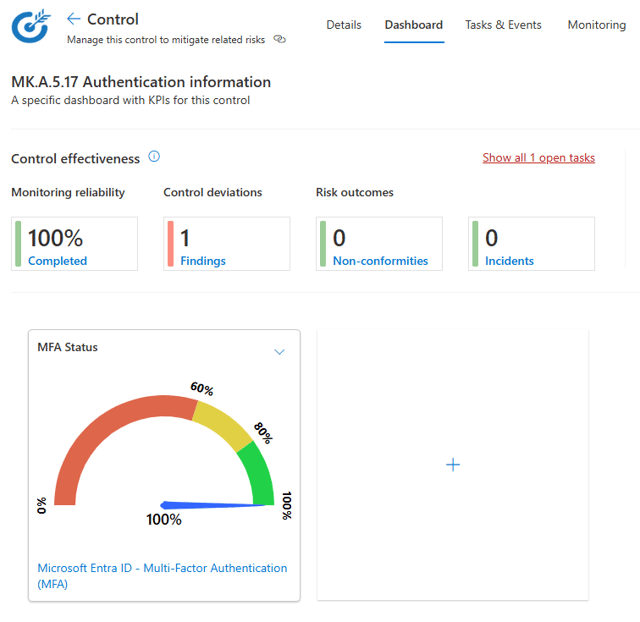
The control dashboard has a new fixed section at the top showing information about the effectiveness of the control. This is now possible because tags have been given a meaning for the system. Please see the chapter about the new features in tags. When you click on an item, you drill down in the underlying tasks and monitoring schedule, which also includes the new automated control monitoring.
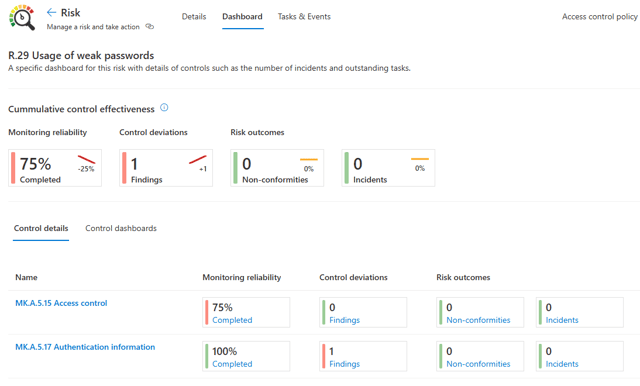
The risk dashboard has been restructured to include a summary of the underlying controls. The previous version showed only open tasks per control, and now you have full insight into findings, non-conformities and incidents. And at the top, we added a section that summarizes this information, including the comparison with the previous period.
Scheduling improvements in the Annual Plan
When creating a new schedule, we now check if a task already exists in the same period. If it does, we skip creating a new one. A period is a part of the year based on the recurrence pattern (for example, monthly or quarterly). This ensures tasks are not created too close together in time.
Mark controls as ‘no active monitoring needed’
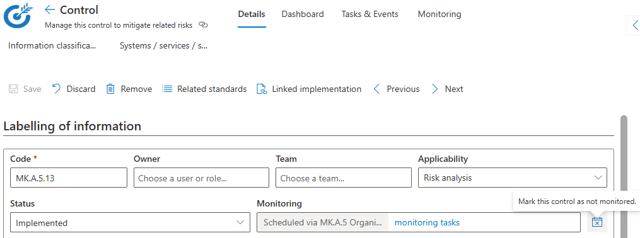
You can now mark requirements and controls as ‘no need to monitor them through the annual plan’. When editing the properties, notice the new icon on the right of the monitoring field. When activated, the AI Assistant will not ask to create tasks for it. Next to this, this feature can make it clear that a particular requirement or control is not monitored, and you can describe the reason, for example, in the background field or activity tab.
New KPI aggregation method: last recorded value
Next to average, sum, max, min, and count, you can now also select ‘Last value’. This does not aggregate the values but sorts the data by creation date and time, and takes the last value. With this option, it is easy to select the ‘current value’ and show it in a widget on your dashboard.
More period options in KPI widgets
In the widgets ‘KPI Data’ and ‘KPI Alert’, you can now select full period options like last month, the audit year or a custom data range.
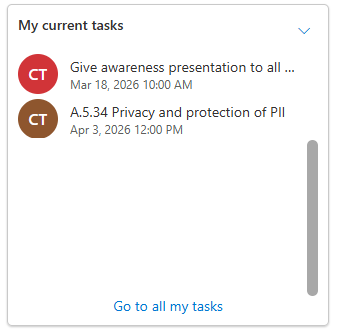
New current tasks widget
A new widget has been added that shows your current tasks. Current tasks are tasks that have been started, but the deadline has not been exceeded yet. You could already see these tasks in the ‘My tasks’ view, but now they are easily accessible through your dashboard.
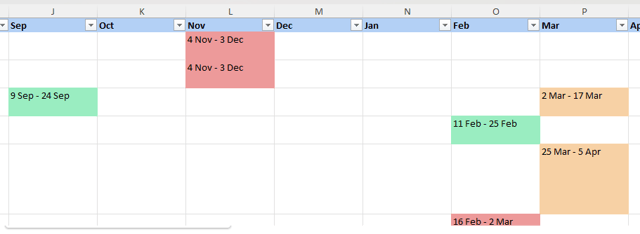
Excel export shows deadlines with color
The deadline is shown next to the start date, and a color is added to indicate completed (green), over deadline (red) or in progress (orange).
Risk treatment report can include completed tasks
When starting the risk treatment report, you can now select whether you want to include completed tasks.
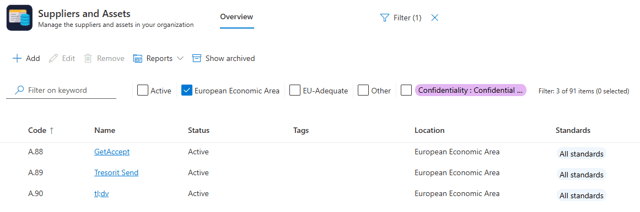
Asset location in grid and filter
The Assets and Suppliers view now shows the location, and you can filter by location. The location is also added to the Asset details report in both Word and Excel.
Move tasks from Rejected to Archived
It is now possible to move a task that has status Rejected directly to Archive. Previously, this was only possible from status Completed.
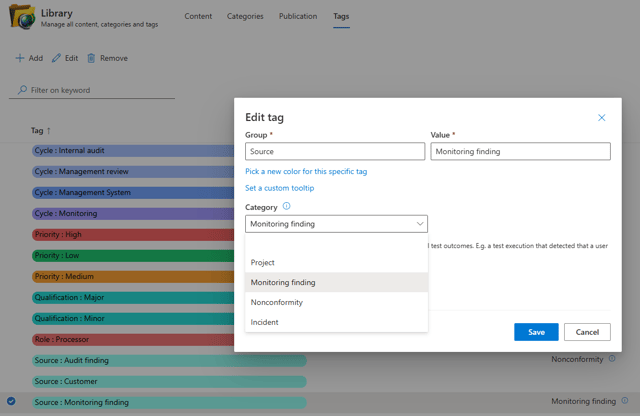
New tag categories for findings, non-conformities and incidents
An important new feature to populate the risk and control dashboards correctly is to assign meaning to your tags. You can now assign the following new categories:
1. Monitoring finding
2. Nonconformity
3. Incident
Please go to the Library and assign these categories to one or more of your tags.
New task filters for templates and tag categories
In most task views, you can now filter by the new task categories, making it easier to find, for example, all your incidents. In addition, you can filter by the template used to create them, if applicable.
Bulk tag assignment in the Annual Plan
When you select templates and control monitoring items in the annual plan and select bulk edit, you can now edit the tags.