
ISOPlanner release 6.2.0 – May 11, 2026
Automated evidence collection with SSL Labs
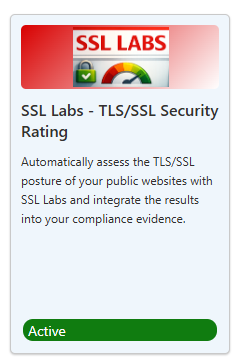
You may recognize the recurring task in your Annual Plan to periodically use SSL Labs to check the security of your website or websites. To automate this process, we have added automatic control monitoring for SSL Labs to our Store. You can add your websites to the configuration, set a minimum required grade, and ISOPlanner will run the test for you.
Automatic document import and categorization in the Library
Our AI Assistant can now help you import documents, categorize them, and automatically link them to relevant requirements and controls in your frameworks. To use this feature, go to the Library, click the AI button in the toolbar, and follow the conversation with the AI Assistant.
PDF export of documents, including approval information
From the Library, you can now select a Word document or SharePoint page and click Export.For Word documents, you can create a PDF that includes a header with approval information. This option is only available when the document has been approved and has not been changed since approval. This ensures that the generated PDF represents the approved version of the document.
The resulting PDF can be uploaded to a SharePoint location or another location where it can easily be shared with your organization or auditor.For SharePoint pages, a preview is shown first. You can then click Print and select Print to PDF on your local device.
Improved task follow-up process
Previously, tasks had a Needs follow-up button below the checklist. We also introduced the option to create new follow-up tasks directly from the Follow-up button at the top of the task.
In this release, we have combined these two features.
To create a follow-up task, or to let a colleague know that follow-up is needed, click the Follow-up button at the top of the task view. You can select a template, or, when it is not yet clear what should happen next, select a colleague instead. Your colleague will receive an email asking them to create the follow-up task.
Current follow-up indications are now shown in the Context tab of the task.