
The library contains the collection of links to all documents that are relevant for the management system of your chosen compliance frameworks.
Linking SharePoint content video
Content
Where to find it in ISOPlanner: https://portal.isoplanner.app/library/links
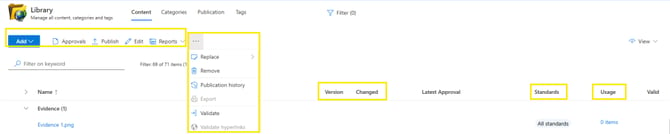
Content tab in the library shows all links to documents, SharePoint pages, SharePoint lists and external content, grouped by category (which you define). At least one category must be created to be able to add content. Documents are never stored in ISOPlanner, they remain in your SharePoint, where they are being maintained (content changed, permissions granted etc.).
By clicking on one of the documents from any of the categories a preview of the document opens on the right side of the screen. If you do not see the preview but a message that content is not available, make sure you have permissions to see that document in your SharePoint and that the document has not been renamed, deleted or moved within SharePoint.
Columns “Version” and “Changed” enable you to see the information from your SharePoint: version of your document in SharePoint and when the last change has been done. This data-feed can be activated per Category (see below in the section “Categories”).
Linking a document to processes, requirements, risks, task etc. (in the related information of that element) will automatically become visible in the library; in the column “Usage“. By clicking on “x items” of a document, you see where exactly this document is linked within ISOPlanner. In this list changes can also be applied: additional items/links can be added and pinned and existing ones can be removed. Each document can be applicable to one or more “Standards” activated in your ISOPlanner. Adjustments of this parameter can be changed by marking a document in the list and using the button Edit, on top of the list.
Add
With the “Add” button, a new link/document can be added. After clicking the button “Add”, select the category to add the content to and you can add one or multiple documents at once (to one category).
Approval
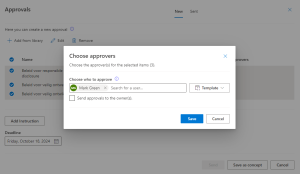
Document approvals can be managed within ISOPlanner. Documents can be sent one at a time or several at once. Approvals can be assigned to one or more ISOPlanner users and it is additional option to send the approval to the document owner as well. Instructions to the approver(s) can be added as well as the deadline for completing the task can be determined. Every person to whom an approval is assigned will receive an ISOPlanner task in which they can accept or reject the approval and if needed, add the comment to the approval.
Click here for more information about approvals.
Edit / Bulk Edit
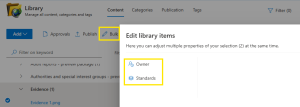
Choosing one document from the Library Content, with the help of button “Edit” document Name, Owner and applicable Standard can be amended.
Choosing two or more documents enables the button “Bulk Edit” which allows you to change the Owner or the applicable Standards of the marked documents.
Reports
Report “Publication history” can be created from this menu and provides a combined view of versions, publications and approvals.
“…” button
This button shows four options that work on the current selection of items:
- Replace – enables to replace a document in the Library Content with a different one. It is possible to replace a document of one type (e.g. SharePoint page) with a document of another type (Word document or PDF), but in this case the “new” document will be moved to another category however all related items (Usage) of the item are kept. When you choose an item as replacement that already has related items in the library, the related items are merged. Enabled with a single selected document.
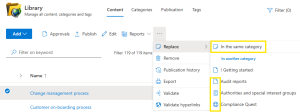
- Remove – one or more documents can be removed from the library
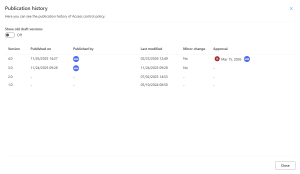
- Publication history – Shows combined information about versions, publications and approvals. Enabled with a single selected document.
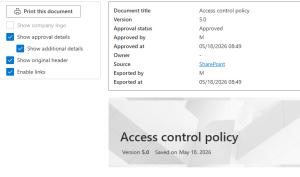
- Export – this functionality enables user to print a document from ISOPlanner library as a pdf version. It can be used for Word documents and SharePoint Pages. If a document has been approved within ISOPlanner, approval details can be added in the header of the document. Additional options when printing is whether you want to have the links contained in the document active in the pdf and whether you wish to add a company logo and/or have the header visible in the .pdf document.
- Validate – this checks the validity of all links that were selected before choosing this option.
- Validate hyperlinks – this checks the validity of links on SharePoint pages, either in a selection of content of for all content that is of the type ‘SharePoint page’. When links on pages are not valid they can be updated in some cases to reflect a new site after migration for example.
View
Next to choosing columns and resetting the quick filter (see common elements), you can refresh the version information from SharePoint.
Categories
Where to find it in ISOPlanner: https://portal.isoplanner.app/library/listsThe Categories tab shows the current list of categories, with the option to Add a new category, Edit the existing one, Remove a category if it is no longer needed.
When you migrate your SharePoint environment to another site, ISOPlanner can automatically link to this new location by changing the location of the category. To make this work, before migrating, run the function Retrieve data for migration to store meta data about the content in all categories so ISOPlanner can successfully link them to a new location. To change the location, edit the category and choose a new location. An option is provided to automatically migrate the content.
Library category can be one of the following types:
- SharePoint Document Library – this applies to all Microsoft document such as excel, word, outlook emails as well as others such as .jpg .png etc.
- SharePoint Custom List – for a specific SharePoint List which can hold a table of information.
- SharePoint Page Library – site in your SharePoint which contains SharePoint Pages, Wiki-style.
- URL List – external source/website; you can add multiple URLs addresses in one URL category.
SharePoint integration must be enabled for the specific type, for it to be available. If it is not available then the category is grayed out when adding or editing a category. SharePoint integration can be enabled in the menu Administration-Settings, tab: Integration.
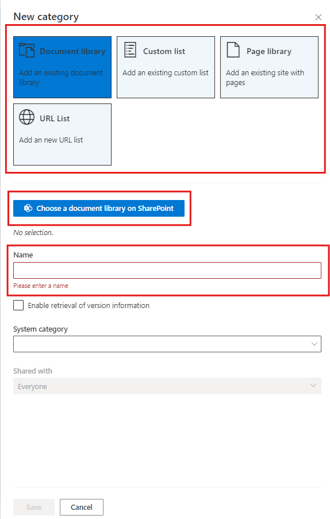
When adding or editing a category of a SharePoint type, there is a button to choose a document library, list, or site on SharePoint respectively. After choosing a type of category but clicking on the button below “Choose a Document library/Custom list/Page library on SharePoint” a SharePoint browser opens where you can select a SharePoint site and then a specific (folder in a) document library or list if applicable.
Each category of a SharePoint type is associated with a certain SharePoint location. That means that all content items in that category will have to be stored in that location.
A category of URL List type is simply a list of URLs. When adding or editing a category of this type it is possible to enter a URL. This is the “base-URL” for all library items that will be created in this category. For example, if you know that all library items in this category are YouTube videos, you can enter https://www.youtube.com. Considering that URL addresses are external sources for ISOPlanner and a preview of a URL cannot be guaranteed, instead of the common button “open in SharePoint”, when clicking on a URL address, you will get the button “open in new tab” so you can have the URL open in another tab, outside of ISOPlanner.
Name
When adding or editing a category, you can enter or change its name. The category will be visible in ISOPlanner Content and also as a category to choose a document from when linking a document to an element.
Enable retrieval of version information
This option is available for Document libraries and Page libraries. When enabled, ISOPlanner retrieves real-time version information about the items in that category. Enable this feature when documents need to be maintained, like policies and procedures. Disable this feature when the category acts like an archive, for example for evidence. To publish new document versions and to enable read confirmations (Business+ subscriptions) this option must be enabled.
System category
There are five system categories available which you may choose for your categories:
- Assets – used by the Risk module. Create a list of Assets on SharePoint to choose from. For more flexibility, use the Asset module in ISOPlanner.
- Threats – used by the Risk module. Create a list of Threats on SharePoint to choose from.
- E-mail attachments – used by the “Outlook Task” app to store email attachment when creating a task from an email.
- Reference evidence – used by the KPI system to check uploaded evidence against a baseline.
- Uploaded evidence – used by tasks to quickly upload evidence to this location. For more flexibility, create a task Form. With forms, you can select a default location for each field on the form.
Choosing a system category is optional.
Shared with
Here you can determine to whom this Library category will be visible. This has no impact on the Permissions within your SharePoint in any way, this visibility is only for ISOPlanner.
Publication
Where to find it in ISOPlanner: https://portal.isoplanner.app/library/publicationThe Publication tab allows you to select content from the library that you want to share in your organization. Users see the content in the Teams Library app and on their ISOPlanner Dashboard.
With a Basic subscription, you get 1 user group for the whole organization, upgrade to Business to create more user groups and enable read confirmations
Read confirmations
For each document for each user group, you can enable ‘Read confirmations’. When enabled, a read confirmation request is send to all users within those user groups. Users see these requests on their ISOPlanner Dashboard, in the Teams Library app and are notified by email. Read confirmations are send when a the document is published in ISOPlanner. This can be done with the Publish button (in bulk) and documents are automatically published after approval.
Click here to read more about publishing documents and read confirmations.