
Introduction
For more information on the application, see https://isoplanner.app.
As an addition to the application, a Teams app was created with the specific purpose of sharing documentation regarding ISO standards with coworkers. This document explains how to install, configure and use this Teams app.
Activation
An administrator in your organization needs to install and authorize the Teams app. As an administrator, go to https://admin.teams.microsoft.com and log in. Go to menu Teams apps and then choose Manage apps.
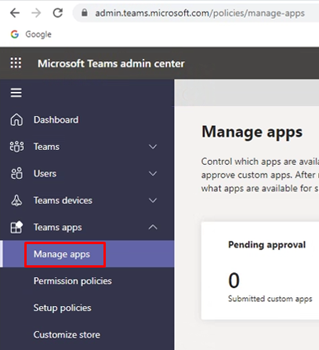
In the search box, type “isoplanner” – you’ll see ISOPlanner Library app appear.

Click on the ISOPlanner Library result for more information and toggle “Allowed” to on. Then go to “Permissions” and click the button “Review permissions”.
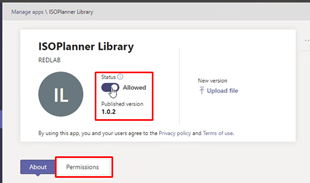
A Microsoft popup will appear which shows the permissions that the ISOPlanner Knowledge Base Teams app needs – click “Accept” to continue. You’ll be notified that the requested permissions have been granted.

Adding the app to a Team
After activation, next step is to add the app to a team in Microsoft Teams.
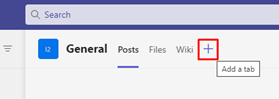
In Microsoft Teams, open a team and click the plus-icon to add a tab to the team. Note that only public Teams channels are currently supported. Support for private and shared channels is under development.
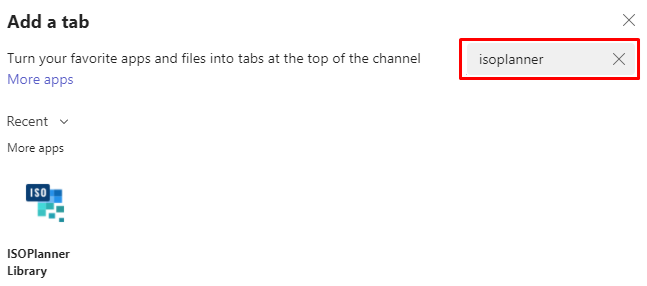
Search for “ISOPlanner” and select the ISOPlanner Library app. In the next screen, click “Add”. It might take some time to load at first. Click “Save” when that button becomes active. The knowledge base will appear in the tab.
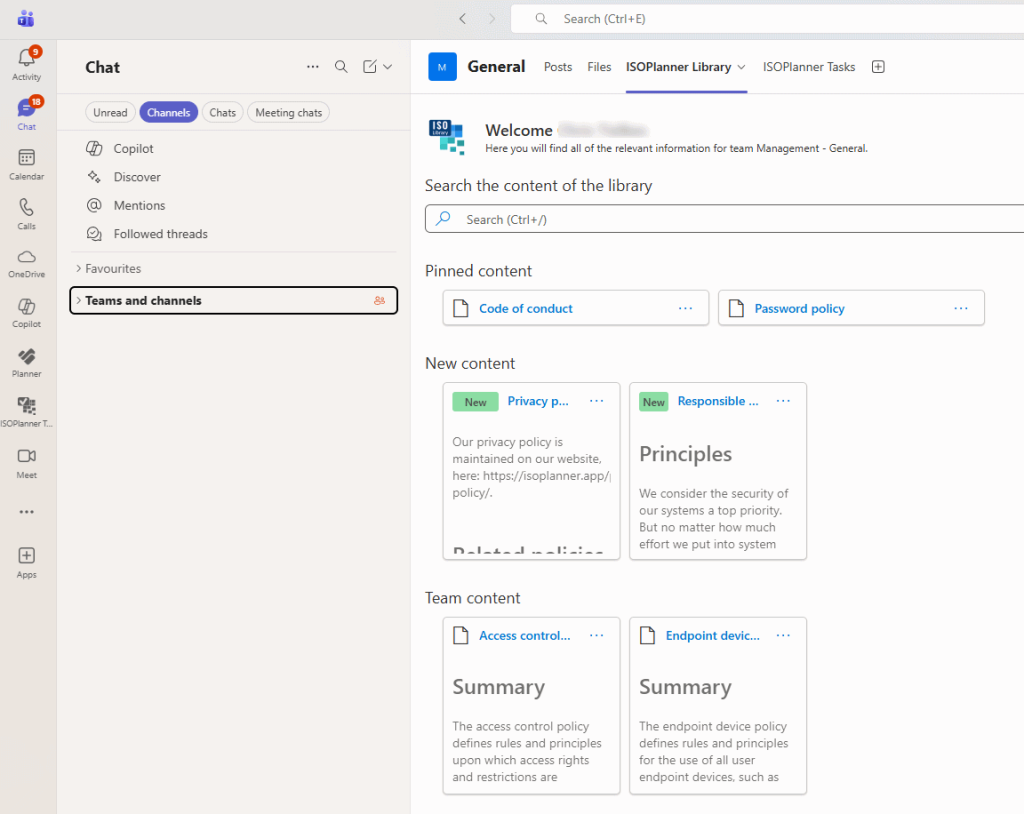
Features
- You can search the complete library of ISOPlanner and show all documents.
- You can pin a document at the top of the view for easy access.
- Below Pinned content, there could be New content: items that are just published and are for you to read (but no read confirmation is need)
- When there are request for you to read and confirm documents, they show up in a separate section with a red dot. You can confirm them directly from within this app.
- At the bottom, there is all the other content that is assigned to all member of this team through user groups configured in ISOPlanner.
- You can give feedback on documents. Feedback is posted in the channel and the owner of the document is notified through a task, if an owner is configured.