
Use ISOPlanner in Microsoft 365 Copilot (connector)
With the ISOPlanner connector, Microsoft 365 Copilot answers questions with your ISOPlanner data. You ask Copilot Chat, or Copilot in Word, Excel, PowerPoint or Outlook, something like "which of my tasks are overdue?" or "make a slide with our open risks", and Copilot looks the answer up in ISOPlanner at that moment, signed in as you. You do not pick an agent first; ISOPlanner is one of Copilot's sources. Your Microsoft 365 administrator adds the connector once for the organization, and every user connects once.
In short: an administrator adds ISOPlanner in the Microsoft 365 admin center as a connector to an MCP server, with the address
https://mcp.isoplanner.appand the registration ID shown in ISOPlanner under Administration > Settings > Integration, tab Microsoft 365 Copilot, and makes it available to a group of users or to everyone. Each user connects to it once under Settings > Sources in Copilot Chat and signs in with their ISOPlanner account. From then on Copilot calls ISOPlanner whenever a question needs it, with that user's permissions. Reading needs no approval. Before Copilot changes anything in ISOPlanner it asks you, and you decide per change. Nothing of ISOPlanner is copied into Microsoft's index.
Before you start
- An ISOPlanner account with a licence, per user. Every person who uses the connector signs in with the Microsoft account they use for ISOPlanner. A person who is not registered in ISOPlanner, or who has no licence, is refused at sign-in. Copilot never sees more than that person sees in the web app.
- A Microsoft 365 Copilot licence, per user. Every person who asks Copilot about ISOPlanner data needs the Microsoft 365 Copilot add-on licence, or a Microsoft 365 E7 licence that includes it. The free Copilot Chat, a Copilot Studio licence and pay-as-you-go billing are not enough for a connector. A user without the licence does not see ISOPlanner as a source.
- A Microsoft 365 administrator. Adding the connector needs the Global Administrator or the AI Administrator role in your Microsoft 365 tenant.
- Agents and plugins allowed. Your tenant's settings for agent and plugin access and for user access must allow the users who get the connector. If your organization blocks agents and plugins, the connector does not reach them.
- The registration ID from ISOPlanner. The connector signs users in through a Microsoft Entra registration that ISOPlanner owns. In ISOPlanner, go to Administration > Settings > Integration and open the tab Microsoft 365 Copilot: it shows the server address and the Registration ID (Microsoft Entra SSO), each with a button to copy it. The ID is the same for every customer and is not a secret.
- Where it works. Copilot Chat, Copilot in Word, Excel, PowerPoint and Outlook, and the Researcher agent (Researcher only reads). Teams chats and channels are not among the places Microsoft offers connectors today. For ISOPlanner in Teams, use the ISOPlanner app in Teams instead.
1. Make ISOPlanner known to your directory (administrator, once)
Microsoft signs your users in to ISOPlanner only once ISOPlanner is known in your directory. If a colleague has already connected Claude, ChatGPT, Copilot Studio or another assistant to ISOPlanner, this step is done. Otherwise:
In ISOPlanner, go to Administration > Settings > Integration, open the tab Microsoft 365 Copilot and switch on Make ISOPlanner known to your directory. Microsoft asks you to sign in as an administrator of your directory and to accept; you then return to ISOPlanner and the switch stays on.
The page says that the application needs permission to sign users in and read their basic profile; nothing in ISOPlanner changes. ISOPlanner is now listed under Entra ID > Enterprise apps.
2. Add the connector (administrator)
- Sign in to the Microsoft 365 admin center as a Global Administrator or AI Administrator.
- Go to Copilot > Connectors > Gallery. In the categories on the left choose Created by your org, and on the tile Create a new connector select Add. The tab Your connections only lists connectors that already exist.
- On the page Custom connector, under Connect to MCP server, select Add.
- Fill in the fields of the table below. For Authentication type choose Microsoft Entra SSO, paste the registration ID from the tab Microsoft 365 Copilot in ISOPlanner as the Reference ID and select Approve. Microsoft asks you to sign in and to consent for your organization; afterwards the reference ID shows a green check mark.
- Tick Notice to accept Microsoft's terms for connectors and select Create. The connection is listed under Your connections with the status Ready.
- Choose who gets the connector. Start with a small group to try it, then select Deploy to all users when it works. A change takes up to ten minutes to reach the users.
| Field | What to enter |
|---|---|
| Display name | ISOPlanner. Users see this name under their sources and in Copilot's answers. |
| Description | One or two sentences Copilot uses to decide when to ask ISOPlanner, for example: The organization's ISO management system in ISOPlanner: risks, controls, requirements, tasks, assets, processes, documents, KPIs and audits. |
| Base URL | https://mcp.isoplanner.app |
| Authentication | Microsoft Entra SSO, with the registration ID from Administration > Settings > Integration, tab Microsoft 365 Copilot in ISOPlanner. |
| Developer name | REDLAB |
| Website | https://isoplanner.app |
| Privacy policy | https://isoplanner.app/privacy |
| Terms of use | https://isoplanner.app/terms-of-service |
Microsoft also offers OAuth 2.0 and No Auth on this form. Do not choose them for ISOPlanner: OAuth 2.0 asks for a client secret that ISOPlanner does not issue, and without authentication ISOPlanner refuses every call.
3. Connect (every user, once)
- Open Copilot Chat and go to Settings > Sources.
- Find ISOPlanner and select Connect. A Microsoft sign-in page opens: sign in with the account you use for ISOPlanner.
- If Microsoft asks you to allow ISOPlanner to act as you, accept. This is the only consent you give; it lets Copilot read and work in ISOPlanner as you and never gives it more than you have yourself. Whether the page appears depends on your organization's consent settings.
The connection stays until you disconnect it under Sources. You do not enter a password or a key anywhere else, and ISOPlanner does not store your Microsoft password.
4. Ask Copilot
Ask in your own words. Copilot decides by itself when a question needs ISOPlanner; naming ISOPlanner in the question helps when it does not. Three examples:
- In Copilot Chat: Which of my ISOPlanner tasks are overdue, and who else is waiting on them?
- In PowerPoint: Make a slide with our open ISOPlanner risks above score 12, with their owner and treatment.
- In Word or Copilot Chat: How many ISO 27001 controls are implemented in ISOPlanner, and which are not yet?
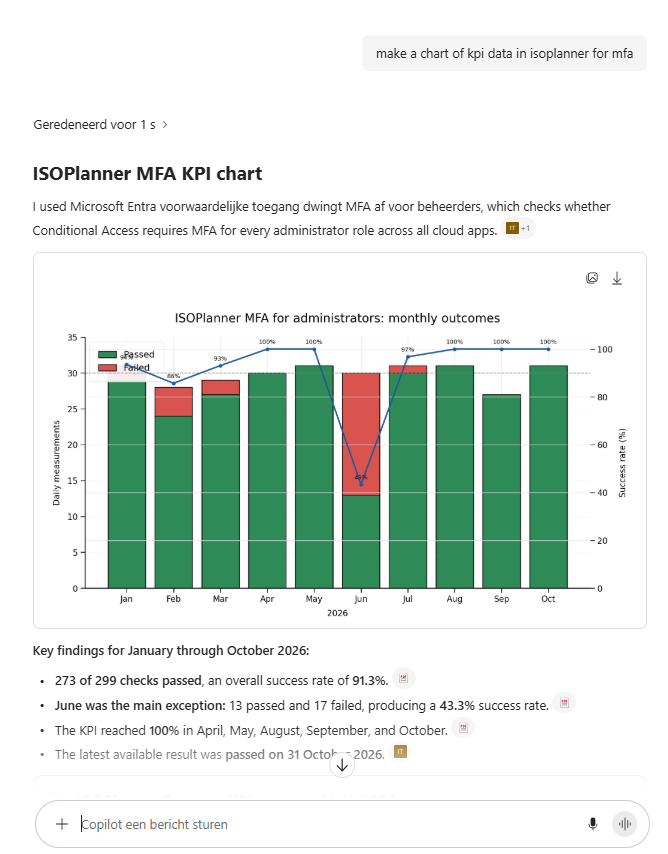
- In Copilot Chat: Make a chart of the KPI data in ISOPlanner for MFA.
ISOPlanner supplies the data; Copilot does the rest with its own tools. Asked for a chart, Copilot reads the measurements of the KPI from ISOPlanner, draws the chart itself and adds its findings, each with ISOPlanner as the source. In PowerPoint it builds the slide, and the Researcher agent uses ISOPlanner next to your other sources. Most answers come back within a few seconds.
Copilot works in one organization at a time: the organization you start in when you sign in to ISOPlanner. If you work in several organizations or organizational units, ask Copilot to list them and to switch, then repeat your question. A new conversation starts in your own organization again.
5. What Copilot can and cannot do with ISOPlanner
Copilot uses the same tools as any other AI assistant connected to ISOPlanner; the general article about the ISOPlanner MCP server lists them by area and says what stays in the web app.
Reading
Copilot reads registers, tasks, documents, KPIs, audits and their history, and counts them, without asking you first. It reads only what you may see in the web app. It looks things up through these tools, so it finds ISOPlanner records by their title, code, owner or status; it does not search inside the text of every record and document the way the Microsoft 365 search does.
Changing data: Copilot asks you first
Copilot can also create and change records in ISOPlanner, for example close a task or assign an owner to a risk. ISOPlanner checks every change first and writes nothing if the request has problems. Before a tool that changes data runs, Copilot asks you to allow it:
| Choice | What it does |
|---|---|
| Allow once | This one change is made. Copilot asks again next time. |
| Always allow | Copilot uses this tool without asking, in this and every later conversation. |
| Not allowing | Nothing is written. |
The change is made once, also when Copilot asked you first. You see it in ISOPlanner straight away.
Which tools ask first
In Copilot Chat, Settings > Sources > ISOPlanner shows the ISOPlanner tools in two groups. Write/delete tools start on Approval required: Copilot asks before each one. Read tools are Always allowed. The setting applies to Copilot Chat. On the same page you disconnect ISOPlanner with Disconnect.
Do not choose Always allow for a tool that changes or deletes data. Copilot's card is the check before the change: after Always allow, Copilot makes such changes, deletions included, without showing you what it is about to do. A deletion in ISOPlanner is permanent. Choose Allow once and read the card each time.
A change made through Copilot has the same result as the same change in the web app: it appears in the change history with your name and sends the same notifications. The permissions you have in the web app apply.
6. Privacy
- Nothing is indexed. ISOPlanner data is not copied into Microsoft 365 or into Microsoft's search index. Copilot calls ISOPlanner when a question needs it and uses the answer for that question. Reports and evidence that ISOPlanner saves to SharePoint or OneDrive are ordinary files there: Copilot finds them like any other file you may open, and can cite a saved report next to the live data.
- Your identity, your permissions. Every call is made as the signed-in user. Copilot sees what that user sees in ISOPlanner and nothing more.
- Where the data is. ISOPlanner and its MCP server are hosted in the European Union. What Copilot does with an answer after it receives it follows Microsoft's terms for Microsoft 365 Copilot.
- AI credits. Copilot reasons with Microsoft's models, so reading ISOPlanner data through Copilot uses no ISOPlanner AI credits. A tool that runs ISOPlanner's own AI, such as judging uploaded evidence, uses credits as it does from any assistant.
Questions and troubleshooting
ISOPlanner is not listed under Sources
Either you have no Microsoft 365 Copilot licence, the administrator has not made the connector available to you yet, or your tenant's agent and plugin settings do not allow it for you. A change by the administrator takes up to ten minutes. Ask your Microsoft 365 administrator which of the three applies.
The sign-in says that I am not registered or have no licence
Microsoft accepted the account, ISOPlanner did not: the account is not an ISOPlanner user with a licence, or it is not the account you use for ISOPlanner. Connect again with the right account, or ask an ISOPlanner administrator to invite you or to assign a licence.
The sign-in is refused for everyone in our organization
ISOPlanner accepts users only from an organization that has an ISOPlanner subscription and from the directory that subscription is linked to. A user of another directory, including a guest account, is refused. Check with ISOPlanner support that your Microsoft tenant is the one linked to your subscription.
Copilot answers without ISOPlanner data
Copilot chooses its sources per question. Name ISOPlanner in the question ("in ISOPlanner, ..."), and check under Sources that you are connected. In Teams chats Copilot does not use connectors.
The answer takes a long time
Copilot asks ISOPlanner at the moment you ask, sometimes several times for one question, and waits for each answer. Large lists take longest. Ask for a narrower set, for example one standard, one owner or one period, or ask for a count first and the details second.
Copilot shows data of the wrong organization
Copilot started in your own organization. Ask it to list your organizations and to switch, then repeat your question.
Copilot says it may not change a record, or that I need a licence or an administrator
The same rules apply as in the web app. The answer names what is missing; an ISOPlanner administrator can resolve it with a role or a licence, or the owner of the record can make the change.
I chose Cancel and nothing happened
That is correct: nothing is written. Tell Copilot what you want to see differently and it proposes the change again.
Can we use ISOPlanner in Copilot in another way?
Yes. An agent you build yourself in Microsoft Copilot Studio can use ISOPlanner as a tool; see Connect the ISOPlanner MCP server to Microsoft Copilot Studio.