Summary
This integration checks whether users in Microsoft Entra ID have MFA enabled and reviews your Conditional Access policies to see whether MFA is being enforced. It helps you verify that user sign-in protection is configured as expected in Microsoft Entra.
Microsoft Multi-Factor Authentication (MFA) can be activated in the menu Administration/Store. For this feature, a 30 day trial period is available, during which it is possible to unsubscribe at any time. After 30 days and if not unsubscribed, subscription for this feature will automatically be activated.
The price for this feature is 10 EUR/month.
Licensing
Basic MFA capabilities are available with Microsoft 365 and Microsoft Entra ID, but Conditional Access requires Microsoft Entra ID P1 or P2. Microsoft notes that Entra ID P1 is included with plans such as Microsoft 365 Business Premium and Microsoft 365 E3.
Test
When you run this test in ISOPlanner, the result shows which users have their MFA disabled and which user are exempted according to your Conditional Access policies. In the example below you see that 1 user (Mark) has their MFA disabled which results in the that the evidence is Rejected. Another user is moved to the right (select and click Exempt selected users) which leads to a manual exemption. Manual means that Conditional Access policies are not applied for this user. You can also manually exempt a whole group by clicking Add group exemption.
Strong advice: don’t use manual exemption but configure Conditional Access Policies in Microsoft Entra ID so that you don’t have to manage the manual exemptions. This requires an additional license.
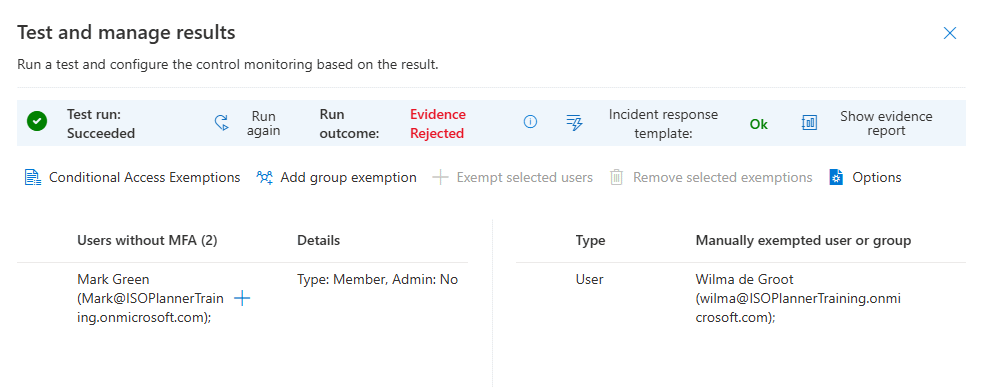
After you make changes to the manually exempted users or groups, you can click Run again to save and see the updated results.
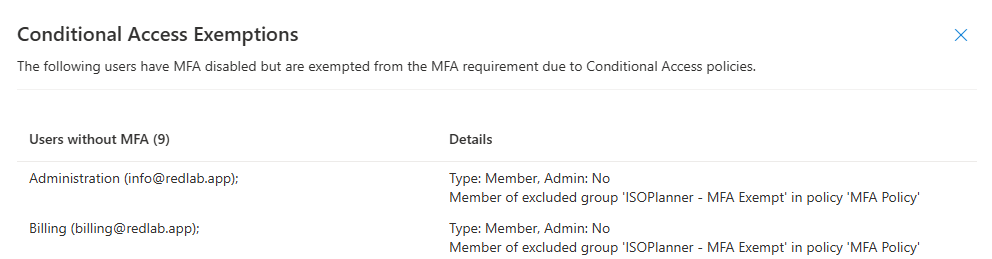
When you have configured Conditional Access Policies in Microsoft Entra ID, you can see which users are exempted by click the Conditional Access Exemptions button.
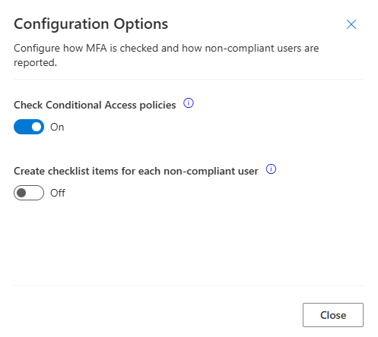
When you click Options, you get options to:
- Disable Conditional Access Policies. If you don’t have the required licenses, you don’t have to disable this because this step is automatically skipped.
- Create checklist items for each user instead of 1 checklist item for all non-compliant users.