
Note that all tutorials show the new Power Automate designer in the screenshots
In this tutorial, we’ll show you a simple example to send an email when an event has started in ISOPlanner.
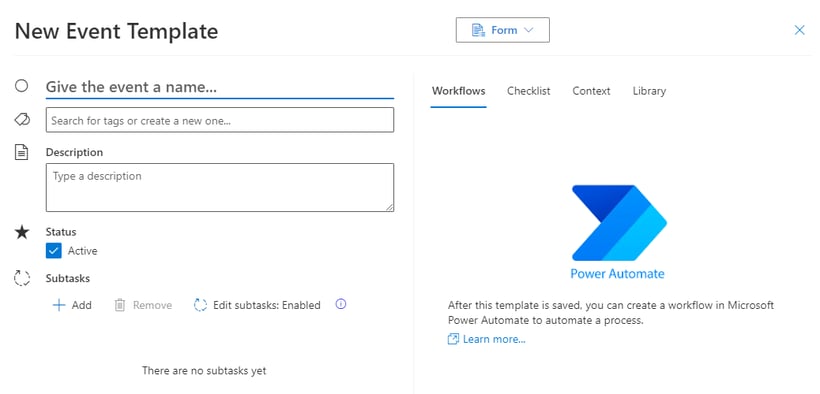
1. First, create an event template. Give the Event template the name Test. Notice that the tab Workflows on the Event template is still empty.
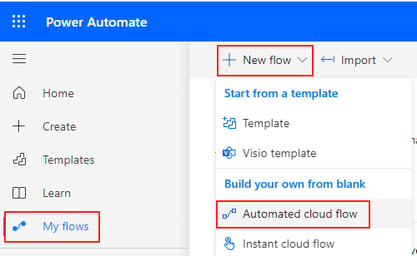
2. Now log into Power Automate and create a new cloud flow.
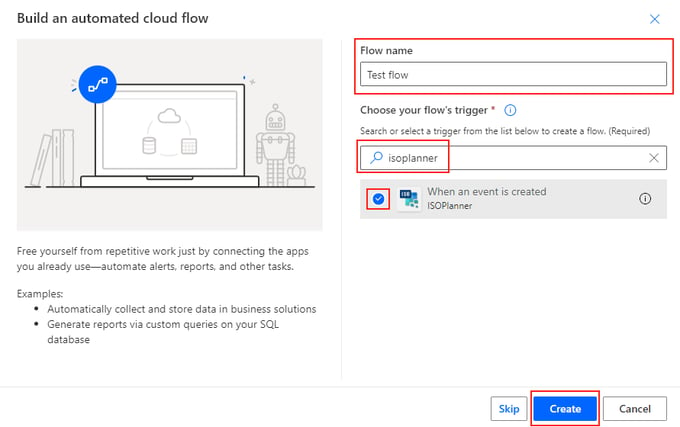
3. Fill in the Flow name and search for isoplanner to choose a trigger. Select When an event is created. Click Create.
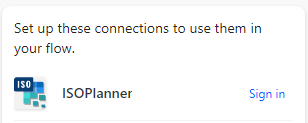
4. Now you must log into ISOPlanner using the Sign in button. You can find it on the right of the screen. You must have the Admin, Manager or Consultant role in ISOPlanner, otherwise the flow will fail.
5. Click on the first created step. This opens the step property panel on the left. Select a value for the Org Unit Id field. For Basis and Business customers, there is only one selectable value. For Premium users, this is a list of available organizational units. Now select a value for the Template field. This list shown all active Event templates created in ISOPlanner. Now fill in the Workflow Name field. This name is seperate from the workflow name in Power Automate and will be used as a display name in ISOPlanner. You can also change this name later in ISOPlanner.
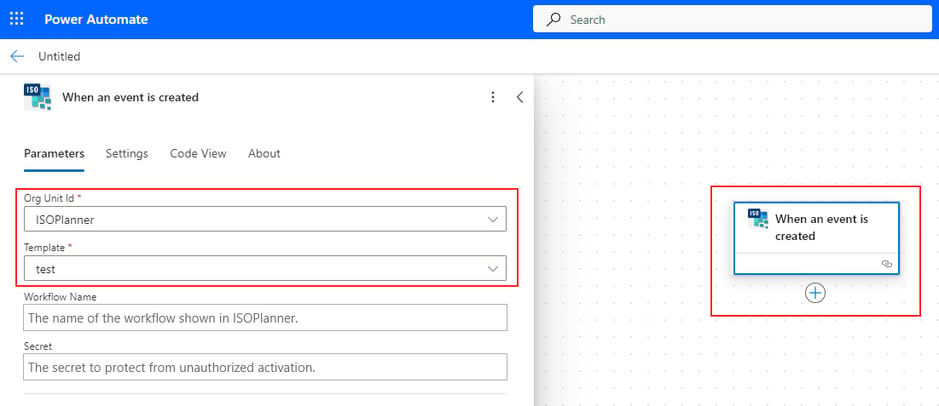
The Secret field is optional and is explained in another tutorial
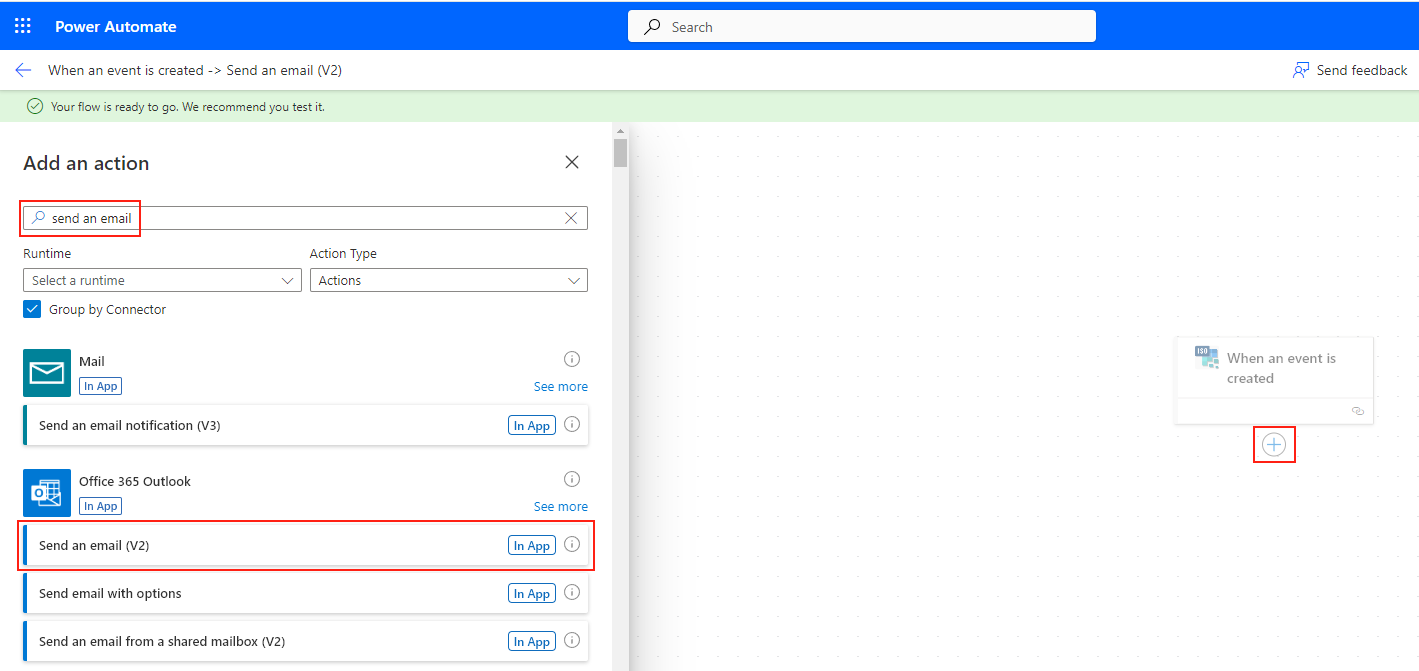
6. Now add an new action to send an email. Click on the plus (+) sign below the first step. Search for’send an email and select the step Send an email (V2) from the Office 365 Outlook connector.
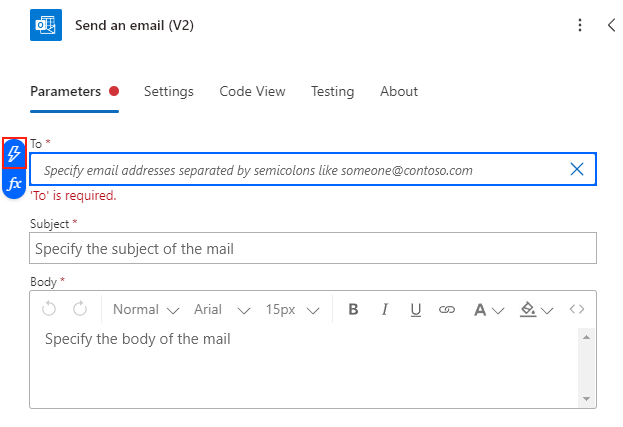
7. Click on the new step to open the properties panel. Now we are going to send an e-mail to the user who created the event in ISOPlanner. Click in the field To and select Enter custom value. Click on the lightning icon to select a value from another step.
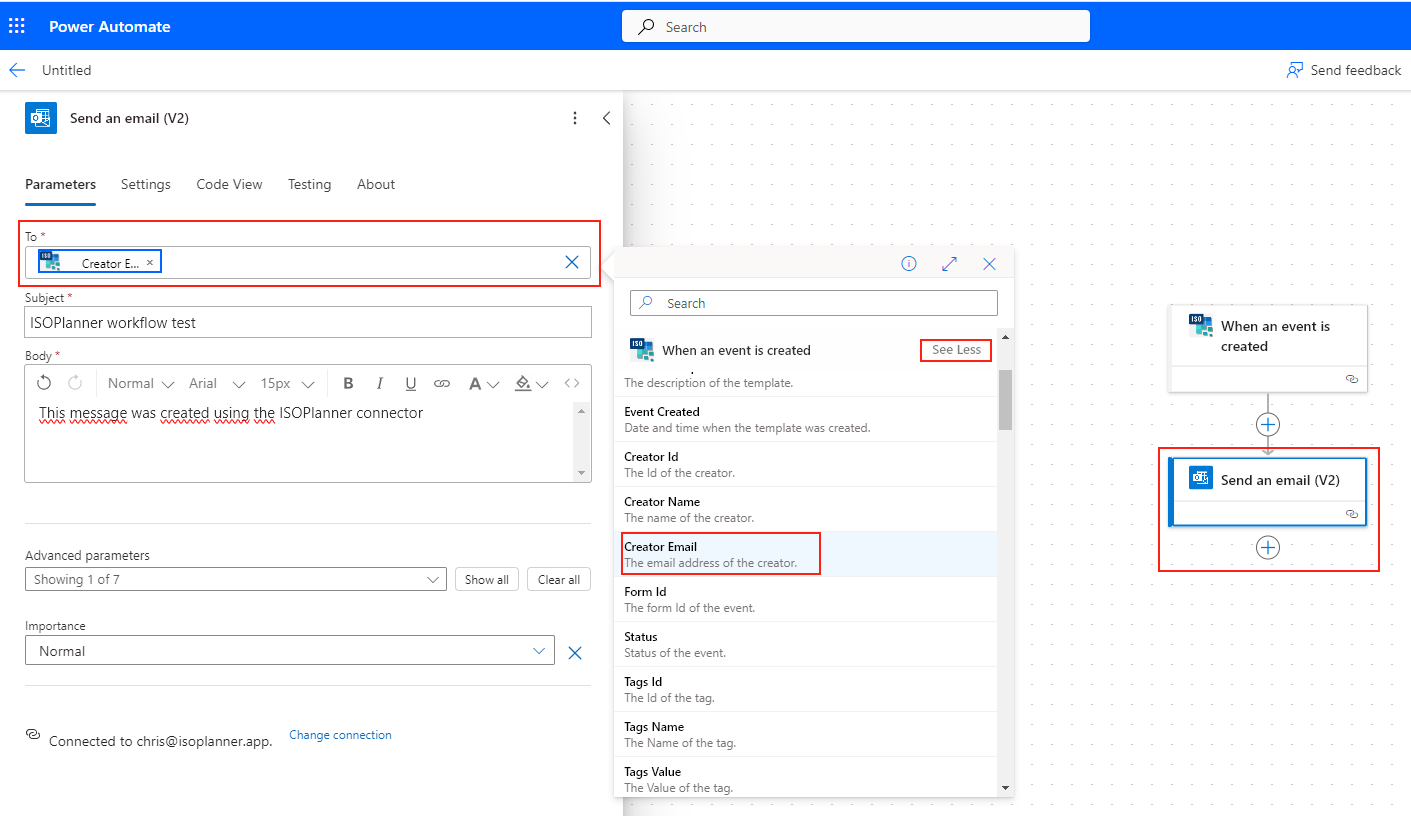
8. Click on See more on the right of the step When an event is created to expand the list of all available fields from this step. Click on Creator Email. Now Power Automate will fill in the email address of the creator of the event in the To field when the flow runs. Fill in the Subject and Body with some test data.
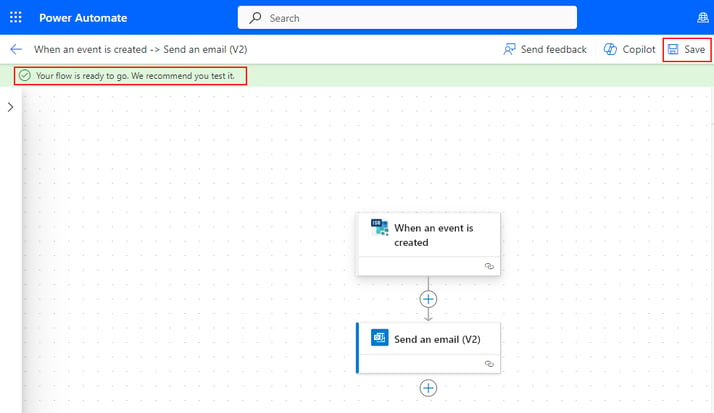
9. Now click Save. When every required parameter is correct, a message appears that the flow is ready for testing.
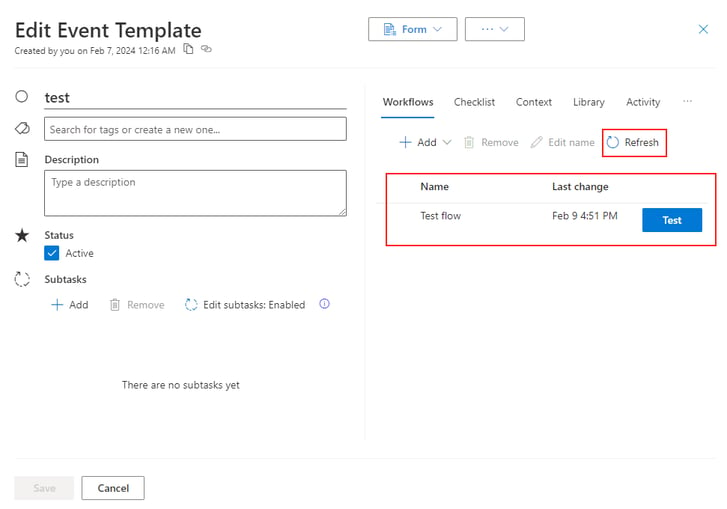
10. Go back to ISOPlanner and click Refresh on the Wokflows tab in your Event template. You should now see that the flow is connected to your template. Click the Test button.
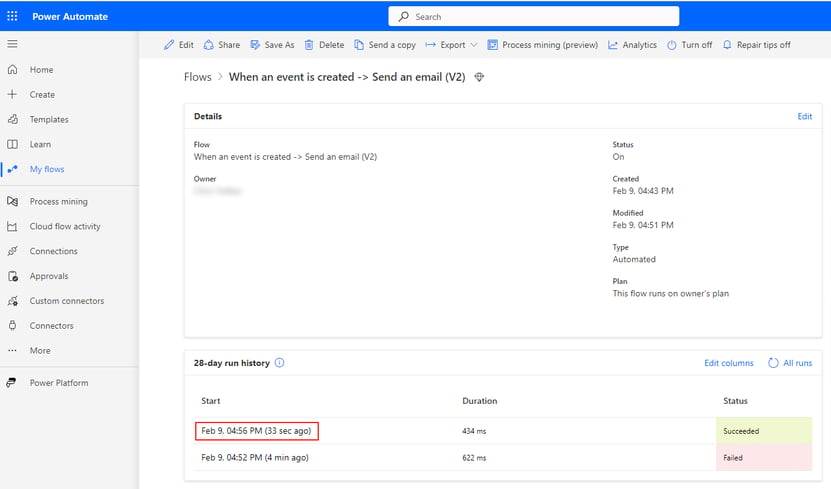
11. A message appears that the flow has been started. Go to Power Automate and see the results by clicking on My flows in the left menu and clicking on the flow you just created. You will notice that the flow fails. This is normal.
The flow fails because the Test button sends dummy test data to Power Automate that does not contain a valid email address of the creator of the event.
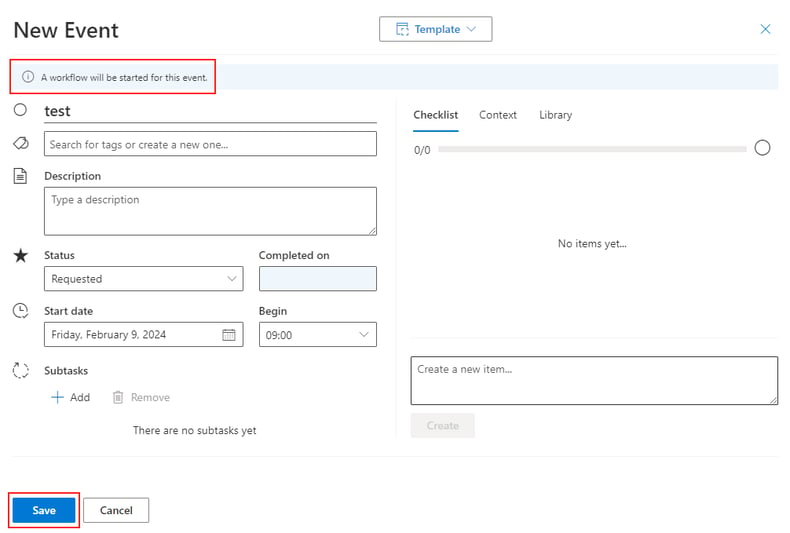
12. Now create a real event based on your template in ISOPlanner. Go to ISOPlanner and select the Tasks menu on the left. Click the New button and select your Event template from the button Template at the top. Notice that a message appears that a workflow will be started for this event. Click save.
13. You should now receive the email in your Outlook inbox. This is because you created the event in ISOPlanner. If you go to Power Automate and check the results again, notice that there is a new run with status Succeeded.
In this tutorial, you’ve learned to create a simple workflow that sends an email when an event is created in ISOPlanner. Feel free to play around and think about production-ready flows like:
- Post a message in a Teams channel when an incident is created in ISOPlanner.
- Create a flow for non-conformities created from an internal audit. Add steps to perform root cause analysis and execute preventive actions.
- Create a supplier onboarding flow involving the legal team and sales team.