
Note that all tutorials show the new Power Automate designer in the screenshots
In this tutorial, we’ll show you an example how users can register an incident in ISOPlanner by creating a post in a Teams channel.
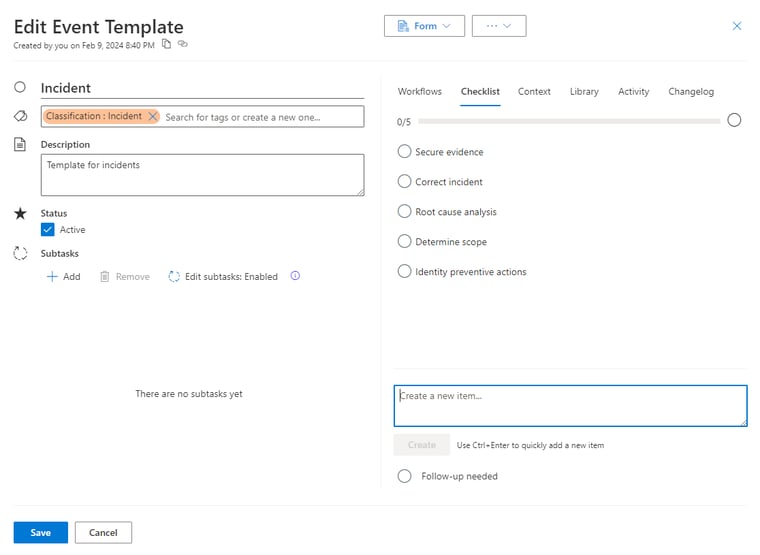
1. First, create an event template. Give the Event template the name Incident. Add a Tag to the template: “Classification : Incident“. You can also add some Checklist items.
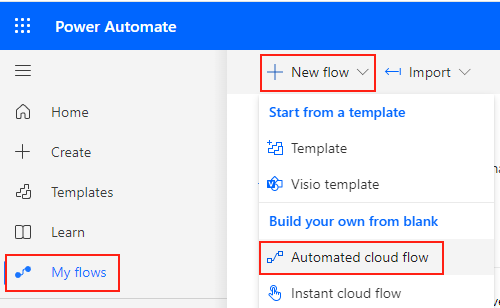
2. Now log into Power Automate and create a new cloud flow.
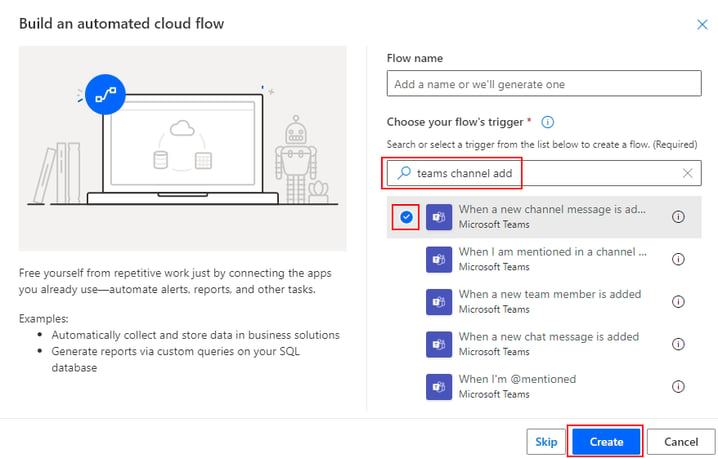
3. Search for the trigger teams channel add and select the trigger When a new channel message is added. Click Create.
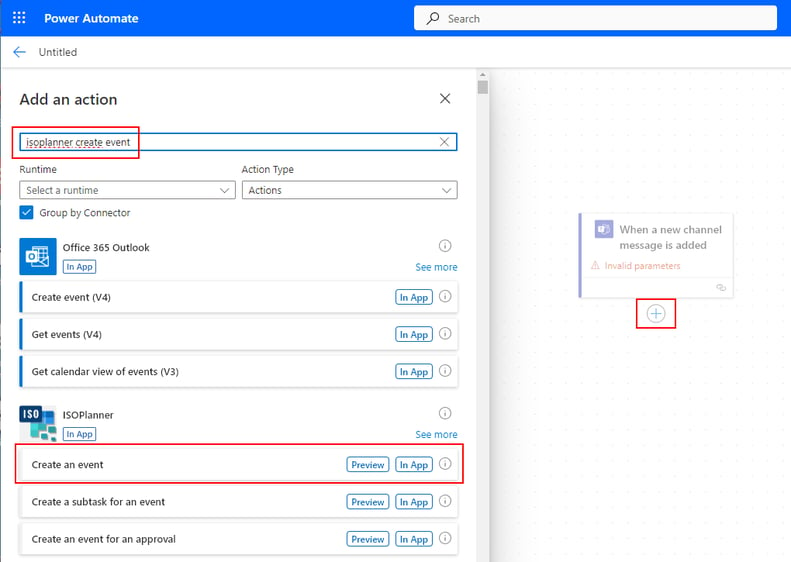
4. Add a new action to the workflow by clicking the (+) button below the first step. Search for isoplanner create event. Select the action Create an event.
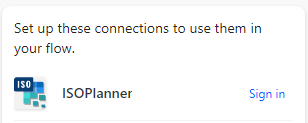
5. Now you must log into Teams and ISOPlanner using the Sign in button. You can find it on the right of the screen. You must have the Admin, Manager or Consultant role in ISOPlanner, otherwise the flow will fail.
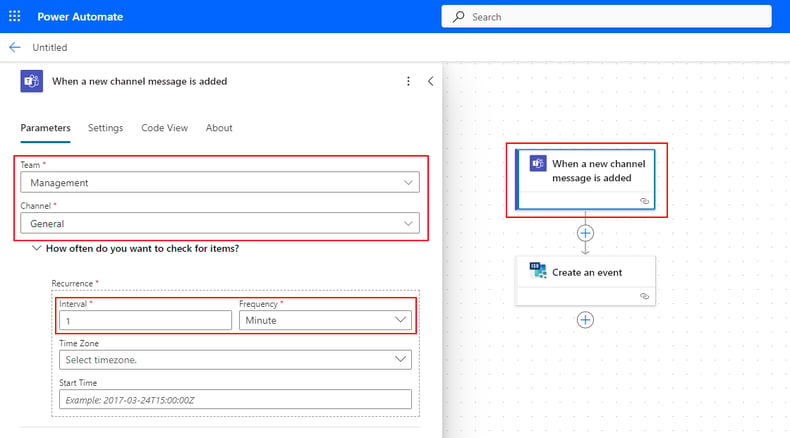
6. Now click on the first step When a new channel message is added. In the property panel on the left, select values for the Team and Channel. Note that you must be member of the team and must be able to post messages in the channel to test the workflow. Set the interval frequency to check for new items to 1 minute.
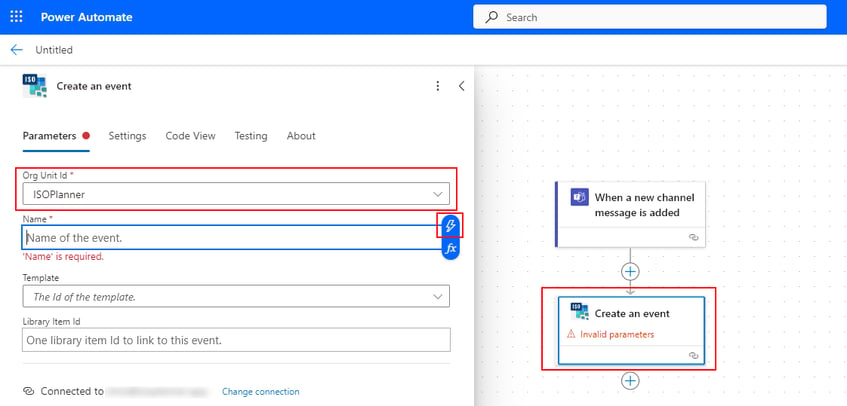
7. Click on the step Create an event. In the property panel, choose a value for the Org Unit Id field. This is the organization in ISOPlanner. Click in the Name field. Now click on the lightning button to add data from a previous step.
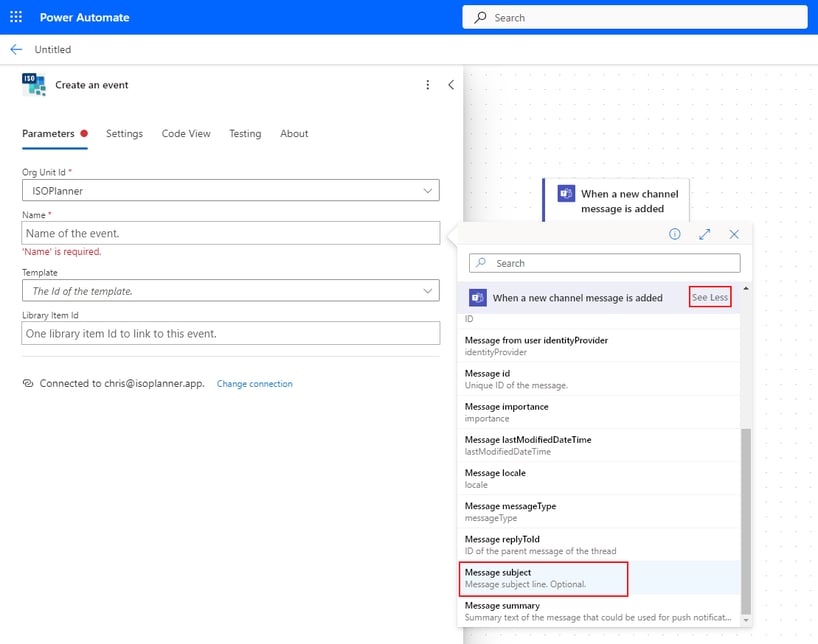
8. Click on the See more button and choose the field Message subject from the step When a new channel message is added.
9. Now choose the Incident template for the Template field that you created in step 1. Notice that Power Automate automatically adds a For each block around the step Create an event when you selected the Name field. This happens because the step When a new channel message is added can deliver multiple messages at once. For each message, an event will be created.
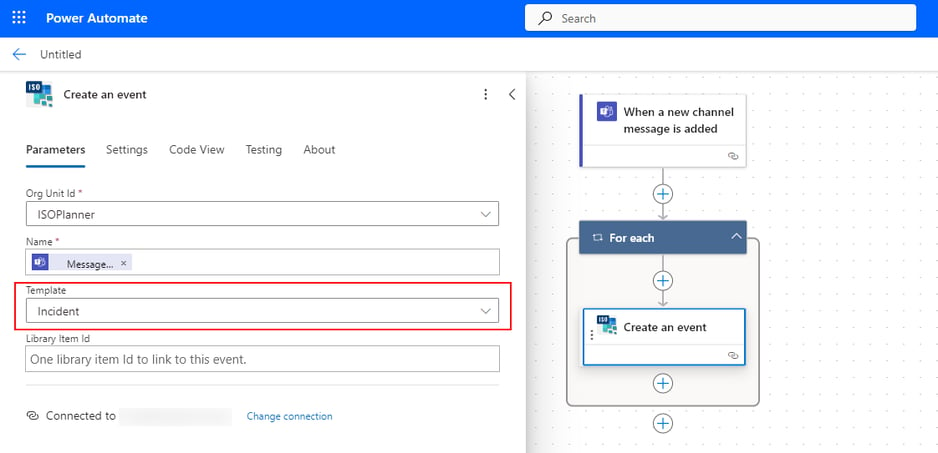
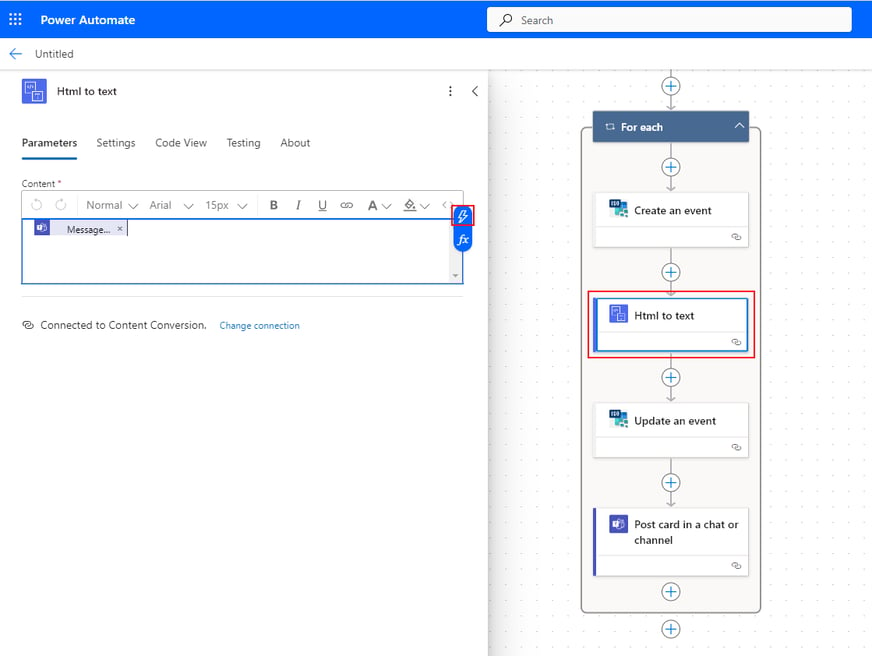
10. Now add 3 new steps to the For each block.
- Html to Text (Content Conversion)
- Update an event (ISOPlanner)
- Post card in chat or channel (Teams)
Configure the Content field of the Html to Text step with data from the step When a new channel message is added. Select the field Message body content.
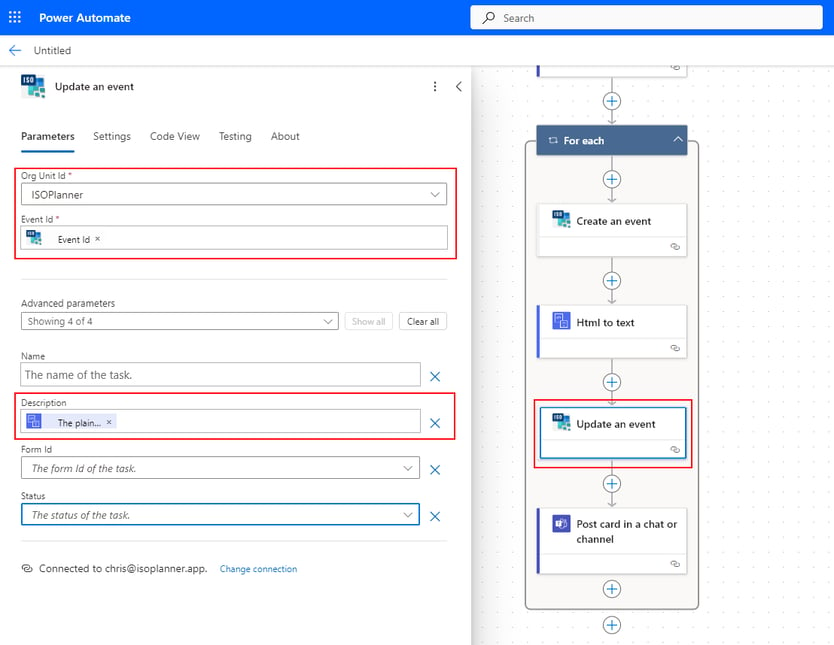
11. Configure the step Update an event. Select the ISOPlanner organization (Org Unit Id). Select the Event Id by selecting the field Event Id from data from the previous step Create an event. For the Description field, select also data from the previous step. Select the field The plain text content from the step Html to Text.
12. Configure the last step. Select Channel for the Post In field and select the same Team and Channel as in step 6.
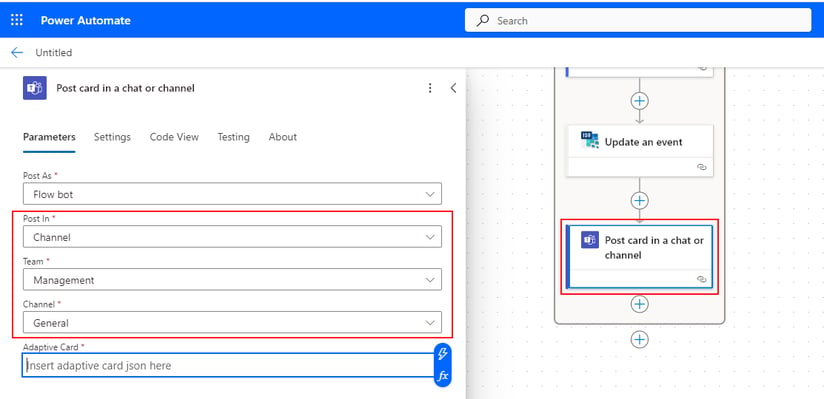
13. Paste the following adaptive card code into the field Adaptive card. Notice the 2 fields in the code. One for the name of the incident and one URL to open the Event.
{
"$schema": "http://adaptivecards.io/schemas/adaptive-card.json",
"type": "AdaptiveCard",
"version": "1.0",
"body": [
{
"type": "TextBlock",
"text": "Incident",
"id": "Title",
"spacing": "Medium",
"horizontalAlignment": "Center",
"size": "ExtraLarge",
"weight": "Bolder",
"color": "Accent"
},
{
"type": "TextBlock",
"text": "@{outputs('Update_an_event')?['body/Name']}",
"weight": "Bolder",
"size": "ExtraLarge",
"spacing": "None",
"id": "acHeader"
},
{
"type": "TextBlock",
"text":"[Open this task in ISOPlanner](@{outputs('Create_an_event')?['body/Url']})",
"id": "acInstructions",
"wrap": true
},
]
}
14. As a last step, add a condition. In this example, we only want to create an event when the subject of the post in Teams contains the word Incident. Click on the first plus (+) button within the For each block. Search for the action condition and select it.
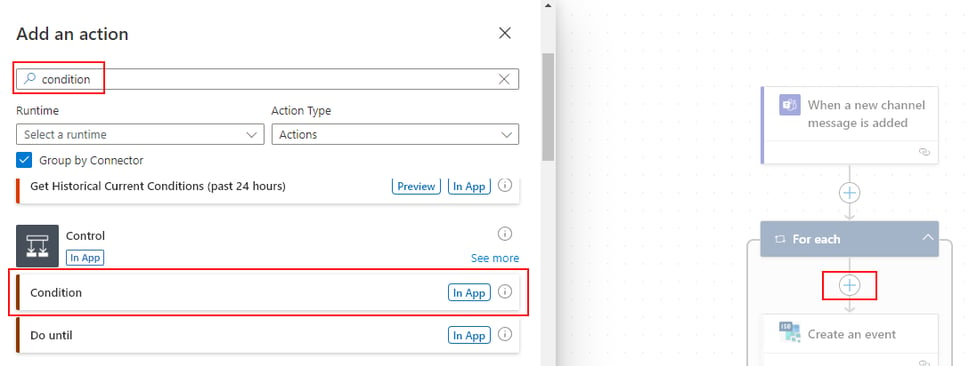
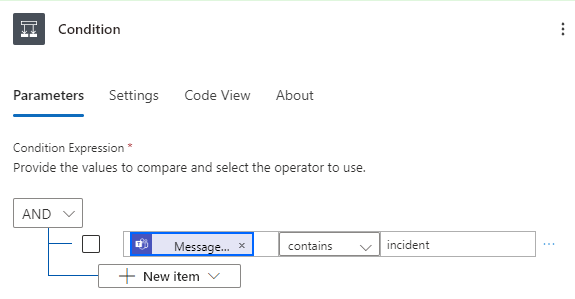
Configure the condition. In the value field select the Message subject field from the previous step When a new channel message is added. Select contains as the operator and type incident as the condition.
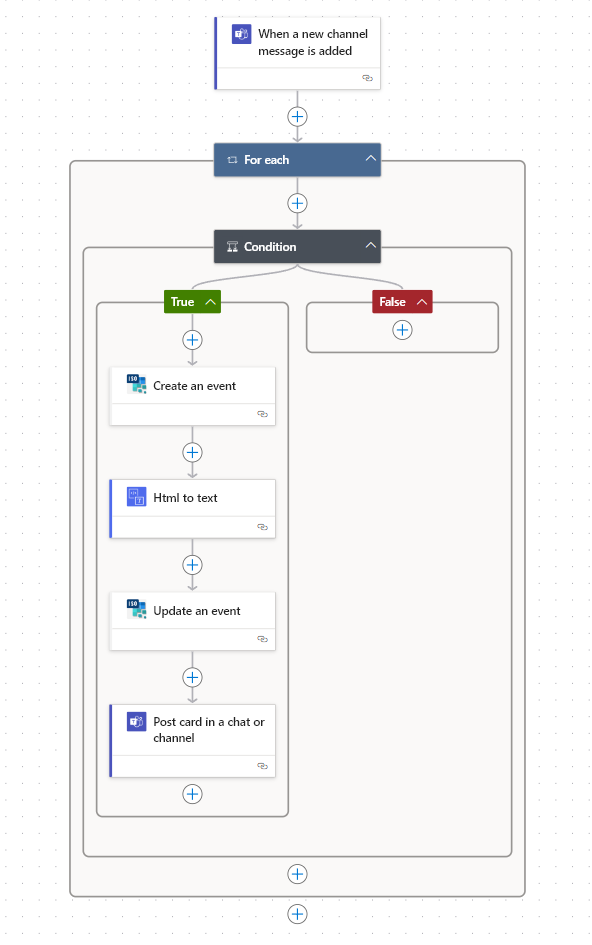
Now drag & drop all the 4 steps in the For each block below the True part of the condition. The result should look like this. Click Save to save the workflow.
15. Test the flow. Go to Microsoft Teams and go to the Team and Channel you selected for this flow. Click Start a post. In the subject line type incident: I found a USB stick. In the body of the post, type This is an example. Click Post. Wait at least 1 minute but our experience is that the waiting time could be a couple of minutes before the workflow is started. The result should look like this.
Note that the condition only is True when you type incident lowercase. You might want to use an expression.
toLower(item()?['subject'])
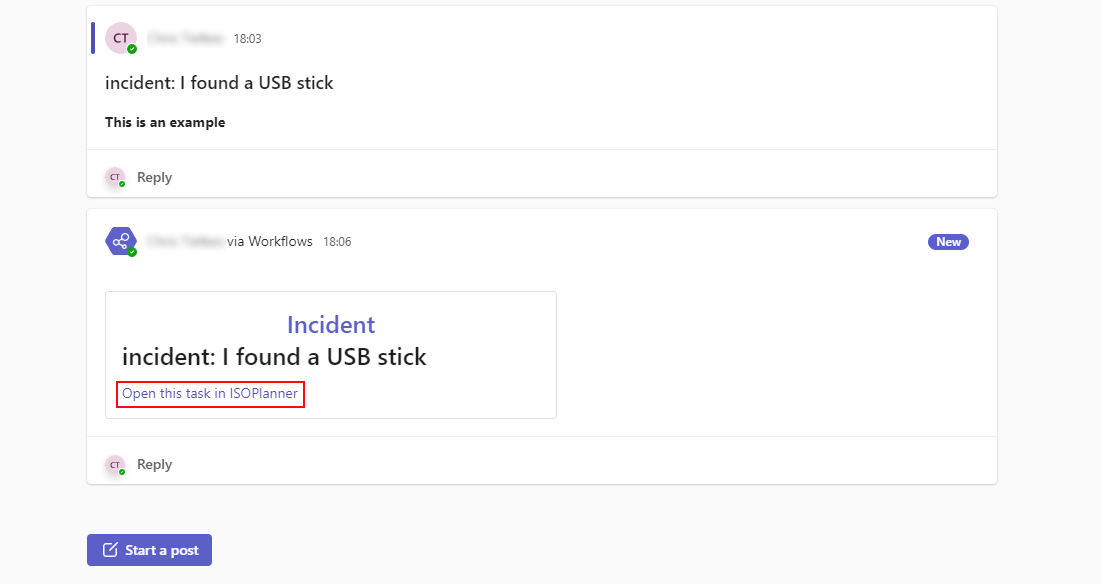
Click the link Open this task in ISOPlanner to see the created event.
In this tutorial, you’ve learned to use basic and more advanced steps like Teams integration, a Condition and an Adaptive card. Feel free to play around and use this for your own organization.
Resources