
In this tutorial, we’ll show you how to trigger an approval flow from SharePoint. This feature can be combined with Tutorial 3: Use an Approval template to send approvals.
This tutorial applies to SharePoint pages. For a documents or list items, you can create your custom workflow and add the steps as described here.
Step 1: Create the default workflow
Select Automate -> Power Automate -> Configure page approval flow.
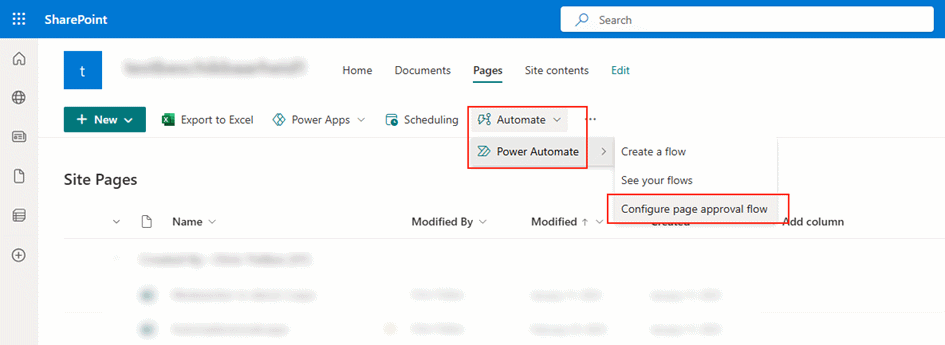
In the panel that opens, Click Create Flow.
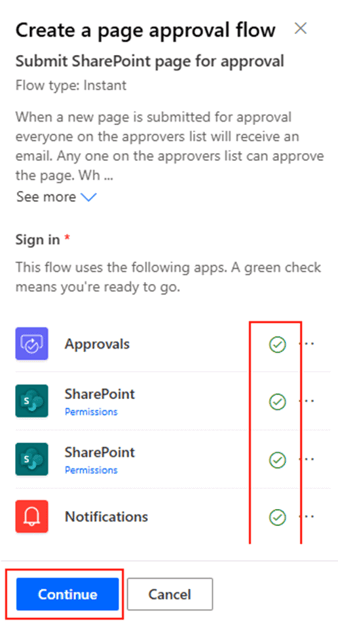
Sign into the 4 apps that are used for this flow. Make sure all checks are ‘green’ and click Continue.
You can change the flow name if you want but you can leave it as it is. This name will be used as the flow name in Power Automate.
Now select a dummy Approver by searching for a user. Select yourself for example and click Create.
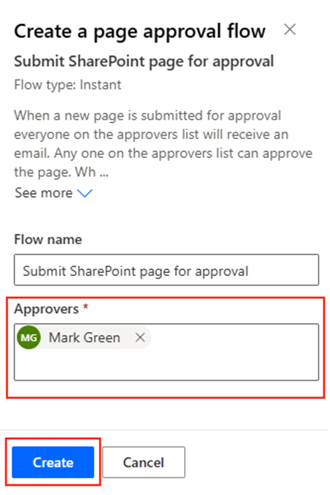
Now the flow is created in your default Power Automate environment and connected to your SharePoint site.
Step 2: Update the default flow
Navigate to https://make.powerautomate.com/
Log in, click on My flows, select the flow that was just created and click Edit.
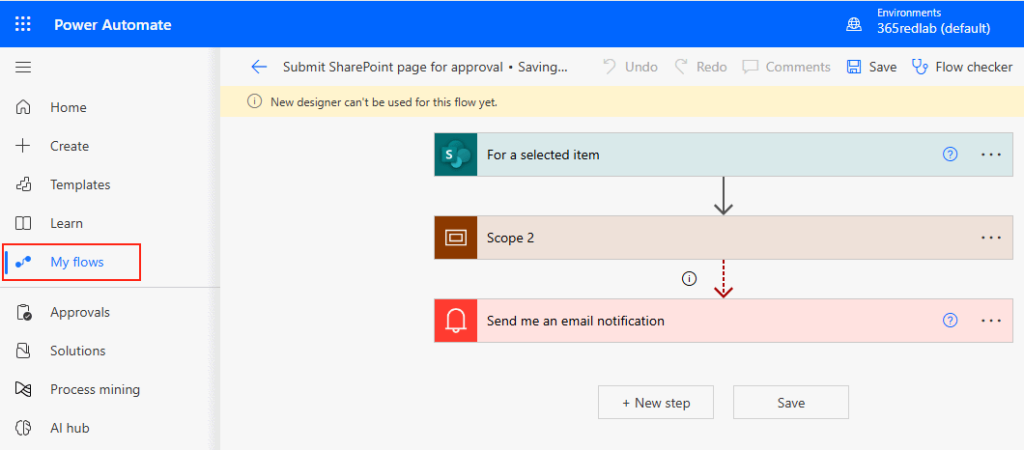
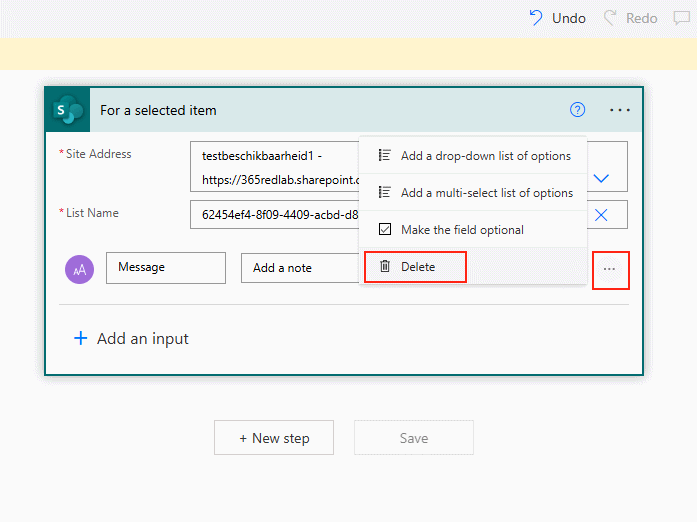
Delete the following steps by clicking on the 3 dots on the right of the step and select Delete.
- Scope 2
- Send me an email notification
Also, delete the Message field in the first step.
Now add a new step for our ISOPlanner connector: Create or Update Library Item
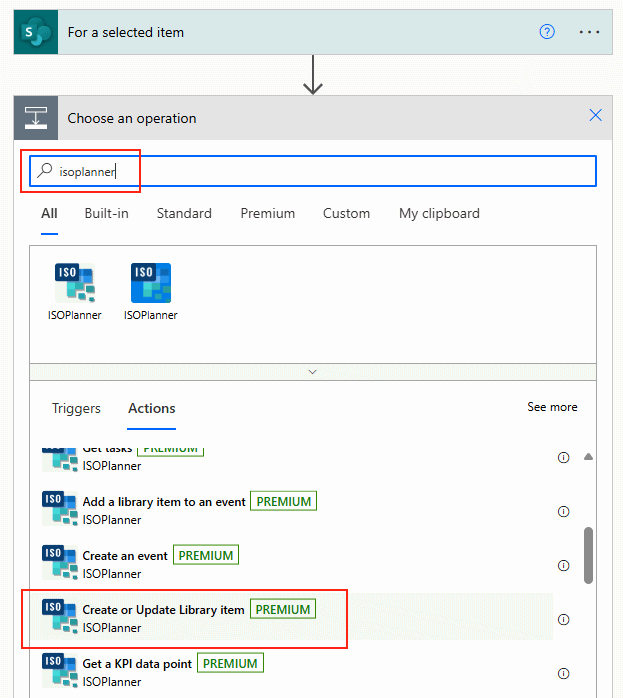
You may have to sign-in and give permissions to our ISOPlanner Connector.
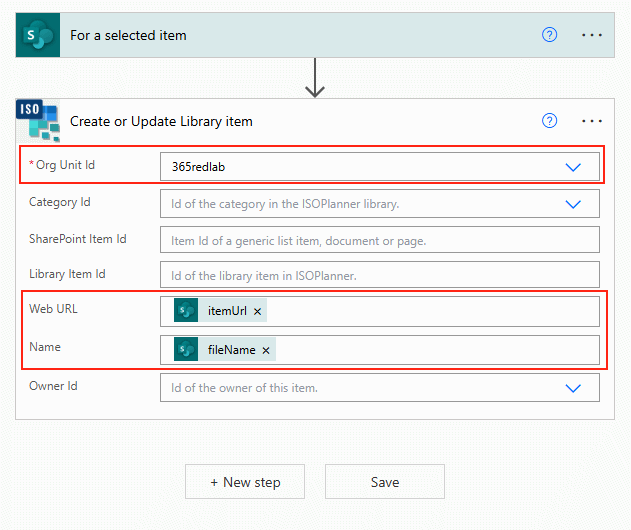
- Select your company name in the Org Unit Id field.
- In the Web URL field, select the itemUrl field from the previous step.
- In the Name field, select the fileName field from the previous step.
Now create another step: Create an event for an approval.
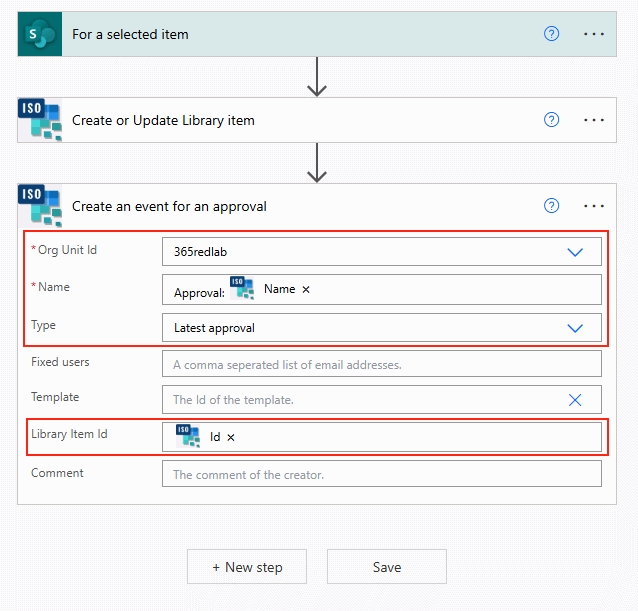
- Select your company name in the Org Unit Id field.
- In the Name field, type something like ‘Approval’ and add the Name field from the previous step. This becomes the name of the event in ISOPlanner but it will be hidden from end-users.
- In the Library Item Id field, select the Id field of the previous step.
- In the Type field, select on of the following options:
- Latest approval – This will start an approval with the same approvers as the last time. If this is the first time, the template or fixed users are used.
- Template – This will start an approval based on the selected template.
- Fixed users – This will start an approval for the selected users.
Now Save the workflow.
Step 3: Test the new workflow
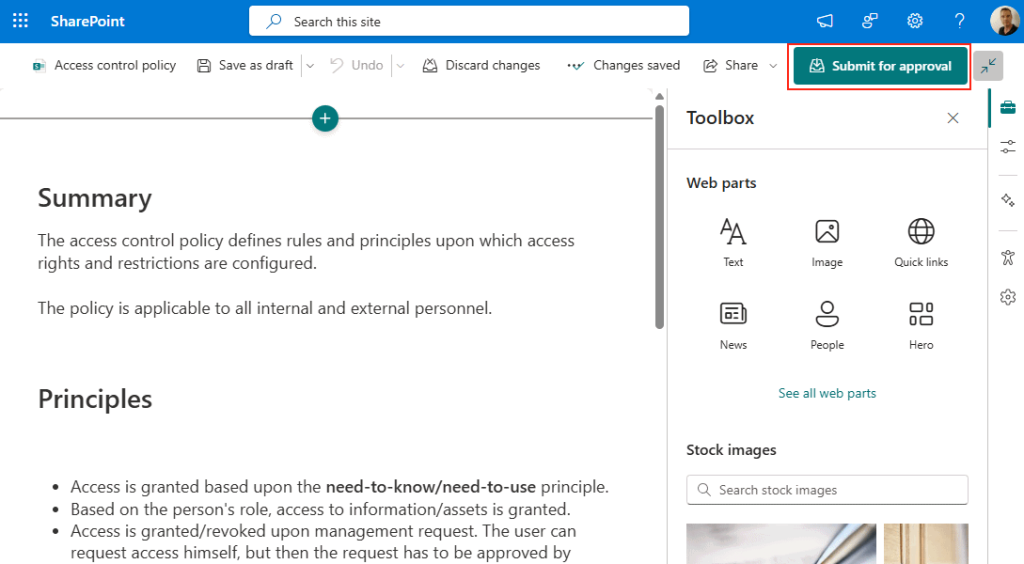
Navigate to SharePoint and make a change to a page in the site where you activated the workflow. Click the Submit for approval button.
You may have to sign-in and give permission.
Click Submit to start the workflow.
Now go back to Power Automate and observe the run status. When completed, you should see a new approval request in the library in ISOPlanner for this item.
When you selected Template as type and this template has an approval flow assigned to it (see tutorial 3) the approval is automatically started in that flow.
When the flow does not run, check the output from the steps that fail.
If you see an error like this in the step Create or Update library item.
It could mean that:
- The item was not added to the library in ISOPlanner. Add it first to start an approval.
- The item was renamed in SharePoint. Validate the item in ISOPlanner to update the url. Select the item in the library and choose Validate in the more options menu.