
Where to find it in ISOPlanner: https://portal.isoplanner.app/library/publicationThis feature is for Business and Premium subscriptions
Configuring the publication process
The configuration involves 2 choices:
- Decide which documents should be available for which users.
- Decide if these users must confirm that they have read these documents or not.
Make documents available to user groups
You can create user groups and make documents from the ISOPlanner library available to these user groups. After doing so, these users immediately see these documents on their ISOPlanner dashboard and in the Teams Library app.
We advice to only make the most important documents available here so the users have an easy ‘shortlist’. All other documents are still on SharePoint and the users can easily search for them in ISOPlanner, Teams or SharePoint. Also Microsoft Copilot can assist users in finding document or asking questions about them.
Go to the ISOPlanner Library, tab Publication. Click on Make content available. The panel opens to select a user group. There always is 1 default user group ‘Organization’. All users in ISOPlanner are by default member of this user group. You can create a new group by clicking the link Create new user group. Give the user group a name and select members. After selecting 1 or more user groups, select content below to make available to all users in the selected user groups. Click Add to add your selection to the overview..
Note that you can select Teams and Roles as members which can be synchronized with Microsoft Entra ID so you don’t have to actively manage the members of user groups.
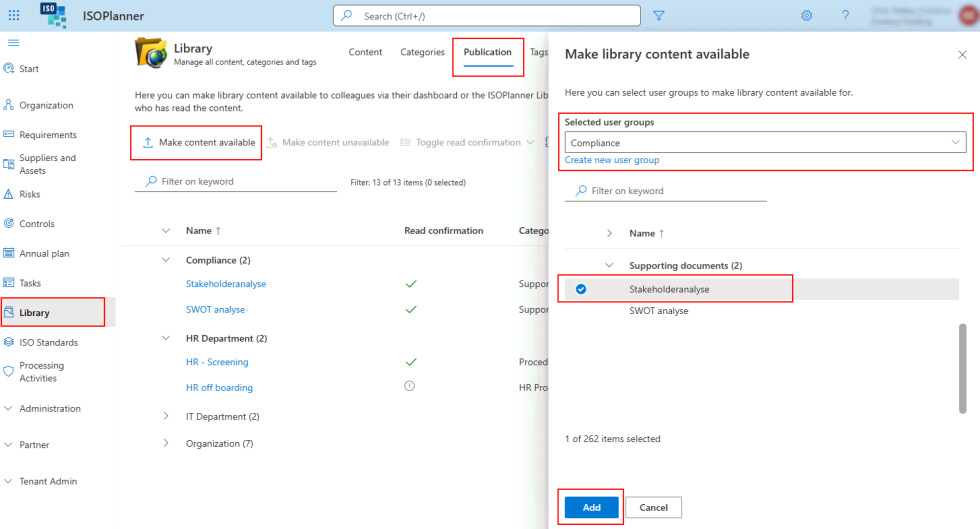
In the overview you see the user groups that have content. Other user groups may not be visible until documents are made available for them. You can manage all user groups in Administration / Teams and User groups.
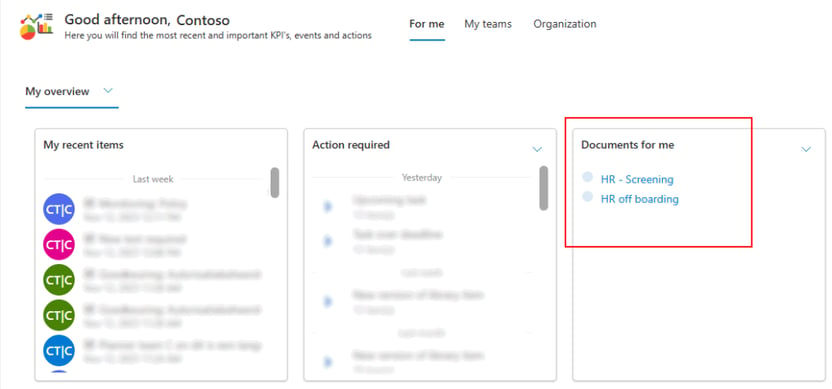
After creating groups and making content available, users can see this content on their dashboard. The widget “Documents for me” shows all documents that are made available via user groups.
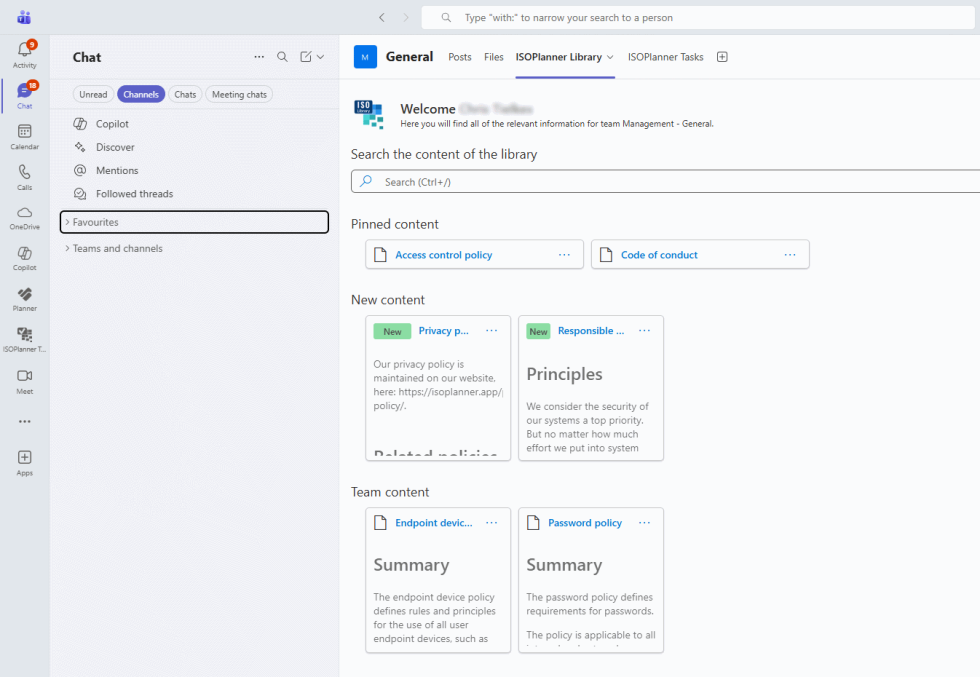
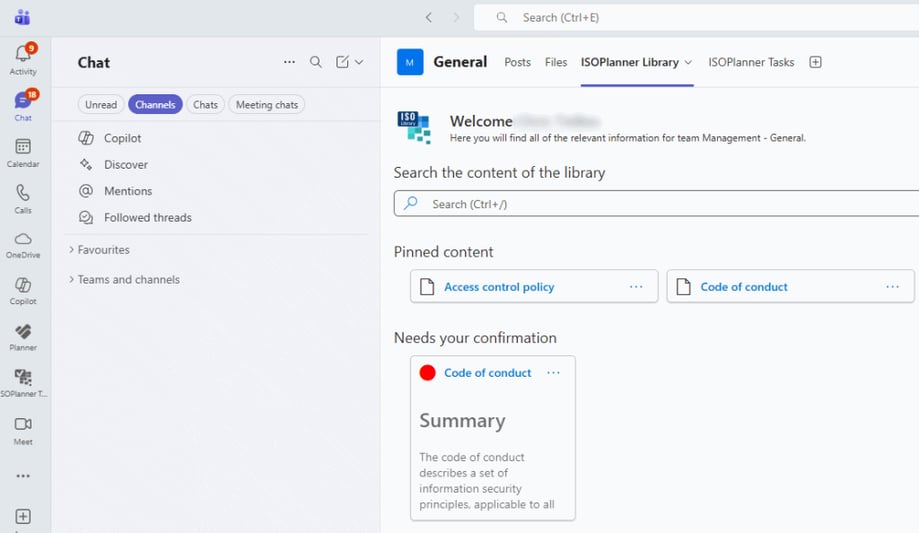
User can also see these documents in the Teams Library app. This app which you can activate for a Team/Channel in Microsoft Teams shows all documents related to all users in that Team. Pinned content is shown at the top. You can pin/unpin document this from within this app. If there is any newly published content, it is shown below. All other document are shown below that. You can search through all documents in ISOPlanner using the search bar.
You can also use the search bar in Microsoft Teams but this will search across all your documents, not only compliance related documents.
Enabling read confirmations
In the overview, select 1 or more documents, click Toggle read confirmation and select Enable selection.
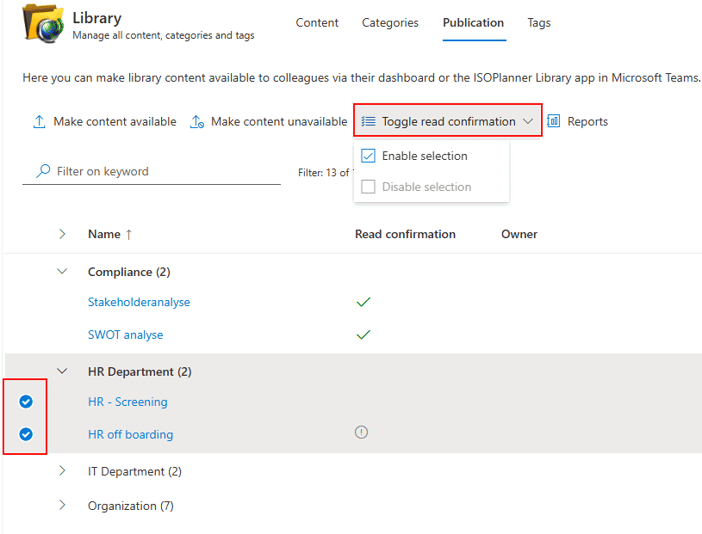
Now a confirmation dialog is shown. The dialog indicates how many items actually are going to be enabled. This can be less than the selection you’ve made. When an item cannot be enabled, it has a grey exclamation mark in the grid as shown below. When you hover with your mouse over it, the reason is shown.
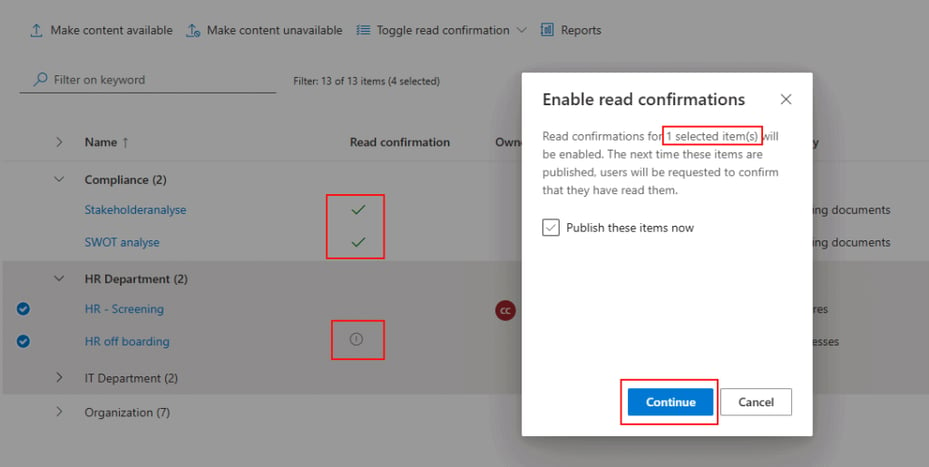
Reasons can be:
- The type of category is not supported. Only document libraries and page libraries are supported.
- Retrieval of version information is not enabled for the category. This is required because users will read and confirm a certain version.
In the dialog, there is also an option to quickly publish the document from here. This is not required but if enabled, it will open the publishing dialog after enabling the read confirmations for the same selection.
After clicking Continue, green check marks are shown for items of which read confirmation is enabled. When read confirmations are send (after publishing), a progress bar is also shown.
When you’ve configured the groups, made content available to these groups and enabled read confirmation where needed, you can start the publishing process to actually send the read confirmations
Starting the publishing process
To manually publish, select 1 or more document in the ISOPlanner library content tab and click the Publish button.
After approval, the document is automatically published.
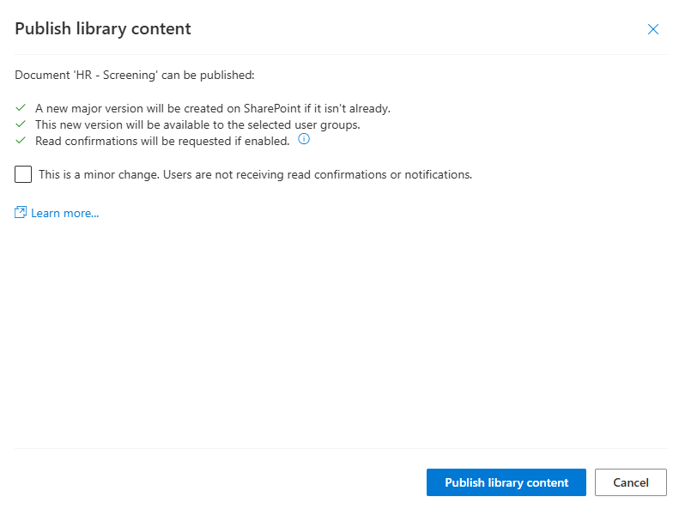
The following happens when a document is published:
- A new major version is created on SharePoint (if not already)
- The new version becomes available for all users in the user groups where the document is assigned to.
- Read confirmations are send if enabled
You can also specify whether you want to notify users of the change or not. For example, when you corrected a typo, you might want to switch notifications and read confirmations off.
For Basic subscriptions, the publication feature is not available. You can, however, easily create a new major version on SharePoint. In the library content, select the document, click Edit and select the checkbox ‘Create major version on SharePoint’ and click Save.
Creating a new major version
The first step in the publication process is that ISOPlanner creates a new major version on SharePoint. The following must be configured before this works:
- Major versions must be enabled for the SharePoint library (documents or pages). See chapter Versioning above how to enable this. When this is not enabled, ISOPlanner will try to publish and informs that a new version is published as a minor version (e.g. 0.8).
- ISOPlanner must have permissions to publish on SharePoint. Please enable the SharePoint Reports and Publishing integration. If this is not enabled, ISOPlanner will inform you that this step will be skipped.
Making content available
The next step in the publishing process is that the new version is made available to the users in the selected user groups. This is done automatically by ISOPlanner.
Read confirmations requests are send
The last step is that ISOPlanner will send read confirmation requests to all users as configured. When a user is a member of multiple user groups and these groups have overlapping documents, only 1 confirmation request is send. Users will receive an email notification about it. The email contains a link directly to the ISOPlanner dashboard to confirm. See chapter confirming a read request for more information.
Publication results
After publication is done, a summary is shown with the results.
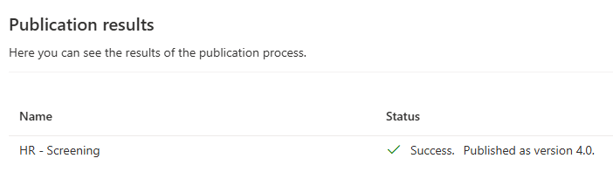
It could be the case that there is an error or that a new major version is not created. When a new major version is not created, the most likely reason is that major versions are not enabled for the document library. Please check the versioning chapter to enable it here. Other reasons are:
- No permissions. You don’t have permissions to publish the document on SharePoint. You have to have at least write access to document on SharePoint.
- The document is open by another user. This is a common error. SharePoint prevents publishing documents when you or another user has the document open.
Confirming a read confirmation request
User receive an email about the request like this.
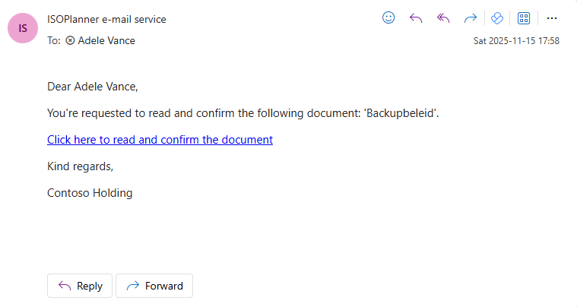
They also receive an action and notification on their ISOPlanner dashboard. In the widget Action required and in the widget Documents for me, a notification is shown which can be opened by clicking on it.
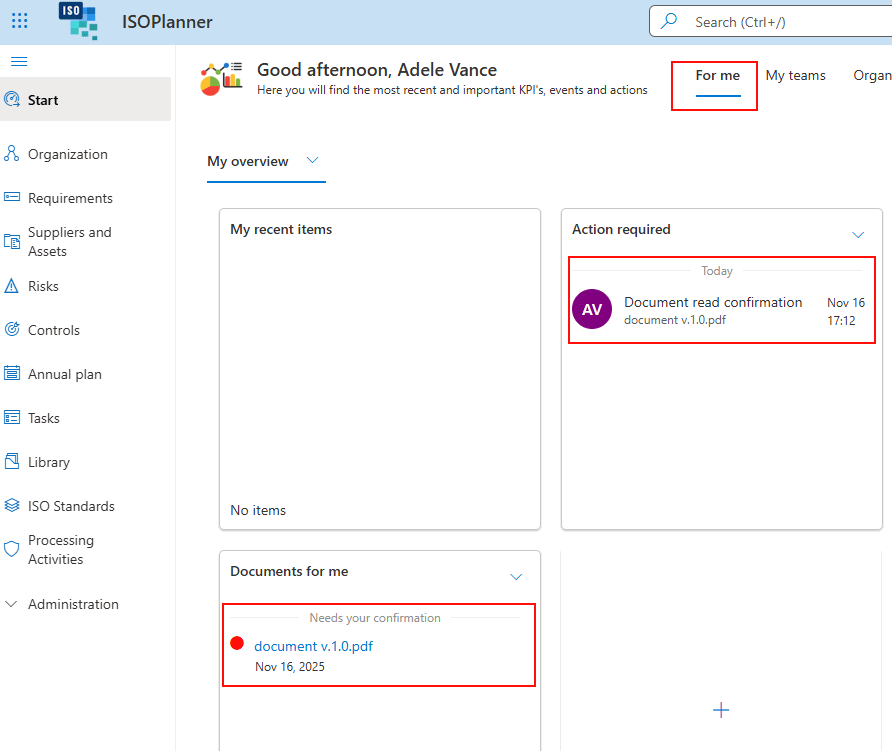
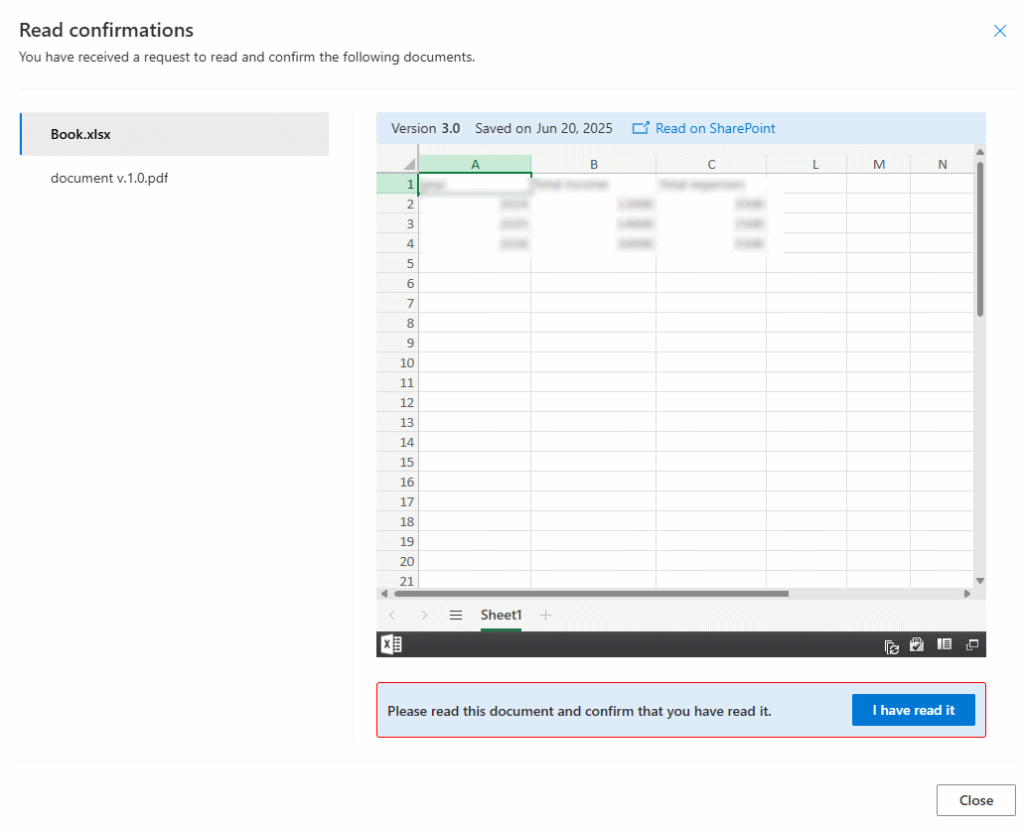
When clicked, the dialog is shown where all documents that need confirmation are shown. When clicking the link from the email, this dialog is shown directly. The user can scroll down the document and click I have read it. After confirming and there are more documents to confirm, a Next button is shown until all documents have been confirmed.
This same dialog is presented in the Teams library app
Read confirmation reports
As a manager, you can exactly see who has not confirmed yet and send reminders. On your dashboard, you can add a widget that shows high level statistics about each user group.
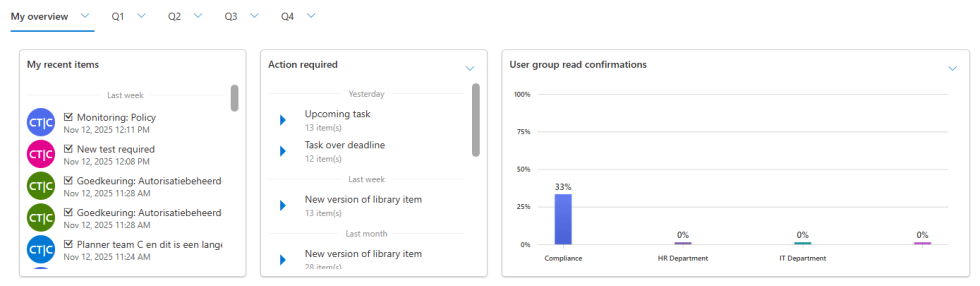
It shows the percentage of requests that are confirmed. If you click on a bar in the widget, you navigate to the report dialog in which you can see all details. In this case you’ll see that the 33% comes from 3 users of which 1 user has confirmed.
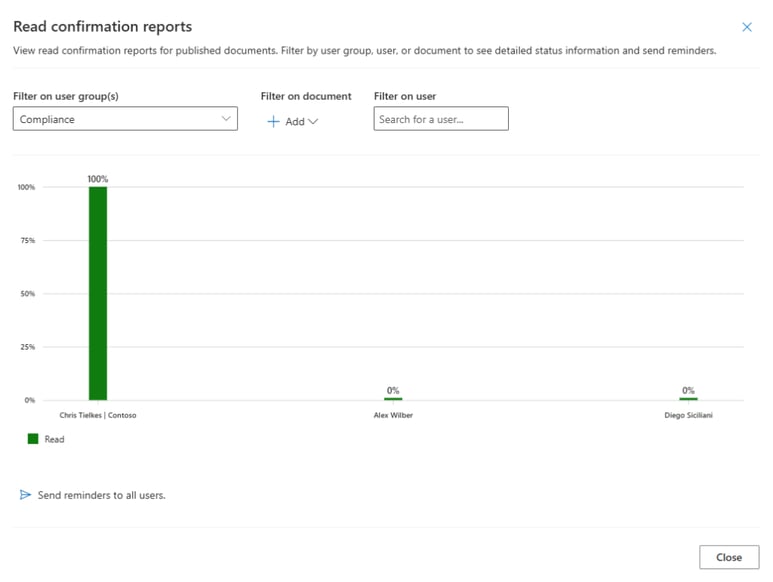
You can access this report by going to the ISOPlanner library, tab Publication and click on the Reports button. On tab publication, you can also click on a document to open the report and directly filter on that document. When you hover above a user group, a small report icon appears which opens also this report filtered on that user group.
When showing users in a user group you can click on the bar in the report for the user to filter on that user.
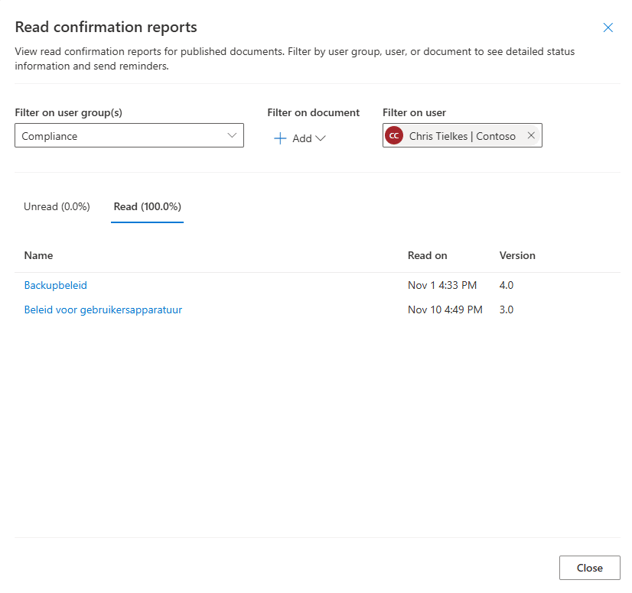
Here you see that this user has read all documents (100%). In the following example, a user has not read a document and you can send reminders. You’ll notice that version 4.0 is requested and send on Nov 16th. This user has not read a previous version and no reminder was send. Click the Send reminder to all users button to send another email with ‘REMINDER … ‘ as topic.
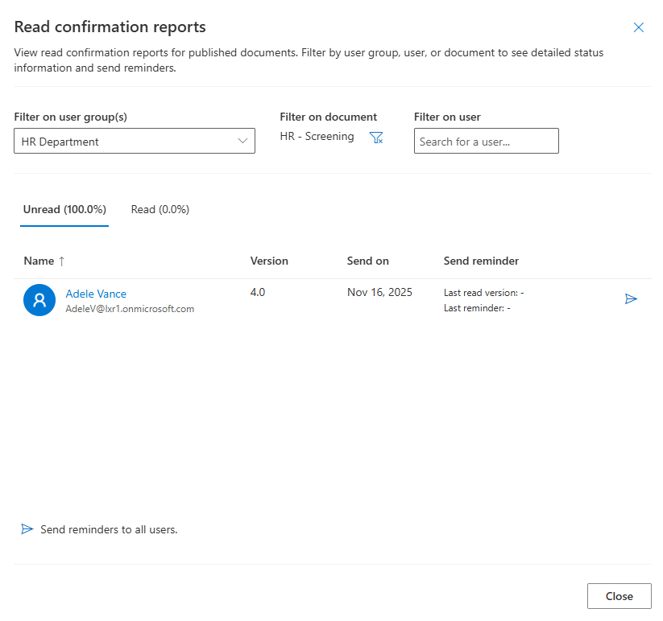
You can manually adjust the 3 filters at the top of the report to select user groups, a document or a user to zoom in to.
Resources