Introduction
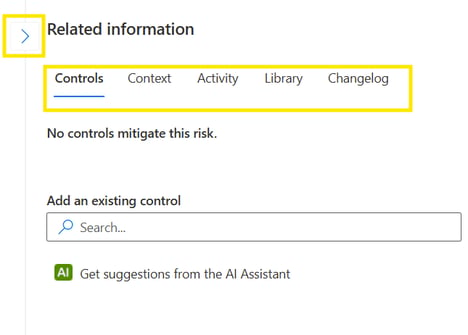
In most menus (such as Risks, Controls or Assets), the Related Information panel is available on the right side of the screen. This panel can be expanded or collapsed using the arrow icons.
Related information pane consists of several tabs (they can vary, depending in which menu you are):
- Controls
- Context
- Activity
- Library
- Changelog
Tabs
Controls / Risks
These tabs are related with each other and available only in those two menu, meaning risks contain the tab Controls and vice versa. It enables you to link each risk to one or more controls which are mitigating that specific risk. Relations created in one element, will be visible in the other element. With business and premium subscription you can also make use of the AI Assistant to find the right controls more easily. AI Assistant will create a list of suggestions and you can determine which ones are applicable.
Context
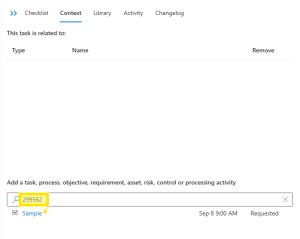
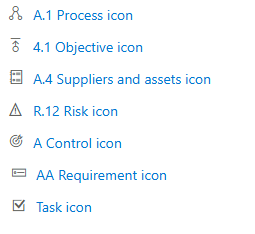
This tab shows other items that are related to the current one (for example: (i) a process can be linked to an objective, requirement, asset, risk or control while (ii) an asset can be linked to a risk, process or another asset). Above the search field is the indicator which type of items you can link. In the search bar it is possible to search for the required item based on the text, or code (of the requirement, risk, control etc.) but also based on the code of the element. If your search results with a big list, the icons of each element might also help you to find the right one very easily:
Use the trashcan icon in the ‘Remove’ column to remove a particular link from the list.
For items in a hierarchy (such as requirements), the parent or child items are also shown and this cannot be changed in this section.
Activity
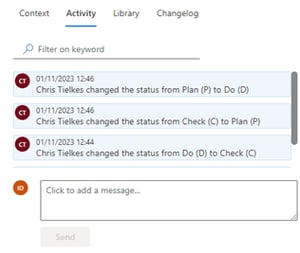
This tab records and shows in this section the main changes that were made to the current item as well as any previous comments. Additional comments can also be added manually to an item.
Library
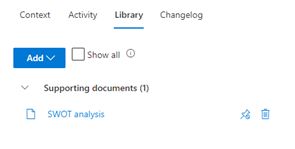
This tab shows linked documents and allows managing the documents related to a particular item.
Clicking on the ‘Add’ button you will get the overview of the document categories from which you can choose a document. When you select a category, you will be able to select one or more documents from that document category and add it to the item.
If you are not sure in which category the document is, you can find it with the help of a search bar. Results will always list the category containing the searched term with indication how many documents there are in each category. You can directly link the document by clicking on the right arrow icon next to the number of the results.
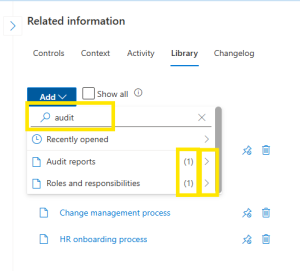
For each linked document, there is an icon to ‘pin’ the document which automatically creates a tab for that document on top of the page and with. That tab has the name of the pinned document. When opened, you’ll see the content of the document. Pinning a document is also required if you wish to create a badge in the text section of the item.
The library tab also has a ‘Show all’ checkbox. When checked, library content linked to items higher and lower in the hierarchy are also shown.
Changelog
The Changelog tab shows a list of all changes made to the current item. For a list of changes made to all items except to risks, controls and tasks go to the menu Administration-Settings, Tab: Changelog. For the risks, additional option to create a report on changes is available in the Risks Menu as well as in the Menu Administration-Reports.
Tasks
Same other elements, Tasks also have a section with all the above mentioned elements, where you can create relation of the task to other elements. Within the tab Context, only in a task) it is possible to link one task to the other, using the task ID. First open to the task which you wish to link and on the top-left click on the icon next to the task owner:
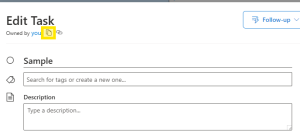
After that, open the task which needs to be linked to the first one, on the right side of the task, go to the “context” tab and paste the ID of the task in the search bar: