
Classifications
Where to find it in ISOPlanner: https://portal.isoplanner.app/admin/settings/classificationsHere you can list your classification. The list is initially defined with some common classifications. Classifications are grouped and you can create, edit and remove groups. Each classification group is a topic for which you want to add classifications, like ‘Confidentiality’ or ‘Environment’.
Within each group, you may identify levels, such as ‘Internal’ and ‘Sensitive’ for the ‘Confidentiality’ group.
Classification groups defined here will also be available in the ‘Risk analysis’ part of every risk, with check-boxes to indicate that the risk is related to that topic (Classification group).
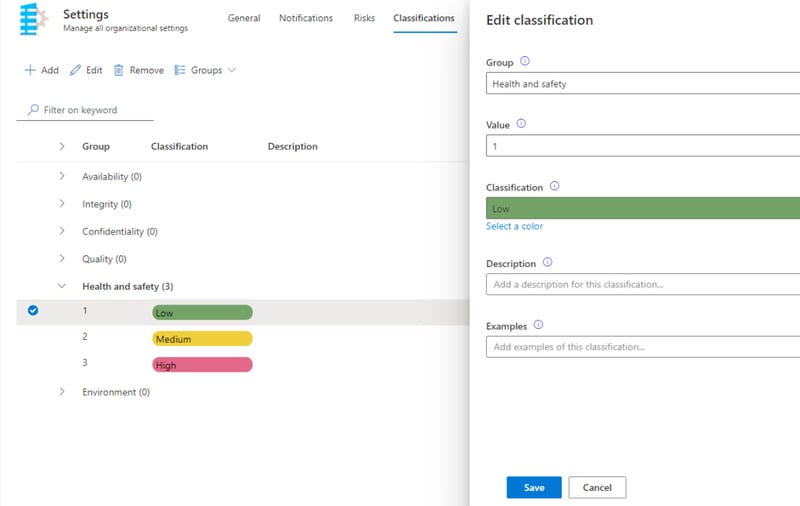
Properties
Group
Select from already available list of groups or add a new classification group by typing over the current group name.
Value
This numerical value determines the level of the classification relative to other classifications in the group. For example, within the Confidentiality group the classification ‘Internal’ may have value 1 and the classification ‘Classified’ may have value 2.
Classification
This is the name of the classification within the group. Each classification within a group must be unique.
For a better overview, the option to set the color of a classification is also available.
Description
Description of the classification is for internal use.
Examples
You may provide examples of assets for this classification, for internal use.
Adding new classifications
When adding a new classification (button Add), first select an existing group or start typing to create a new group.
If you select an existing group from the list, new classification is already populated to quickly add a new classifications to that group. If you want to create a new group, just type in a new group name.
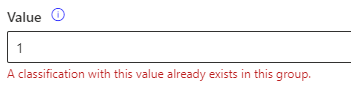
Now select the value of the classification. This must be unique within the group.
Now type the actual classification name that will be displayed as the selected color for an asset. Optionally, add a description and examples and click Save.
Adding new classification groups
Click on the Groups button and select Add new group. Give the new group a name and click Save.
You can also create a new classification group when adding a new classification. Just type in a new name for the (new) group.
Editing classification groups
Click in the list on a classification group to select it. Now click on the Groups button and the following actions are available:
Rename
To rename the group.
Remove
To remove the entire group. It will also remove all classifications within the group and therefore remove them from any asset that had a classification within the group. It will also remove the classification group from the risk analysis part of all risks. That means that the information that the classification group was checked as applicable – or not – for all risks will disappear.
Move up
Move the group up in the list of groups and underlying classifications.
Move down
Move the group down in the list of groups and underlying classifications.