
General
Here you can enable the various integrations with Microsoft 365. All requested permissions (except Outlook Advanced) are on behalf of the user. This means that ISOPlanner never has more permissions than the logged in user. According to this least-privilege principle, the rights as you have set them, effectively apply to access to e.g., calendars, groups, SharePoint locations. When you first enable integration options, you may be prompted to authorize on behalf of you or your organization. When you choose to authorize only for yourself, all other users are also asked to authorize. You must be an Azure administrator to authorize on behalf of your organization.
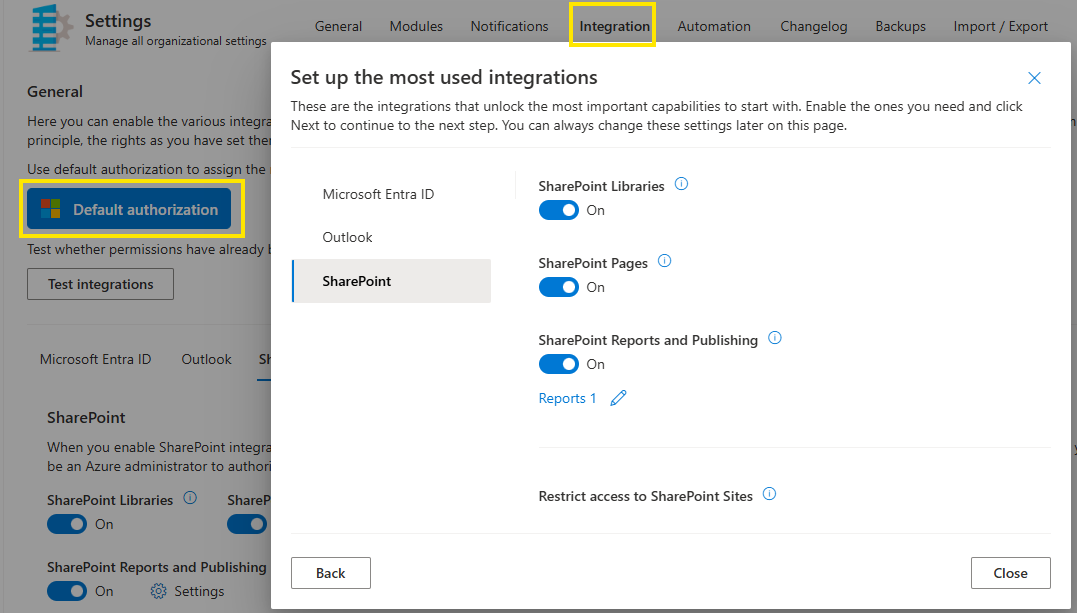
With the help of button "Default authorization" basic permissions (Microsoft Entra ID, Outlook, SharePoint) can be approved. These are permissions necessary to work with ISOPlanner: (i) Microsoft Entra ID is needed to be able to add other users to ISOPlanner, Outlook is helpful for managing the tasks in outlook calendar and SharePoint enables creating library in ISOPlanner by creating links to SharePoint.
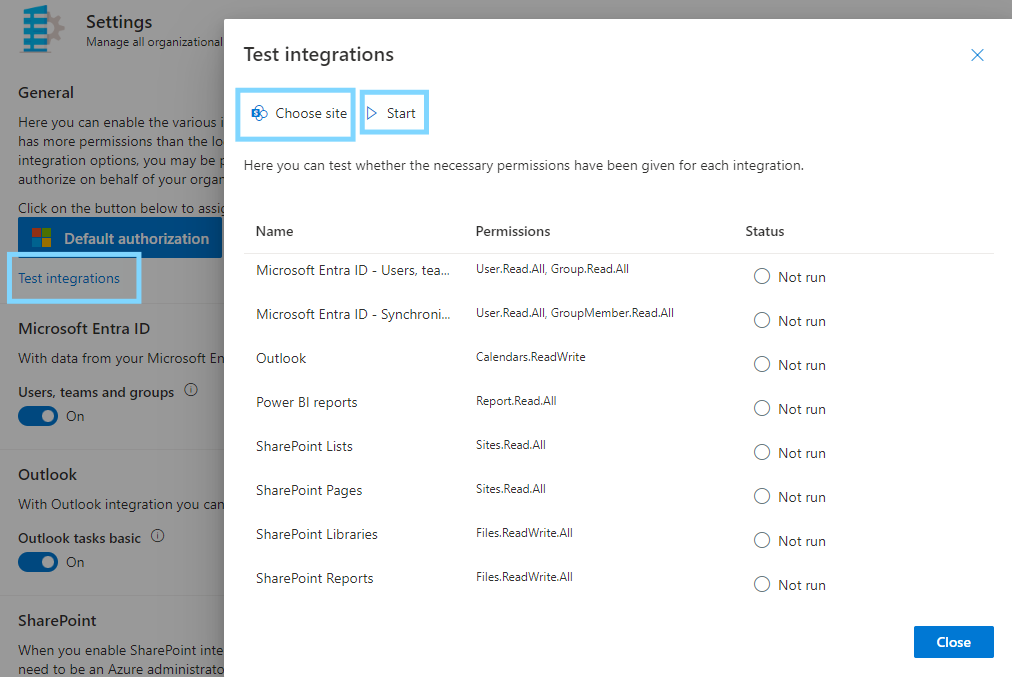
Button Test integrations enables you to test the permissions per integration. You can do this for all sites, or you can choose to test the permission for one particular SharePoint Site.
Microsoft Entra ID
With data from your Microsoft Entra ID, ISOPlanner can enable powerful features for your teams such as a task overview for team leaders, a knowledge base and dashboards.
The Users, teams and groups option allows ISOPlanner to read all users and all groups from your Microsoft Entra ID which is never changed by ISOPlanner. After enabling this option, you can add teams in the Administration / Teams and groups section. The added teams and groups thus become available for linking to processes, framework requirements and risks. You can also organize the knowledge base at team level, create dashboards for teams and view the tasks of your teams.
Outlook
With Outlook integration you can schedule tasks in the Outlook calendar of colleagues. Azure Active Directory is also enabled if you enable this option.
The Outlook tasks basic option allows tasks to be scheduled in the calendar. Changes and moves in Outlook are not tracked. To enable this option, you need to grant access rights to the service “ISOPlanner API” to read and write the current users’ calendar. The Outlook Calendar add-in for ISOPlanner is not supported with Outlook tasks basic.
The Outlook tasks advanced option allows for tasks to be scheduled directly in the calendar. Changes in Outlook are tracked. Moves are only allowed within the deadline and deletions lead to a status change and notification. To enable this option, you need to grant access rights to the service “ISOPlanner API” to read and write everyone’s calendar.
SharePoint
When you enable SharePoint integration for the first time, you will be asked to authorize on behalf of you or your company. When you choose to to authorize only for yourself, all other users are also asked to authorize. You need to be an Azure administrator to authorize on behalf of your company.
- The SharePoint libraries option allows managers to create categories of type “Document Library”. These categories can contain links to documents on SharePoint, in a pre-defined folder. Users can select documents directly from these document libraries to link to tasks, controls or risks. Users are also able to upload to these libraries.
- The SharePoint Lists option allows managers to create categories of type “Custom List”. These categories can contain all kinds of self-defined data such as assets or suppliers and are managed via SharePoint. The user can select items from these lists to link directly to tasks, controls or risks.
- The SharePoint Pages option allows managers to create categories of type “Page Library”. These categories can contain pages with content that supplement entities like objectives, requirements and risks and are managed via SharePoint.
- The SharePoint Reports option allows generated reports to be based on a Microsoft Word template on SharePoint, automatically uploaded to the chosen SharePoint location and automatically converted to PDF format. SharePoint libraries integration must be enabled first so that you can view the reports afterwards.
- The SharePoint Search option allows to ISOPlanner to enhance the search experience retrieving full-text results from SharePoint on behalf of the user and combining them with results in ISOPlanner. For more information click here.
The Show items in the library in a preview window option, when enabled, will remove the “Open in SharePoint” button from SharePoint items shown in ISOPlanner. It is advised to keep this option disabled unless you don’t want users to open content in SharePoint.
Teams
With Teams integration you get access to Apps that you can activate in Teams and help you with your daily work.
- Teams Tasks app. This option is enabled, users can add the Teams Tasks app to their Teams channels and handle tasks directly from within Teams.
- For more information see Team Tasks app
- Teams Library app. This option allows managers in the library to build the knowledge base. In Teams, a tab can be added to a channel that shows the information from the knowledge base.
- For more information see Team Library app
Planner (Preview)
With Planner integration, tasks can be synchronized to a Microsoft Planner board. Users can view the tasks in Microsoft Planner and open these tasks in ISOPlanner. Opening a task from Microsoft Planner requires the Teams Tasks app to be installed for the user.
The following properties of tasks are visible (read-only) in Planner:
- Name
- Description
- Tags
- Status
- Start date / End date
- Deadline
- Progress
- Checklist
For recurring tasks (in the Annual Plan), the first task in the series that is not completed is synchronized.
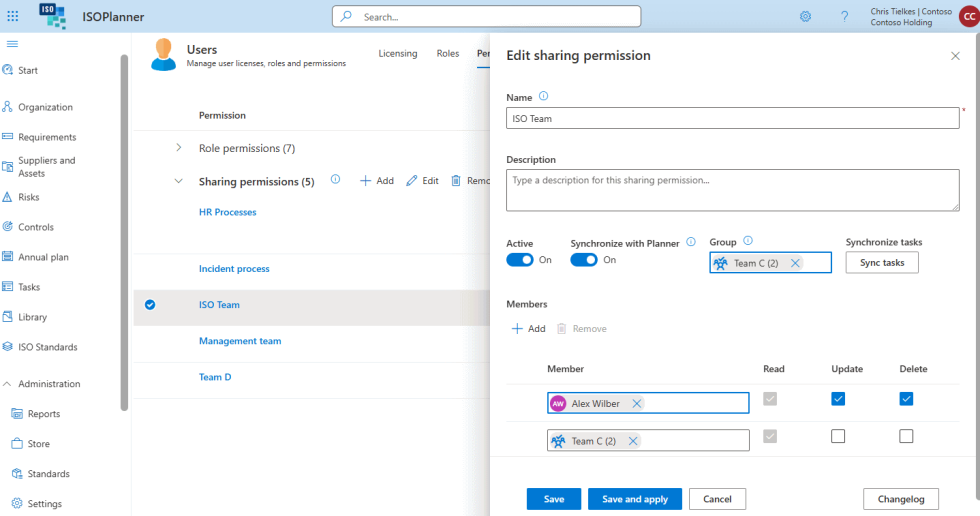
Synchronization is done based on Microsoft Entra ID groups because the concept of Microsoft Planner uses groups as containers for tasks. All users in these groups have read permissions on the tasks. Extra permissions can be added using the ISOPlanner role based access system (RBAC).
The configure the integration, there is a difference for Basic en Business/Premium subscriptions.
Basic
A group must be selected where all tasks are synchronized with. After selecting a group, all newly created, updated and deleted tasks are synchronized.
To send all existing open tasks to Planner, click the Sync now button.
Click the Delete button to remove all tasks from Planner.
Groups must be added to ISOPlanner before they can be selected for Planner integration. You can add them in the Administration / Teams and Groups section.
Business / Premium
First, a default group can be selected where all tasks are that are shared with ‘Everyone‘ will be synchronized with. After selecting a group, all newly created, updated and deleted tasks that are shared with ‘Everyone’ are synchronized.
To synchronize all existing open tasks that are shared with ‘Everyone’, click the Sync now button.
Second, for each Authorization Schema, a group can be selected to synchronize tasks that are shared with that authorization schema.
Groups must be added to ISOPlanner before they can be selected for Planner integration. You can add them in the Administration / Teams and Groups section.
Power BI
When you turn on the Power BI Connector, you can access our service that allows you to retrieve all your data in Power BI Desktop.
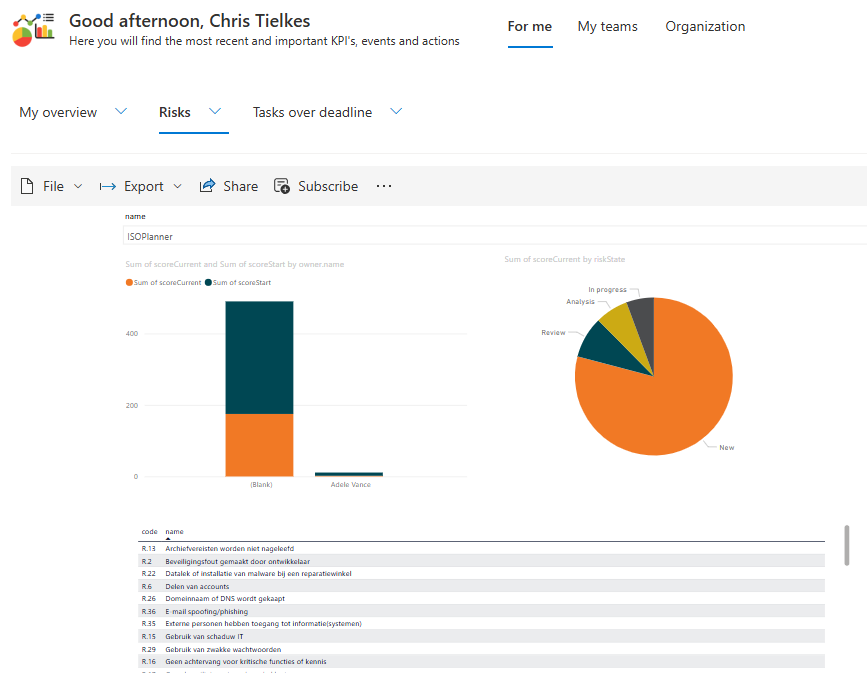
In addition, you can enable the Power BI Reports to publish created reports as a dashboard in ISOPlanner. For more information click here.
Microsoft Secure Scores
This section contains 4 toggles to authorize ISOPlanner to retrieve information about security scores.
- Microsoft 365 Secure Score
- Microsoft Identity Secure Score (Microsoft Entra ID)
- Microsoft Devices Secure Score (Windows Defender)
- Microsoft Cloud Secure Score (Azure)