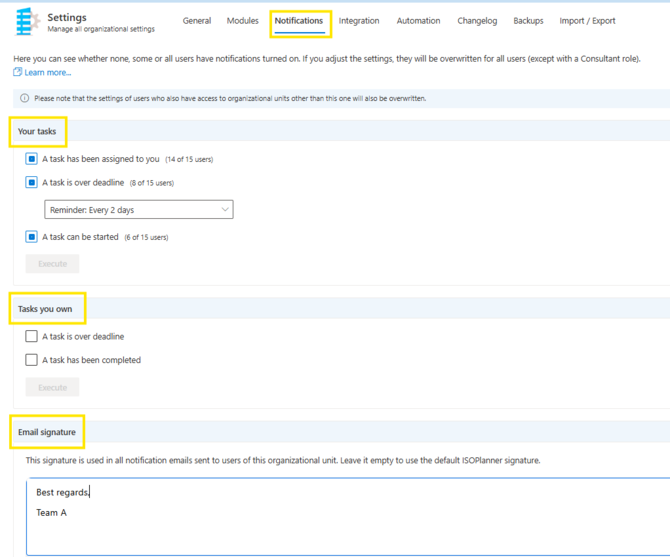
In the menu Administration / Settings / tab: Notifications, there are two sets of notifications available. They are being divided into:
- Your tasks: these notifications are applicable for the user the task has been assigned to; this is the person who needs to complete the task
- Tasks you own: these are notifications being sent to the owner of the task; the user who created the task. Administrators within ISOPlanner can change this information per task or with bulk edit option. The owner of the task is visible in each task, in the very top left corner.
In this section, administrators can manage notifications for all users, meaning they can overwrite users personal settings. If there is a checkmark next to the option, it means that all users have this notification turned on. If there is a little dark square and after the option the numbers in brackets, it means that only a certain number of users has set this functionality active. As the administrator, if you click on the square before the option, you can set the option on or off for all users at once.
In addition, a personalized signature can be set up, which will be applied to every e-mail sent out from ISOPlanner.
There are a couple of rules and exceptions for notifications being sent:
- Tasks must be assigned to a user.
- Tasks must not have the status completed or rejected.
- When a user creates a task and assign it to themselves, the Task assigned notification is not send.
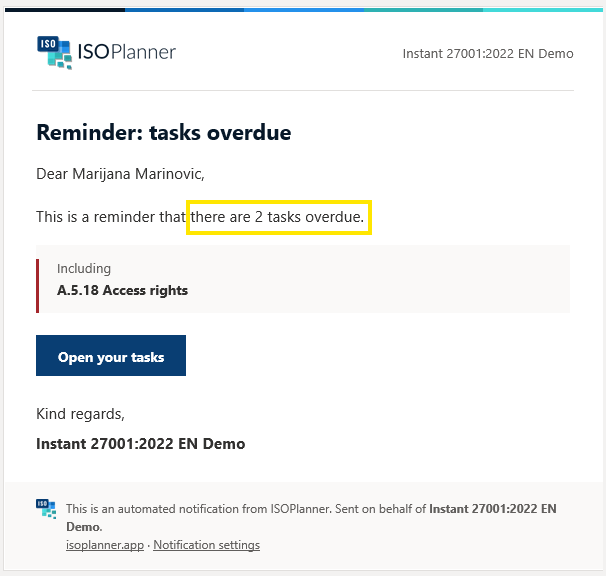
- To prevent sending too many email notifications, one email notification is being sent per notification type and sent once per day); see also the screenshot in the “E-mail notification in Outlook” section below.)
- A task has been assigned to you and A task can be started notifications are send only once.
Each of the notifications means there is one email being sent out for each status:
- “a task has been assigned to you” means someone has created a task and assigned it to you (this notification is being sent at the moment task is created, regardless of the start date and deadline of the task) this is also being sent in case an existing task has been re-assigned to another user
- “a task is over deadline” means a task has reached the end date or deadline and has not yet been completed. This notification is being sent to both task owner and assignee. For this notification, the option is available to set how often this notification should be sent (every day, two days, three days or every week)
- “a task can be started” means the task has reached the start date and should be completed as soon as possible
- “a task has been completed” means an email notification is being sent to the owner of the task (when the task is completed by the assignee)
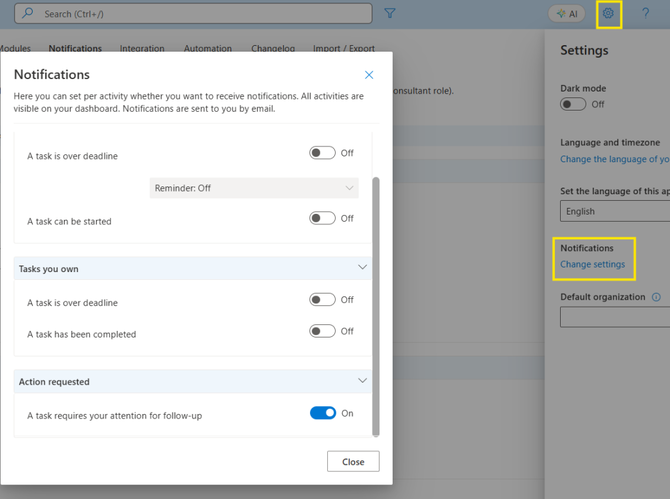
Each user (including the standard users) can set their own preferences for the notifications. By clicking on the gear-wheel in the top right corner, (personal) settings window opens and among others the settings for notifications are available. Clicking on the “change settings” menu, overview of notifications is available with option to turn those on or off for themselves. In this menu, one additional option is available in comparison the the general settings. Each user has the option (last one in the personal notification list) to activate the notification i.e. to receive an e-mail when a follow-up task has been created for that user.
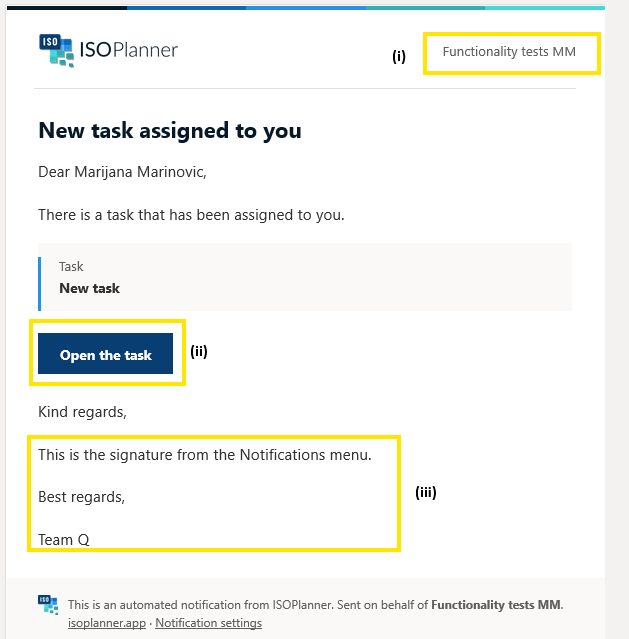
To prevent spam/phishing, it is good to know that all emails are send from notifications@isoplanner.app (sender is shown as "ISOPlanner Email Service"). If you have multiple organizational units, there will also be an indication within the e-mail in which organizational unit the e-mail is (i); within the e-mail you will find a link which will open the task(s) in question (ii) and if you have set up a signature it will be visible at the boottom of the email (iii) .
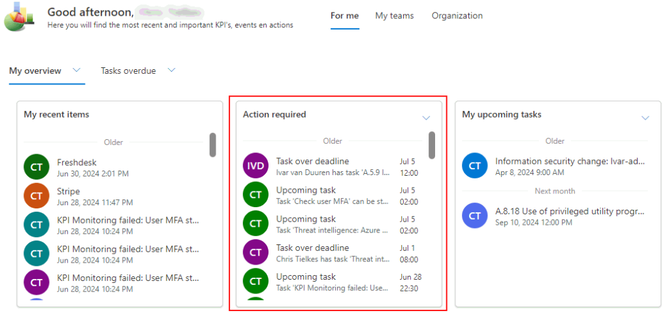
ISOPlanner will create activities about tasks. All activities are shown on the dashboard in the widget Action required. Each user can decide whether to receive these activities as notifications by e-mail also.