
In some scenarios, you might want to restrict access to specific SharePoint sites and lists. ISOPlanner supports this by letting you configure whether regular permissions (Sites.Read.All) or selected permissions (Sites.Selected and Lists.SelectedOperiations.Selected) are asked.
To start, go to the Administration section, choose Settings and select tab Integrations. Now select tab SharePoint.
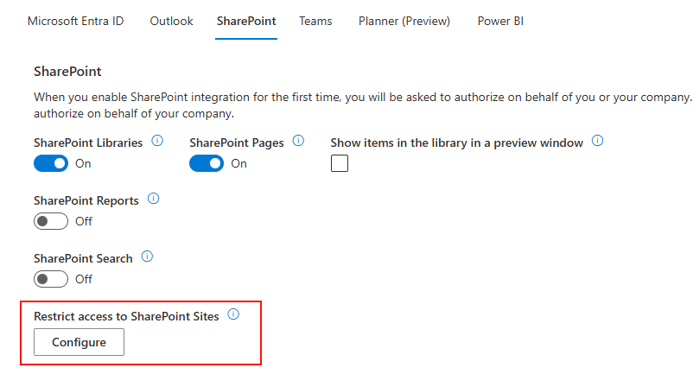
Click the Configure button. The following integrations are available for selected sites.
- SharePoint Libraries and Pages
- SharePoint Reports
- SharePoint for Power Automate (tab Automation in Administration / Settings)
Note that SharePoint Search is not yet available. Microsoft has not implemented these kind of permissions for searching.
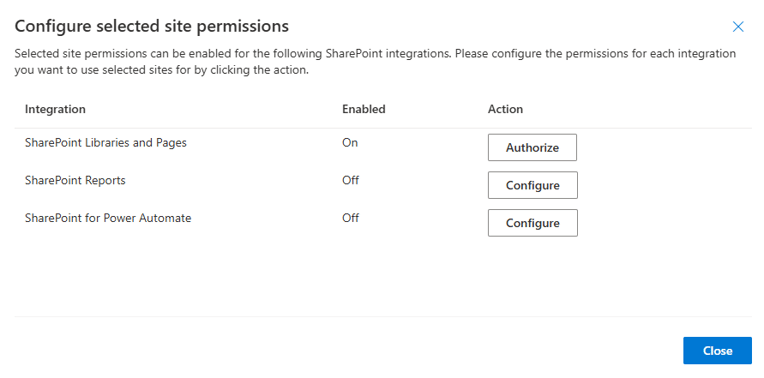
The activation process that 3 steps:
- Authorize (only needed when the integration is currently enabled)
- Configure
- Switch
Each step can be started by clicking the button in the Action column.
Step 1: Authorize
In this step, you’re redirected to Microsoft to grant the following permissions:
- Sites.Selected
- Lists.SelectedOperiations.Selected
This does not give any actual permissions yet. An IT administrator can use these to assign Roles for a certain SharePoint site or list to ISOPlanner.
Step 2: Configure
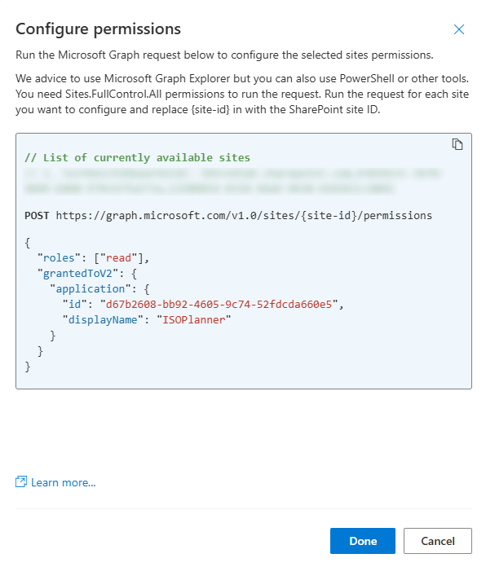
The next step is that the IT administrator assigns a role to a combination of a SharePoint site for ISOPlanner. A script is shown that makes it easy to assign the role.
More information about selected scopes for OneDrive and SharePoint
Technical details
- Run the script for all SharePoint sites that you need in ISOPlanner.
- When available, ISOPlanner lists the Site ID in the script but if this is the first time you give permissions, ISOPlanner does not have permission to retrieve the list so you need to retrieve the SharePoint site ID yourself by using Microsoft Graph Explorer or other tools.
- The IT administrator must have Sites.FullControl.All permissions on the SharePoint site.
- Available roles are: read, write, manage, fullcontrol.
- ISOPlanner does not need fullcontrol.
- Manage is needed to upload a content package that must create libraries and lists.
- Write is needed for SharePoint reports.
- Read is needed for all other cases.
When uploading a package from the Store to SharePoint, the Manage role is needed for that process. After it is done, you can revert the role back to Read.
We advice to use Microsoft Graph Explorer or PowerShell. After the configuration is done, click the Done button to go to the last step.
Step 3: Switch
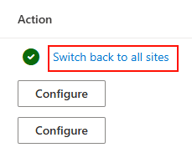
Now you can switch ISOPlanner to use the newly configured permissions. After you’ve done so, you can remove the current permissions, if they were given previously.
- For Library and Pages. Remove Sites.Read.All and Files.ReadWrite.All from application registration ISOPlanner.
- For Reports. Remove Files.ReadWrite.All from applicatino registration ISOPlanner API.
- For Power Automate. Remove Sites.Read.All and Files.ReadWrite.All from application registration ISOPlanner SVC.
After you’ve done this, ISOPlanner fully runs on the new permissions.
We advice to run the integration test feature on the Integration tab (Administration / Settings) to validate everything works fine.
You can switch back to use the regular permissions by clicking the link Switch back to all sites.
Frequently Asked Question
- I don’t have categories in the library yet and set-up Sites.Selected permissions. How can I add a new category.
- When you set-up ISOPlanner for the first time with these Sites.Selected permissions and no categories in the Library have been created yet, you cannot add a new category by browsing sites because the Read role does not allow it. Either assign the Manage role (temporarily) or search for the site by the Site Id which you used to create the script.
- What do the Lists.SelectedOperations.Selected permissions do?
- These permissions are for even more granular control on lists level instead on site level. Keep in mind that ISOPlanner may need access to various types of lists like Document Libraries, Custom lists and Site Pages.
Related resources
- More information about selected scopes for OneDrive and SharePoint
- Restrict access to Outlook calendars