
Introduction
The number of Standards available in ISOPlanner is growing. In most cases those are new standards or guidelines but also new versions of the Standards which are available in ISOPlanner.
Transition / Upgrade
Within ISOPlanner a feature for upgrade i.e. transition to the new version of the standard is available. It helps our customers transition as easy as possible from the older version of a standard to the new one.
To make sure things go smoothly, we offer the option to upgrade to premium subscription for one month which enables you to create additional “test” organizational unit. Within the test organizational unit, a copy of your main unit is being created and upgrade done. This gives you a better overview how it looks like and once you are ready, upgrade can be done in the main organizational unit.
To do the upgrade follow the steps below:
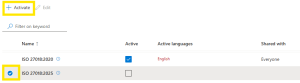
- In order to activate the new version of the standard and start the upgrade process, go to the menu Administration / Standards, mark the new version of the standard and click on the button “Activate” at the top of the page:
- You will get a short information overview of the steps which will take place in the background of the upgrade process.
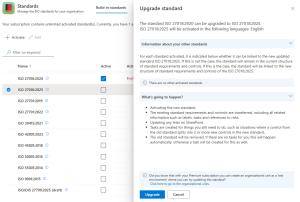
- By clicking on the “Upgrade” button, the upgrade will start which might take a few minutes. During this process, ISOPlanner will analyze your current situation, perform the upgrade and create tasks to manually check differences where applicable, for merged or split controls and/or requirements.
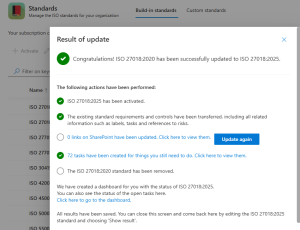
- With this, the technical part of the update is completed. IMPORTANT: The old version of the standard should remain active until all the task-checks have been completed and you are sure everything is correct.
After the upgrade, you will have available:
- A new dashboard with the status of all tasks. In the menu Start / tab: Organization, system has automatically created upgrade-widgets, providing you a nice overview of the tasks to be completed to make the upgrade complete.
- Automatically created tasks for changes of controls and/or requirements. This differs depending on the standard and also the number of tasks is different for every standard-upgrade, depending how many changes there are between the two versions of the standard (controls or requirements being merged / split / deleted / added)
- Task to check the updated risks and the task to be completed last: to remove i.e. deactivate the old version of the standard
Once you have made all the checks in accordance with the tasks and did all the checks, you can deactivate the old version of the standard. That can be done in the menu Administration / Standards. Same as with activation of a standard, mark the standard and in case of an active standard, the button on top “deactivate” becomes active.