
This document describes how to install and work with the ISOPlanner Outlook Calendar add-in.
For more information see also Outlook add-ins video
The ISOPlanner Outlook Calendar add-in provides a way for people in your organization to view, edit and complete tasks from within Outlook Calendar.
RequirementsAn active ISOPlanner license is required. The add-in functionality is included in the trial period as well. For people to be able to work with the add-in, they need at least a user license assigned to them.
Installing the add-in- Open Outlook for the web, here: https://outlook.office.com/mail/.
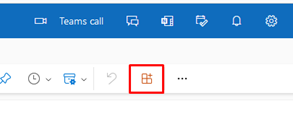
- Click the “Get add-ins” icon
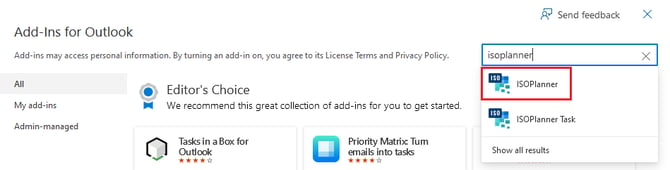
- Search and select the “ISOPlanner” add-in
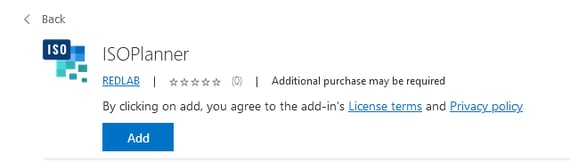
- Click “Add”
Microsoft 365 administrators may deploy the add-in for multiple employees at once, following these instructions: https://learn.microsoft.com/en-us/microsoft-365/admin/manage/manage-deployment-of-add-ins?view=o365-worldwide
Maybe you find this link helpful: Microsoft 365 admin center
Scheduling a task in OutlookOpen a task in Outlook to schedule it in Outlook.
To do this, ISOPlanner needs to be authorized to create Outlook. See integration settings for more information.
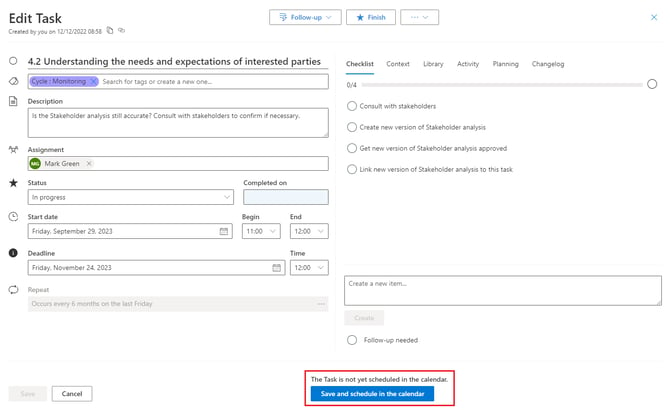
Once the task is saved, an appointment is created in the Outlook calendar of the person the task is assigned to.
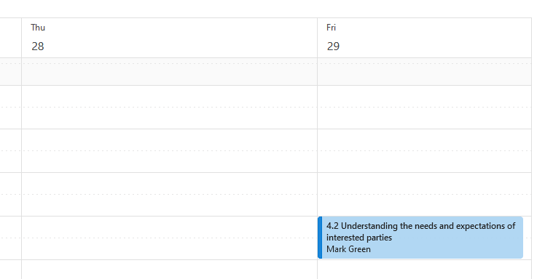
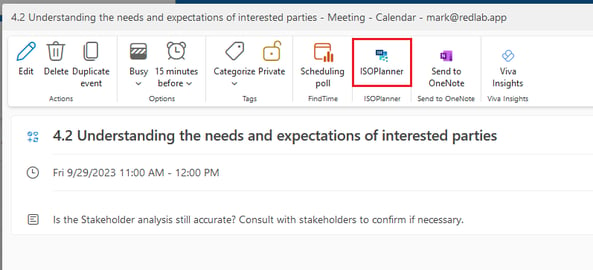
Open the appointment in Outlook and click the ISOPlanner icon to open the task panel.
The panel contains 3 tabs: Checklist, Library and Activity.
Checklist items can be marked as done or failed, in the Library linked documents are shown – and new documents can be added and in the Activity tab, notes can be left to be stored with the task.
If the task is not completed, next to a button “Finish” there are options to choose from, what the status of the task is and the chosen category will be reflected in the ISOPlanner task list.