
Every request to the AI Assistant uses AI credits from your organization's balance. Your subscription adds free credits every month; when you need more, an administrator adds a credit package to the subscription. This article explains how many credits you get, where you see what was used, how to buy a package and what happens when the credits run out.
In short: each AI request uses credits in proportion to the work the AI model does, and a run that fails is refunded. On the 1st of every month your organization receives the free credits of its subscription and, if it has one, the credits of its credit package. Credits are for one month: what is left at the end of the month does not carry over. A credit package comes in five tiers, is billed with your subscription, and can raise itself one tier when the credits run out (automatic upgrade). When the balance reaches zero, the AI features pause until credits are added or the next month begins.
Before you start
- The Basic, Business, Premium and NIS2 subscriptions include the AI Assistant and its monthly free credits. A Portal subscription has no AI.
- The AI Assistant is switched on for your organization and for your role. How to switch it on and who has it is in ISOPlanner AI Assistent.
- Everyone with the AI sees the balance in the AI panel. The usage list, the credit history and buying a credit package are for administrators.
- A credit package is part of a paid subscription: during the trial, choose a plan first.
1. How credits are used
Each AI request uses credits in proportion to the work the model does: a short answer costs a few credits, an AI audit of a control with its evidence many. A run that fails is refunded and shows as Refund of a failed AI run in the credit history. A chat answer you stop yourself keeps the credits of the part that was already done.
If your organization uses its own OpenAI or Anthropic models, your provider bills the model use. ISOPlanner then counts a fixed number of credits per request: 1 (Fast), 3 (Balanced) or 10 (Expert). See How to bring your own AI models.
2. The free credits of your subscription
On the 1st of every month your organization receives the free credits of its subscription. During the introduction, until 1 January 2027, it receives twice that amount: the months November and December 2026 are doubled. The credits of a package are not doubled.
| Subscription | Free credits per month | During the introduction (November and December 2026) |
|---|---|---|
| Basic | 1,000 | 2,000 |
| Business | 2,000 | 4,000 |
| Premium | 3,000 | 6,000 |
| NIS2 | 1,000 | 2,000 |
| Trial | 3,000 at the start of the trial | 6,000 at the start of the trial |
Credits are for the month: on the 1st, what is left of the month before expires, the free credits and the package credits alike, and the new month starts with its own credits.
3. See your credits and what was used
In the AI panel
The AI credits button in the AI panel shows the balance for everyone with the AI: how many credits are used this month, how many are left of the subscription and of the package, and when the credits reset. For example: "Used 38.47 of 6,000 credits this month. Unused credits do not carry over: they reset on Dec 1, 2026."
On the AI Assistant tab
Go to Administration > Settings > Automation, tab AI Assistant. The section AI Credit usage shows the same balance, the introduction notice and how many credits your subscription adds each month.
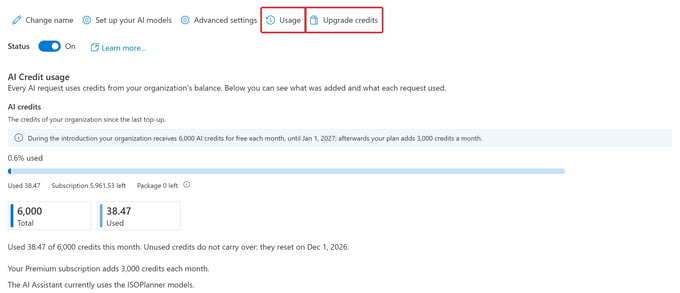
Click Usage to open Usage per AI request: one row per request, newest first.
| Column | What it shows |
|---|---|
| Date | When the request ran. |
| User | Who made the request. |
| Action | What the AI was asked to do. |
| Model | The model class that answered. A request on your own models is marked (own model). |
| Credits | The credits the request used. Not priced means no price is known for the request; it used no credits. |
4. Buy a credit package
An administrator opens the AI credit package in one of three places:
- Administration > Settings > Automation, tab AI Assistant, command Upgrade credits.
- Administration > Store, the card AI credits, button Choose a package.
- Administration > Subscription, the line AI credit package under Current subscription, button Choose a package or Change package.
The window shows the Current package: your subscription's own credits, the tier of the package if you have one, and the Total credits per month. Under Change package, choose a tier and click Subscribe (or Change package when you already have one). The tiers:
| Tier | Credits per month on top of your subscription's free credits |
|---|---|
| Tier 1 | 2,000 |
| Tier 2 | 4,000 |
| Tier 3 | 8,000 |
| Tier 4 | 16,000 |
| Tier 5 | 32,000 |
The list shows the price of each tier per month, or per year when your subscription is billed yearly. Before anything is charged, a confirmation names the credits you receive now and the amount your card is charged.
- The package is billed with your subscription, monthly or yearly like your plan. On a yearly subscription the price is per year and the credits are still added every month on the 1st.
- A higher tier is billed at once for the rest of the billing period and adds its extra credits for the rest of this month right away.
- A lower tier, or End package, takes effect on the 1st of next month. The unused part of what you paid is credited on your next invoice, and the credits of this month stay. Until then the window shows the planned change, and choosing the current tier again (Keep current package) undoes it.
The credit history
Below the package, Credit history lists what was added, with a Month total row per month: added, used, and what was not used and reset at the end of the month.
| Type | What it means |
|---|---|
| Monthly free credits | The free credits of your subscription, on the 1st. |
| Monthly package credits | The credits of your package, on the 1st. |
| Purchase | The credits for the rest of the month when you subscribe or choose a higher tier. |
| Automatic upgrade | The extra credits of a tier the package moved up to by itself. |
| Extra credits | An extra package at the highest tier (see below). |
| Refund of a failed AI run | The credits of a run that failed, given back. |
| Adjustment, Balance set | A change made by ISOPlanner support. |
| Shortfall written off | Credits used beyond zero, cleared when new credits were added. |
5. Automatic upgrade
With a package, the window has the switch Automatic upgrade. When it is on and the credits run out, the package moves up one tier by itself: the extra credits for the rest of the month are added at once, the difference is charged for the rest of the billing period, and from the next month the package has the full credits of the new tier. At Tier 5 there is no higher tier: an extra package is invoiced instead, for the rest of that month and pro rata, at most the credits of Tier 5.
- It happens at most once a month, without anyone confirming it. Switching it on asks you to confirm what the next step will be.
- It does not happen while a lower tier or the end of the package is planned, or while a payment of your subscription is outstanding.
- Every automatic upgrade and extra package is mailed to the administrators and license managers of your organization, and of the organization that pays the subscription if that is another one: the new tier or the extra package, the credits added and the amount charged.
6. When the credits run out
At zero the AI features pause: the assistant and the AI actions answer that your organization has used all its AI credits. A request that is already running finishes. The AI works again as soon as credits are added: an administrator buys a package or chooses a higher tier, the automatic upgrade adds them, or the next month's free credits arrive on the 1st.
Someone who is not an administrator can click Ask an admin to top up the credits under AI credits in the AI panel. The administrators of your organization get a mail, at most once a day.
Questions and troubleshooting
I do not see Usage or Upgrade credits
Both are for administrators. Ask an administrator of your organization to check the usage or to add credits. An organization with unlimited AI credits has nothing to buy, so Upgrade credits is not shown.
The window says the credit package is part of a paid subscription
Your organization is in its trial, or has no running plan. Choose a plan under Administration > Subscription first (Open the subscription); then you can add a credit package.
The window says credit packages for your organization are arranged by support
Your organization cannot buy a package itself, for example because it is billed differently. Contact ISOPlanner support.
The package credits did not arrive on the 1st
The last payment of your subscription did not go through; Administration > Subscription then says so. While a payment is outstanding, the package credits and the automatic upgrades wait until it is paid. The free credits of your subscription arrive as usual.
Credits I did not use are gone
Credits are for one month. On the 1st, what is left of the month before expires, and the month total in the credit history shows it as not used and reset.
The assistant says the credits are used up, and I am not an administrator
Click Ask an admin to top up the credits in the AI panel. "Your admins were already notified in the last 24 hours." means someone already asked today.
Our own AI models stopped answering
Requests to your own models use credits too, a fixed number per request. When the balance is zero they stop like the ISOPlanner models. Add credits, or wait for the next month.
I cannot move an organizational unit
A unit whose own AI credit package or integration subscriptions are billed with it, or with units below it, cannot be moved. End the AI credit package and the integration subscriptions of the unit and the units below it first, or ask support.