
This check verifies that your Cloudflare zones (domains) refuse visitors who connect with an outdated version of TLS, the encryption of HTTPS. TLS 1.0 and 1.1 have known weaknesses. It answers the question an auditor asks: do your websites accept only current encryption, and can you show that you keep checking?
In short: ISOPlanner reads the Minimum TLS Version setting of your Cloudflare zones with a read-only API token that you create in Cloudflare. A zone passes when its minimum is the version you choose, TLS 1.2 or TLS 1.3, or higher; TLS 1.0 and 1.1 always fail it. When one zone fails, the run is rejected and a task is created that says per zone what was found and what to do. Every scheduled run is kept as evidence and is linked to the controls named below. The check is one of the six checks of the Cloudflare app in the Store, and the six share one connection.
What the check verifies
Minimum TLS Version is the oldest TLS version a visitor may use. For every zone you select, the check compares it with the minimum you choose: TLS 1.2 (the default) or TLS 1.3. A zone passes when its minimum is that version or higher. The run is accepted when every evaluated zone passes.
| Framework | Controls this check gives evidence for |
|---|---|
| ISO 27001:2022 | A.8.20 Networks security, A.8.24 Use of cryptography |
| SOC 2 | CC6.7 Protection of information in transmission, movement and removal |
| NIS2 Quality Mark (High) | 4.8 Manage and secure networks, 4.12 Cryptography and Encryption |
When you add the check, ISOPlanner links it to the controls in this table of the frameworks your organization uses, and to the controls of your other frameworks that are related to them. A framework you add later is linked the same way. The NIS2 Quality Mark has three levels (Basic, Substantial and High) and your organization uses one of them; each NIS2 row names the levels it applies to. You can change the links. The check is evidence for these controls; it does not cover them completely.
Before you start
- Automated control monitoring is part of the Business and Premium subscriptions of ISOPlanner.
- The check belongs to the Cloudflare app. Add the app first: go to Administration > Store, click More info on the Cloudflare tile and then Start free trial. The trial takes 30 days and renews into a paid subscription unless you cancel it. If your organization already uses another Cloudflare check, this check is already there.
- You need a licensed manager or administrator role in ISOPlanner to add the app and to set up the check.
- The Minimum TLS Version setting and this check work on every Cloudflare plan, the Free plan included.
- Somebody must be able to create an API token for the Cloudflare account that owns the zones. A token can never read more than the person who creates it.
- To make a failing zone pass, somebody must be able to change the SSL/TLS settings of the zone. Check first that the visitors you need, such as old devices, support the new minimum.
The token is read-only and needs these permissions, for all zones of the account:
| Permission | Why |
|---|---|
| Zone > Zone > Read | Lists your zones. Needed by every Cloudflare check. |
| Zone > Zone Settings > Read | Reads the Minimum TLS Version. Also needed to test the connection, and by the other TLS and HTTPS checks. |
The Connect Cloudflare dialog also lists Zone > DNS > Read and Zone > Zone WAF > Read: add them if you use Cloudflare DNSSEC or Cloudflare rate limiting rules.
1. Connect Cloudflare
You connect once. All six Cloudflare checks use the same connection.
- Go to Administration > Settings > Automation, open the tab Control monitoring and click the card Cloudflare minimum TLS version.
- Under Authorization click Connect Cloudflare. Use Create a user API token or Create an account API token to open Cloudflare, create a custom token with the permissions above, and copy it. Cloudflare shows the token only once.
- Enter the Cloudflare account id (the 32 character code in the address of the Cloudflare dashboard) and the API token, and click Save and test connection.
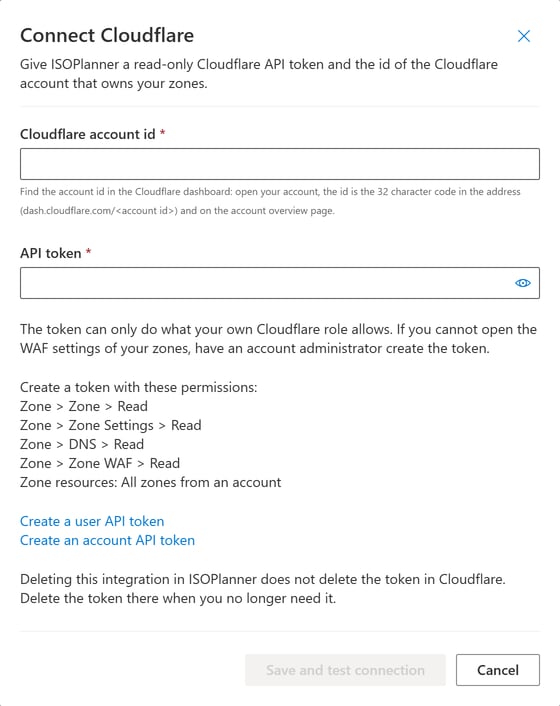
ISOPlanner stores the token encrypted and never shows it again. To replace it, click Edit Cloudflare connection and paste the new token; an empty field keeps the stored one. To end the access, delete the token in Cloudflare (My Profile > API Tokens).
2. Set the options
Zones
Click Test under Test and manage results, then Options.
| Option | What it does |
|---|---|
| All zones of the account | The default. Every active zone is checked, also a zone you add to Cloudflare later. |
| Zones to leave out | With all zones: the zones that are not checked, at most 100 names. Record why you leave a zone out. |
| Selected zones | Only the zones you name are checked, at least 1 and at most 100. A new zone is not checked until you add it here. |
A run evaluates at most 200 zones. A zone that is not active in Cloudflare yet is skipped and listed under the result; it does not fail the check.
Options
The options are in a row above the result, in the same dialog.
| Option | What it does |
|---|---|
| Minimum accepted version | TLS 1.2 by default, or TLS 1.3. A zone passes when its minimum is this version or higher. |
3. Test and read the result
The test starts when you open the dialog; Run starts it again after you change the zones or the minimum. A test shows the result and stores nothing.
| Column | What it shows |
|---|---|
| Zone | The domain. |
| Plan | The Cloudflare plan of the zone. |
| Found | The oldest version the zone accepts, for example TLS 1.2. |
| Expected | The version you chose, for example TLS 1.2 or higher. |
| Result | Whether the zone passes. |
Above the table a line sums up the result, for example "1 of 1 zones require TLS 1.2 or higher". When every zone passes, Run outcome: shows Evidence Accepted.
4. Schedule and switch on
- In the test dialog choose the Incident response template: the task template ISOPlanner uses when a run is rejected. Give the template an assignee.
- Under Set a schedule click Schedule. The check can run daily at most.
- Under Status switch the check to Active.
From then on every run stores Evidence Accepted or Evidence Rejected. A rejected run creates a task from the template with one checklist item per failing zone: what was found and where to change it. How the results show in the annual plan, on dashboards and on the controls is in Automated Control Monitoring.
The statuses at a glance
Minimum TLS version per zone
| Found | Meaning | What to do |
|---|---|---|
| TLS 1.0 | Every version is accepted, also the outdated ones. The zone fails. | Raise the minimum (SSL/TLS > Edge Certificates > Minimum TLS Version). |
| TLS 1.1 | An outdated version is still accepted. The zone fails. | Raise the minimum to TLS 1.2 or higher. |
| TLS 1.2 | The zone passes when you chose TLS 1.2, and fails when you chose TLS 1.3. | Raise it to TLS 1.3 if you require that. |
| TLS 1.3 | Only the current version is accepted. The zone passes. | Nothing. |
| Unknown | Cloudflare returned a value the check does not know. The zone fails. | Look at the setting in Cloudflare. |
| Not readable | The token could not read this zone. The zone fails. | Add Zone > Zone Settings > Read to the token in Cloudflare. |
The outcome of a run and the status of the check
| Status | Meaning |
|---|---|
| Evidence Accepted | Every evaluated zone passed. |
| Evidence Rejected | At least one zone failed, no zone could be evaluated, or not every zone could be read. |
| Active | The check runs on its schedule. |
| Needs Attention | The check is switched on but the Cloudflare connection is not authorized, for example because the token expired or was deleted. |
| Disabled | The check does not run. This is the status right after you add the app. |
Questions and troubleshooting
A zone fails with TLS 1.0 or TLS 1.1
Raise the minimum under SSL/TLS > Edge Certificates > Minimum TLS Version to at least the version you chose in the check.
A zone with TLS 1.2 fails
You chose TLS 1.3 as the minimum. Raise the zone to TLS 1.3, or choose TLS 1.2 in the check if that is your policy.
The zone passes, but one hostname still accepts TLS 1.0
A minimum set for one hostname with Advanced Certificate Manager overrides the zone setting, which is all the check reads. Check those hostnames yourself and record how.
Cloudflare refused the request: the token lacks Zone Read or Zone Settings Read
Every Cloudflare connection needs both permissions. Add the one the message names to the token in Cloudflare (My Profile > API Tokens), then click Save and test connection again; you do not need a new token.
Cloudflare does not accept the API token, or it is not valid for the account
The token is invalid, expired or deleted, or it belongs to another account than the account id. A stored token that stops working puts all Cloudflare checks on Needs Attention. Enter a new token or the right account id with Edit Cloudflare connection.
The token sees no zones of this Cloudflare account
The account id belongs to another account than the token, or the token has no Zone Read on the zones. The message names the accounts in which the token does see zones.
A zone is listed under "Zones not found" or "Skipped zones"
Not found: a zone under Selected zones is not in the account or not visible to the token; the run is rejected until you correct or remove the name. Skipped: the zone is not active in Cloudflare yet, usually because the nameservers at the registrar do not point to Cloudflare; it does not fail the run.
Only the first 200 zones were evaluated
A run evaluates at most 200 zones, and a run that could not read every zone is rejected. Choose Selected zones, or leave zones out, so that at most 200 remain.
I cannot delete the check
A check of an app you subscribe to cannot be removed, only switched to Disabled. To stop paying for the Cloudflare app, cancel it in the Store. Cancelling in ISOPlanner does not delete the token in Cloudflare: delete it there yourself.
Related articles
- Automated Control Monitoring: how control monitoring works, the trial and the price, the annual plan and the dashboards
- Store
- Cloudflare origin TLS is strict
- Cloudflare TLS 1.3 is enabled
- Cloudflare redirects HTTP to HTTPS
- Cloudflare rate limiting rules
- Cloudflare DNSSEC