
This check looks for successful logins to your HubSpot portal from countries where your people do not work. Such a login can mean that a password was stolen and used elsewhere. The check answers the question an auditor asks about monitoring: do you watch who gets into your CRM, and do you act on what is out of the ordinary?
In short: ISOPlanner reads the users and the login history of your HubSpot portal through the ISOPlanner app in HubSpot, with read-only access that a HubSpot admin approves once. A user passes when every successful login in the period you choose came from a country on your allowed list. When one user fails, the run is rejected and a task is created that lists the user, the country and the logins, and what to do. Every scheduled run is kept as evidence and is linked to the controls named below. The check is one of the four checks of the HubSpot app in the Store, and the four share one connection.
What the check verifies
HubSpot records the country of every login. The check takes the successful logins of the last days you set and compares the country of each with your allowed countries. Every combination of a user and a country that is not allowed is a finding, with the number of logins and the last one. Failed logins and logins without a country are not findings. The run is accepted when no finding remains after the exemptions and every login could be read.
| Framework | Controls this check gives evidence for |
|---|---|
| ISO 27001:2022 | A.5.15 Access control, A.8.16 Monitoring activities |
| SOC 2 | CC6.6 Protection against threats from outside the system boundaries, CC7.2 Monitoring for anomalies |
| NIS2 Quality Mark (Substantial and High) | 3.9 Defining Access Control, 4.11 Log files |
| NIS2 Quality Mark (Basic) | 3.9 Defining Access Control |
When you add the check, ISOPlanner links it to the controls in this table of the frameworks your organization uses, and to the controls of your other frameworks that are related to them. A framework you add later is linked the same way. The NIS2 Quality Mark has three levels (Basic, Substantial and High) and your organization uses one of them; each NIS2 row names the levels it applies to. You can change the links. The check is evidence for these controls; it does not cover them completely.
Before you start
- Automated control monitoring is part of the Business and Premium subscriptions of ISOPlanner.
- The check belongs to the HubSpot app. Add the app first: go to Administration > Store, click More info on the HubSpot tile and then Start free trial. The trial takes 30 days and renews into a paid subscription unless you cancel it. If your organization already uses another HubSpot check, this check is already there.
- You need a licensed manager or administrator role in ISOPlanner to add the app and to set up the check.
- The check works with every HubSpot subscription, the free tools included. HubSpot keeps 90 days of login history.
- The person who connects HubSpot must be a Super Admin in HubSpot, or have the App Marketplace access permission.
- To act on a finding, somebody must be able to reset a user's password and sessions or deactivate the user in HubSpot (Settings > Users & Teams).
The ISOPlanner app asks HubSpot for these read-only permissions:
| Permission | Why |
|---|---|
| settings.users.read | Lists the users, to show the name and email of each finding. |
| account-info.security.read | Reads the login history with the country of every login. |
| oauth | Required by HubSpot for the connection itself. |
1. Connect HubSpot
You connect once. All four HubSpot checks use the same connection.
- Go to Administration > Settings > Automation, open the tab Control monitoring and click the card HubSpot logins from unexpected countries.
- Under Authorization click Connect HubSpot. A HubSpot window opens. Sign in, choose the HubSpot account to connect and review the access ISOPlanner asks for.
- HubSpot shows the window Connecting an unverified app, because the ISOPlanner app is not listed in the HubSpot App Marketplace yet. The window names api.isoplanner.app as the redirect domain. Type I accept the risk and click Connect.
- The window closes, ISOPlanner tests the connection and reports that HubSpot is connected.
ISOPlanner gets read access only; it cannot change anything in HubSpot. It stores the authorization encrypted and never shows it. To connect another HubSpot account, click Reconnect HubSpot. To disconnect, remove the ISOPlanner app in HubSpot under Settings > Integrations > Connected apps; the HubSpot checks then show Needs Attention until you connect again.
2. Set the options
The options are at the top of the test dialog: click Test under Test and manage results.
| Option | What it does |
|---|---|
| Look back (days) | 30 by default, from 1 to 90. The period of logins the check reads. The maximum is 90 because HubSpot keeps 90 days of login history. |
| Allowed countries | NL, BE, DE by default. A comma-separated list of 2-letter country codes (ISO 3166-1), at least 1 and at most 50, each once. |
You can exempt at most 200 users. A run reads at most 5,000 users and 5,000 logins; the list in the result shows at most 100 findings. ISOPlanner stores the country of a login, never its IP address or device.
3. Test and read the result
Click Run to start the test. A test shows the result and stores nothing. Changed options are saved when you click Run or Save.
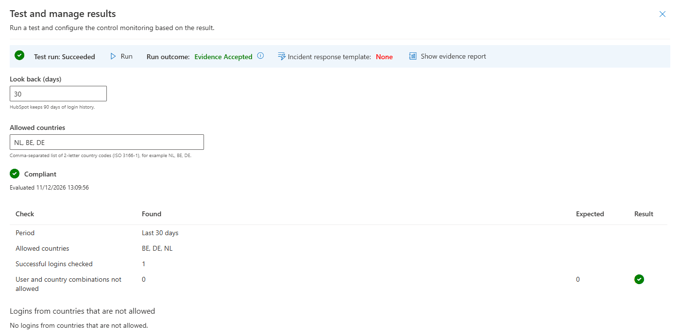
| Column | What it shows |
|---|---|
| Check | Period, Allowed countries, Successful logins checked, User and country combinations not allowed and, when there are any, Logins without a country (not checked). |
| Found | The value read from HubSpot. |
| Expected | For the combinations not allowed: 0. |
| Result | Whether the row passes. |
Below the table, the list Logins from countries that are not allowed shows each finding with Name, Email, Country, Logins, Last login and Exempt. Select a user and click Exempt to allow the user every country; Remove exemption undoes it.
In this example one successful login was checked and it came from an allowed country, so the result reads Compliant and Run outcome: is Evidence Accepted.
4. Schedule and switch on
- In the test dialog choose the Incident response template: the task template ISOPlanner uses when a run is rejected. Give the template an assignee.
- Under Set a schedule click Schedule. The check can run daily at most.
- Under Status switch the check to Active.
From then on every run stores Evidence Accepted or Evidence Rejected. A rejected run creates a task from the template with one checklist item that lists every user and country found: what was found and where to change it. How the results show in the annual plan, on dashboards and on the controls is in Automated Control Monitoring.
The statuses at a glance
Country per login
| Found | Meaning | What to do |
|---|---|---|
| An allowed country | The login passes and is not listed. | Nothing. |
| Another country | A finding: the user and the country are listed with the number of logins and the last one. The user fails. | Check the logins with the user. If nobody recognizes them, reset the password and sessions or deactivate the user. |
| No country | HubSpot recorded no country. The login is counted but not checked. | Nothing. |
| Exempt Yes | You exempted the user. None of the user's countries count. | Review your exemptions now and then. |
The outcome of a run and the status of the check
| Status | Meaning |
|---|---|
| Evidence Accepted | No successful login in the period came from a country you do not allow. |
| Evidence Rejected | At least one user logged in from a country you do not allow, or not every login could be read. |
| Active | The check runs on its schedule. |
| Needs Attention | The check is switched on but the HubSpot connection is not authorized, for example because the ISOPlanner app was removed from HubSpot. |
| Disabled | The check does not run. This is the status right after you add the app. |
Questions and troubleshooting
A user logged in from another country while on a trip or through a VPN
HubSpot records the country of the network, so a VPN can show another country than where the user is. Confirm it with the user. Exempt a user who works abroad on purpose; add a country your people work from to Allowed countries.
Nobody recognizes a login
Treat it as an incident. Reset the user's password and sessions in HubSpot (Settings > Users & Teams) or deactivate the user, and handle the task through your incident process.
The result says not all items were evaluated
The portal has more than 5,000 users or logins in the history HubSpot keeps, and the check read only that many. A login from another country may be in the part that was not read, so the run is never accepted. Contact the ServiceDesk if your portal is that large.
HubSpot refused the request (HTTP 403)
The connection lacks a permission the check needs; the message names it. Click Reconnect HubSpot and approve all the access the ISOPlanner app asks for.
HubSpot authorization was revoked or expired. Connect HubSpot again.
The ISOPlanner app was removed from HubSpot, or HubSpot no longer accepts its authorization. All four HubSpot checks show Needs Attention. Click Connect HubSpot or Reconnect HubSpot and connect again.
I cannot connect the ISOPlanner app in HubSpot
Only a Super Admin, or a user with the App Marketplace access permission, can connect an app: ask such a user to connect. If ISOPlanner says the browser blocked the sign-in window, allow pop-ups for ISOPlanner. If it says the authorization took too long, start again and finish within ten minutes.
Configuration must be valid before a test run can start.
Look back (days) is outside 1 to 90, or Allowed countries holds a code that is not two letters, a code twice or more than 50 codes. Correct it and click Run.
I cannot delete the check
A check of an app you subscribe to cannot be removed, only switched to Disabled. To stop paying for the HubSpot app, cancel it in the Store. Cancelling in ISOPlanner does not remove the ISOPlanner app from HubSpot: remove it there under Settings > Integrations > Connected apps.
Related articles
- Automated Control Monitoring: how control monitoring works, the trial and the price, the annual plan and the dashboards
- Store
- HubSpot inactive user accounts
- HubSpot data hosting location
- HubSpot super admin count