
This check verifies that the logs you need to investigate an incident are on and kept long enough. It answers the auditor's question: is logging on, is it kept as long as your policy says, and can you show that you keep checking?
In short: ISOPlanner reads your Azure through a read-only access identity that your cloud administrator creates in your own Azure. A log passes when it is sent to a workspace or storage account that keeps it at least your minimum number of days. When one log fails, the run is rejected and a task is created that says per log what was found and what to do. Every scheduled run is kept as evidence and is linked to the controls named below. The check is one of the four checks of the Microsoft Azure app in the Store, and the four share one connection.
What the check verifies
The check requires auditing on every Azure SQL server, the HTTP logs of every running web app (not function apps) and the activity log of every subscription, categories Administrative and Security. It reads where each log goes and how long it is kept. A log passes when it is kept at least the minimum; exactly the minimum and unlimited pass. A retention ISOPlanner cannot see is a warning. The run is accepted when no log fails. ISOPlanner never reads log contents.
| Framework | Controls this check gives evidence for |
|---|---|
| ISO 27001:2022 | A.8.15 Logging |
| SOC 2 | CC7.2 Monitoring for anomalies |
| NIS2 Quality Mark (Substantial and High) | 4.11 Log files |
When you add the check, ISOPlanner links it to the controls in this table of the frameworks your organization uses, and to the controls of your other frameworks that are related to them. A framework you add later is linked the same way. The NIS2 Quality Mark has three levels (Basic, Substantial and High) and your organization uses one of them; each NIS2 row names the levels it applies to. You can change the links. The check is evidence for these controls; it does not cover them completely.
Before you start
- Automated control monitoring is part of the Business and Premium subscriptions of ISOPlanner.
- The check belongs to the Microsoft Azure app. Add the app first: go to Administration > Store, click More info on the Microsoft Azure tile and then Start free trial. The trial takes 30 days and renews into a paid subscription unless you cancel it. If your organization already uses another Microsoft Azure check, this check is already there.
- You need a licensed manager or administrator role in ISOPlanner to add the app and to set up the check.
- The check works on every Azure subscription. For the activity log, the role must be assigned on the subscription itself.
- A cloud administrator with Owner on the subscriptions sets up the access from a setup link you send; they need no ISOPlanner account.
- To make a failing log pass, somebody must be able to change diagnostic settings and retention.
The access holds a custom role with read actions only. This check needs:
| Permission | Why |
|---|---|
Microsoft.Resources/subscriptions/read, Microsoft.Resources/subscriptions/resourceGroups/read, Microsoft.Authorization/permissions/read | Lists what the identity can read. Needed by every Azure check. |
Microsoft.Sql/servers/read, Microsoft.Sql/servers/administrators/read | Reads the Azure SQL servers. Also needed by the databases check. |
Microsoft.Sql/servers/auditingSettings/read, Microsoft.Web/sites/read, Microsoft.Insights/diagnosticSettings/read, Microsoft.OperationalInsights/workspaces/tables/read | Reads auditing, web apps, log destinations and workspace retention. Needed by this check only. |
1. Connect Microsoft Azure
You connect once. All four Microsoft Azure checks use the same connection.
- Go to Administration > Settings > Automation, open the tab Control monitoring and click the card Microsoft Azure: logs are kept.
- Under Authorization click Set up. In the Azure access dialog, under Also ask access for other checks? (optional), keep the Azure checks you may turn on later and click Create setup link.
- Click Copy or Share by email and send the link to your cloud administrator. It is valid for 7 days.
- Your cloud administrator follows the link, creates a managed identity with the read-only role in your Azure and pastes two ids back (Give ISOPlanner read-only access to Azure).
- The access shows Applying for up to 15 minutes, then Connected. You get an email either way.
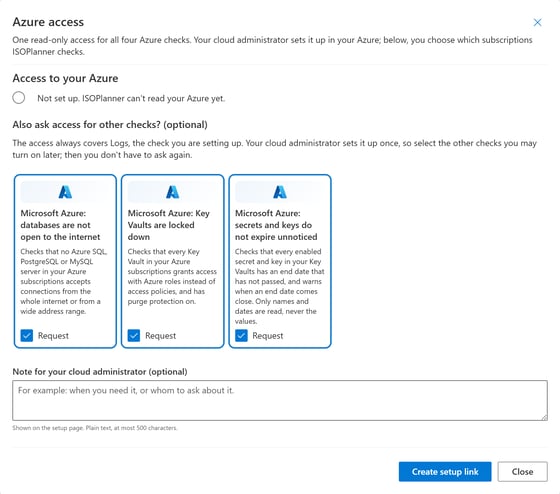
ISOPlanner holds no password, key or secret for your Azure. To change what it reads, click Manage access, then Send a new setup link. To disconnect, your cloud administrator deletes the managed identity.
2. Choose the subscriptions
Subscriptions
Set once for all four Azure checks: Manage access, under What ISOPlanner checks.
| Option | What it does |
|---|---|
| In scope | On by default for every readable subscription, also a new one. Switch it off for one outside your management system and give the Reason for excluding. |
| Resource groups | All resource groups by default. Click it to exclude groups, such as a test environment. |
Click Save scope. A run checks at most 50 subscriptions; at most 200 resource groups can be excluded per subscription. With access limited to some resource groups, a new group is not checked until ISOPlanner gets access.
Options
Click Test under Test and manage results, then Options. A change applies after you save the check.
| Option | What it does |
|---|---|
| Minimum retention in days | 90 by default, from 1 to 4383. How long your policy says logs must be kept; exactly this number passes. |
3. Test and read the result
The test starts when you open the dialog; Run starts it again after you change the options. A test shows the result and stores nothing.
| Column | What it shows |
|---|---|
| Resource | The SQL server, web app or subscription. |
| Log | Database auditing, HTTP logs or Activity log. |
| Subscription | Its subscription. |
| Sent to | Log Analytics, Storage account, Event Hub or None. |
| Kept | The number of days, Unlimited or Not kept. |
| State | What the check found; point at it for what to do. |
Logs that meet the rule are counted under the table; Show all lists them. When no log fails, Run outcome: is Evidence Accepted; one log that is not kept, for example a web app that sends its HTTP logs nowhere, makes it Evidence Rejected.
4. Schedule and switch on
- In the test dialog choose the Incident response template: the task template ISOPlanner uses when a run is rejected. Give the template an assignee.
- Under Set a schedule click Schedule. The check can run daily at most.
- Under Status switch the check to Active.
From then on every run stores Evidence Accepted or Evidence Rejected. A rejected run creates a task from the template with one checklist item per failing log: what was found and where to change it. How the results show in the annual plan, on dashboards and on the controls is in Automated Control Monitoring.
The statuses at a glance
State per log
| Found | Meaning | What to do |
|---|---|---|
| Meets the rule | Kept at least the minimum. Passes. | Nothing. |
| Not logged | Off or sent nowhere. Fails. | Turn on auditing, or add a diagnostic setting to a workspace or storage account. |
| Kept too short | Kept fewer days than the minimum. Fails. | Raise the retention. |
| Confirm manually | Sent to an Event Hub, or to storage without a retention rule. A warning. | Confirm the retention, or add a lifecycle rule. |
| Could not check | The subscription, the destination workspace or the activity log export could not be read. Fails. | Restore read access, or exclude the subscription. |
| No longer readable | A resource group read before is gone or unreadable. Fails. | Restore access, or exclude it. |
| Accepted until a date | You accepted the finding until then. | Fix it before the date. |
The outcome of a run and the status of the check
| Status | Meaning |
|---|---|
| Evidence Accepted | No log failed, or there was nothing to check. |
| Evidence Rejected | At least one log failed, or something could not be read (see the questions below). |
| Active | The check runs on its schedule. |
| Needs Attention | The check is switched on but the Microsoft Azure connection is not authorized, for example because the access was revoked. |
| Disabled | The check does not run. This is the status right after you add the app. |
Questions and troubleshooting
The activity log shows Could not check
The role is assigned on resource groups only, so ISOPlanner cannot see the export. Have it assigned on the subscription, or confirm the export yourself.
A log must stay as it is for a while
Select its row, click Accept until..., choose an end date at most 6 months away, give the reason and save the check. A check holds at most 50 acceptances; each covers only the state it was given for.
The result says "This check needs reads that ISOPlanner's Azure role doesn't have yet"
The access was set up without this check. Click Update access under Authorization and send the new link to your cloud administrator. When only some reads are missing, the panel names the parts, such as "PostgreSQL not checked: no read access", and the check runs on the rest.
The result says "Azure is not connected, so nothing was checked"
No access was set up, or Azure refuses ISOPlanner because the managed identity or its trust was deleted (Access revoked): click Set up again and send the link. With Setup failed the dialog names the reason; the setup article explains each one. When the dialog says access can't be set up on this ISOPlanner environment yet, or names a problem on ISOPlanner's side, nothing in your Azure needs to change.
Test is greyed out
The access is not Connected yet. Finish step 1 first.
The result says "ISOPlanner cannot read any Azure subscription", or a subscription shows Could not check
The role or its assignment is missing or was removed. Have it restored, then click Test connection in the Azure access dialog; or exclude the subscription. Such a row cannot be accepted.
The result says "The scope on the connection can't be used"
More than 50 subscriptions are in scope, or an exclusion has no reason. Correct it and click Save scope.
I cannot delete the check
A check of an app you subscribe to cannot be removed, only switched to Disabled. To stop paying for the Microsoft Azure app, cancel it in the Store. The access stays in Azure until your cloud administrator deletes the managed identity, the role assignment and the custom role.
Related articles
- Automated Control Monitoring: how control monitoring works, the trial and the price, the annual plan and the dashboards
- Give ISOPlanner read-only access to Azure: the setup for your cloud administrator
- Store
- Microsoft Azure: databases are not open to the internet
- Microsoft Azure: Key Vaults are locked down
- Microsoft Azure: secrets and keys do not expire unnoticed