
This check verifies that every member and outside collaborator of your GitHub organization signs in with secure two-factor authentication, and that the organization requires it. The list of accounts also serves as a review of who has access to your code. It answers the question an auditor asks: is access to your code protected by more than a password, and can you show that you keep checking?
In short: ISOPlanner reads the members, the outside collaborators and the two-factor setting of your organization through the ISOPlanner GitHub App, which an owner of your organization installs with read-only permissions. The run passes when no account without an exemption lacks secure two-factor authentication and, by default, the organization requires it. Otherwise the run is rejected and a task is created that names the accounts and what to do. Every scheduled run is kept as evidence and is linked to the controls named below. The check is one of the six checks of the GitHub app in the Store; five of them share one connection.
What the check verifies
The check reads the members of the organization and, by default, its outside collaborators. An account fails without two-factor authentication or with an insecure method such as SMS only, unless you exempted it with a reason. By default the organization setting Require two-factor authentication must be on too. The run is accepted when no account fails and that setting holds.
| Framework | Controls this check gives evidence for |
|---|---|
| ISO 27001:2022 | A.5.16 Identity management, A.5.17 Authentication information, A.5.18 Access rights, A.5.23 Information security for use of cloud services, A.8.2 Privileged access rights, A.8.5 Secure authentication |
| SOC 2 | CC6.1 Logical access security, CC6.2 Registering users and removing their credentials, CC6.3 Role-based access and least privilege, CC6.6 Protection against threats from outside the system boundaries |
| NIS2 Quality Mark (Basic, Substantial and High) | 4.10 Implement authentication methods |
When you add the check, ISOPlanner links it to the controls in this table of the frameworks your organization uses, and to the controls of your other frameworks that are related to them. A framework you add later is linked the same way. The NIS2 Quality Mark has three levels (Basic, Substantial and High) and your organization uses one of them; each NIS2 row names the levels it applies to. You can change the links. The check is evidence for these controls; it does not cover them completely.
Before you start
- Automated control monitoring is part of the Business and Premium subscriptions of ISOPlanner.
- The check belongs to the GitHub app. Add the app first: go to Administration > Store, click More info on the GitHub tile and then Start free trial. The trial takes 30 days and renews into a paid subscription unless you cancel it. If your organization already uses another GitHub check, this check is already there.
- You need a licensed manager or administrator role in ISOPlanner to add the app and to set up the check.
- An organization on GitHub.com: personal accounts and GitHub Enterprise Server are not supported. The check works on every GitHub plan.
- An owner of the GitHub organization installs the ISOPlanner GitHub App and connects it in ISOPlanner; anyone else is refused.
- To make the organization require two-factor authentication, an owner turns it on (organization Settings > Authentication security). GitHub then removes the members who do not use it, so let them set it up first.
The app asks for these permissions, all read-only, in one set:
| Permission | Why |
|---|---|
| Repository: Administration (read) | Reads the branch protection rules. |
| Repository: Metadata (read) | Lists the granted repositories and reads the active rulesets. |
| Organization: Members (read) | Lists the members and outside collaborators, and confirms that you are an owner when you connect. |
| Organization: Administration (read) | Reads whether the organization requires two-factor authentication. Needed by this check only. |
1. Connect GitHub
You connect once. Five of the six GitHub checks use the same connection, the ISOPlanner GitHub App; GitHub CODEOWNERS file exists has one of its own.
- Go to Administration > Settings > Automation, open the tab Control monitoring and click the card GitHub two-factor authentication is enforced.
- Under Authorization click Connect GitHub, then Continue to GitHub.
- Sign in on GitHub as an owner. If the app is not installed yet, choose the organization, all or selected repositories, and approve the read permissions.
- GitHub returns you to ISOPlanner, and the dialog says that it is connected to your GitHub organization.
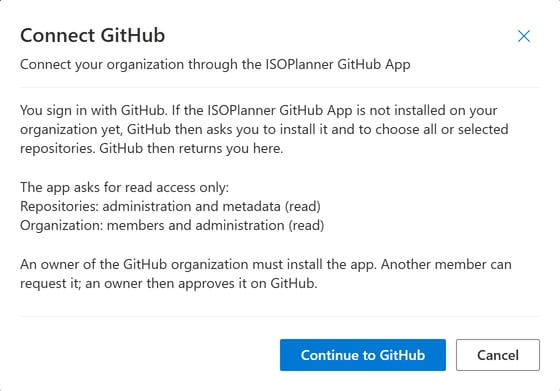
Finish on GitHub within 15 minutes. ISOPlanner stores no password or token, only the installation. To change which repositories the app sees, or to remove it, click Manage on GitHub; Reconnect GitHub connects again.
2. Set the options
Click Test under Test and manage results, then Options.
| Option | What it does |
|---|---|
| The organization must require two-factor authentication | On by default. The organization setting Require two-factor authentication must be on. |
| An insecure 2FA method is not compliant | On by default. An account with an insecure method, such as SMS only, fails. Off: such an account shows as Secure. |
| Include outside collaborators | On by default. People with access to repositories who are not members are checked too. |
| A checklist item per account | Off by default: one checklist item lists the accounts that do not comply. |
To exempt an account such as a bot, select it in the result, click Exempt selected and enter a Reason (at most 200 characters); Remove exemption ends it. At most 50 accounts can be exempted. The result lists at most 500 accounts, failing ones first.
3. Test and read the result
The test starts when you open the dialog; Run starts it again after you change the options or the exemptions. A test shows the result and stores nothing.
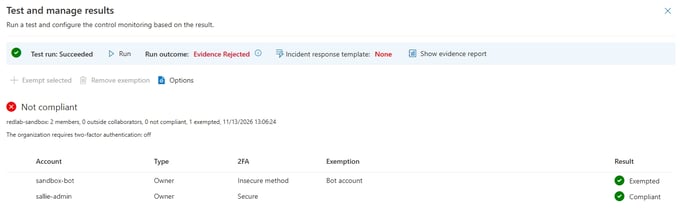
| Column | What it shows |
|---|---|
| Account | The GitHub login. |
| Type | Owner, Member or Outside collaborator. |
| 2FA | Secure, Disabled or Insecure method. |
| Exemption | The reason of an exemption. |
| Result | Compliant, Not compliant or Exempted. |
Above the table the result reads Compliant or Not compliant, with the number of members, outside collaborators, failing and exempted accounts, and whether the organization requires two-factor authentication.
In this example both accounts pass, one as an exempted bot, but the organization does not require two-factor authentication: Not compliant, and Run outcome: is Evidence Rejected.
4. Schedule and switch on
- In the test dialog choose the Incident response template: the task template ISOPlanner uses when a run is rejected. Give the template an assignee.
- Under Set a schedule click Schedule. The check can run daily at most.
- Under Status switch the check to Active.
From then on every run stores Evidence Accepted or Evidence Rejected. A rejected run creates a task from the template with a checklist item for the organization setting when it is off, and one item that lists the accounts that fail (one item per account with A checklist item per account on). How the results show in the annual plan, on dashboards and on the controls is in Automated Control Monitoring.
The statuses at a glance
Two-factor authentication per account
| Found | Meaning | What to do |
|---|---|---|
| Secure | The account uses secure two-factor authentication. It passes. | Nothing. |
| Disabled | No two-factor authentication. It fails, unless exempted. | Ask the person to turn it on in their GitHub settings, or exempt a bot with a reason. |
| Insecure method | An insecure method, such as SMS only. It fails while an insecure method is not compliant. | Ask the person to add an authenticator app or a security key. |
The outcome of a run and the status of the check
| Status | Meaning |
|---|---|
| Evidence Accepted | No account fails and, when the option asks for it, the organization requires two-factor authentication. |
| Evidence Rejected | An account fails, the organization does not require two-factor authentication while the option asks for it, or a list of accounts was too long to read completely. |
| Active | The check runs on its schedule. |
| Needs Attention | The check is switched on but the GitHub connection is not authorized, for example because the app was removed or suspended, or a new permission was not accepted. |
| Disabled | The check does not run. This is the status right after you add the app. |
Questions and troubleshooting
The check fails although everyone uses two-factor authentication
Look at the line "The organization requires two-factor authentication". If it is off, an owner turns on Require two-factor authentication on GitHub, or you switch off The organization must require two-factor authentication and record why.
A bot account has no two-factor authentication
Exempt it with Exempt selected and a reason. Review the exemptions now and then: an exempted account never fails.
The check needs attention and GitHub listed no members
GitHub answers an app that misses a permission with an empty list, and ISOPlanner treats that as a connection problem, never as compliant. An owner accepts the pending permission request of the app on GitHub; then test again.
Every exempted account needs a reason.
Enter a reason of at most 200 characters for each exempted account.
Only an owner of the GitHub organization can connect it to ISOPlanner.
A member can only request the installation. An owner approves it on GitHub and clicks Connect GitHub.
The app was installed on a personal GitHub account.
Install it on your organization instead.
This GitHub installation could not be matched to your request.
The steps on GitHub took over 15 minutes or were started by someone else. Click Connect GitHub again.
The app is no longer installed, is suspended, or asks for a permission that was not accepted
The check shows Needs Attention. An owner fixes it on GitHub (Open on GitHub in the dialog), then tests the connection again.
I cannot delete the check
A check of an app you subscribe to cannot be removed, only switched to Disabled. To stop paying for the GitHub app, cancel it in the Store. The ISOPlanner GitHub App stays installed until an owner uninstalls it on GitHub (organization Settings > GitHub Apps).
Related articles
- Automated Control Monitoring: how control monitoring works, the trial and the price, the annual plan and the dashboards
- Store
- GitHub branch protection is enforced
- GitHub version control is used
- GitHub force pushes are blocked
- GitHub pull requests need review
- GitHub CODEOWNERS file exists